These shortcuts may seem harmless, especially since the connection is established within minutes, but they offer attackers searching the internet for accessible RDP services the opportunity to strike. Many ransomware attacks do not start with sophisticated hacking, but with insecure remote access services. Fortunately, secure remote access does not necessarily mean that your network or computer is vulnerable to anyone who finds your public IP address. This guide shows you how to access remote devices more securely while maintaining network security. Beginners should not focus on complex enterprise-level solutions, but instead explore how secure remote access works, the issues with certain methods, and which methods offer a good balance between convenience and security.
Why Internet-Exposed Remote Desktop Is Risky
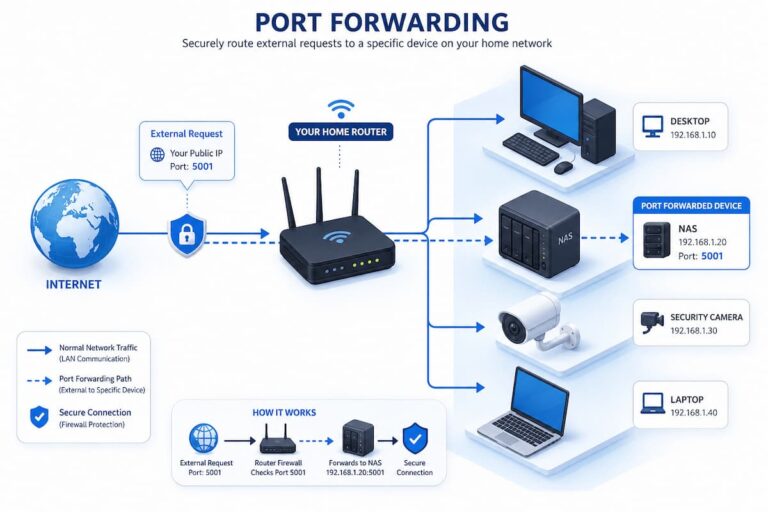
Many home routers support port forwarding. This allows internet traffic to reach local network devices. While this feature can be useful, forwarding Remote Desktop Protocol (RDP) ports makes it possible for anyone on the internet to access the service. Programs that scan for Remote Desktop devices will also scan your computer. The person using the keyboard may not have the skills to operate these scanners. Many automated systems record software versions, identify open ports, and try thousands of username and password combinations. Weak passwords, commonly used credentials, or outdated software can quickly turn remote access into a vulnerable point.
Even with strong passwords, exposing unnecessary services increases your attack surface. Security experts recommend limiting access to public services as much as possible. All services connected to the internet must be monitored, updated, and protected against new security vulnerabilities. By reducing exposure, you can prevent attacks from reaching your device. Automated or brute-force password attacks pose another problem. These attacks can last for days or even weeks without the user noticing. Operating systems offer account locks and other security features, but these should never be the primary defense.
Meaning of Secure Remote Access
Many beginners think that secure remote access simply means encrypted connections. Encryption protects data transmitted over the internet, but security goes much further than that. Secure remote access solutions authenticate users, restrict access rights to the system, encrypt all communication, log activities, and reduce exposure to the public internet. Secure systems create trusted paths that are accessible only to authorized users, rather than giving everyone access to the computer.
Imagine visiting an office building. Visitors must identify themselves, the front door is locked, security cameras monitor the entrance, and only authorized personnel have access cards. Closing one office door does not protect the entire building if all exterior doors are open. A similar principle applies to computer networks. Strong security requires multiple layers of protection, not just passwords or firewall rules.
| Security Layer | Purpose |
|---|---|
| Encryption | Protects data while it travels across networks. |
| Authentication | Confirms the identity of the person connecting. |
| Authorization | Determines what the authenticated user is allowed to access. |
| Network Protection | Prevents unauthorized systems from reaching internal devices. |
| Software Updates | Fixes newly discovered security vulnerabilities. |
Safer Alternatives to Opening Remote Desktop Ports
The good news is that most people no longer need to expose Remote Desktop Protocol directly to the internet. Several modern solutions provide secure remote access while significantly reducing the risks associated with open ports. Each approach works differently, but they share the same objective: keeping internal devices hidden from unsolicited internet traffic.
1. Virtual Private Networks (VPNs)
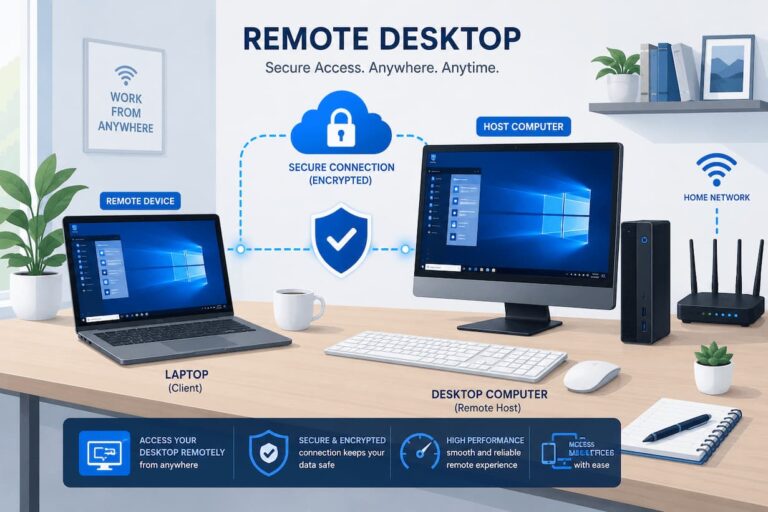
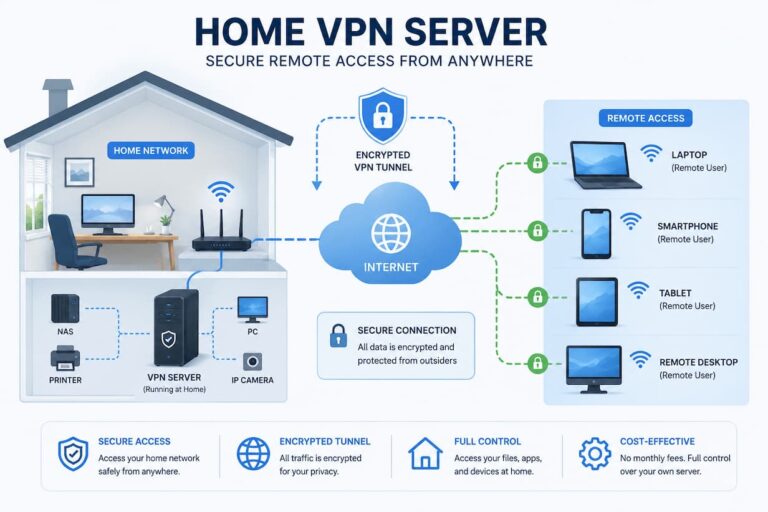
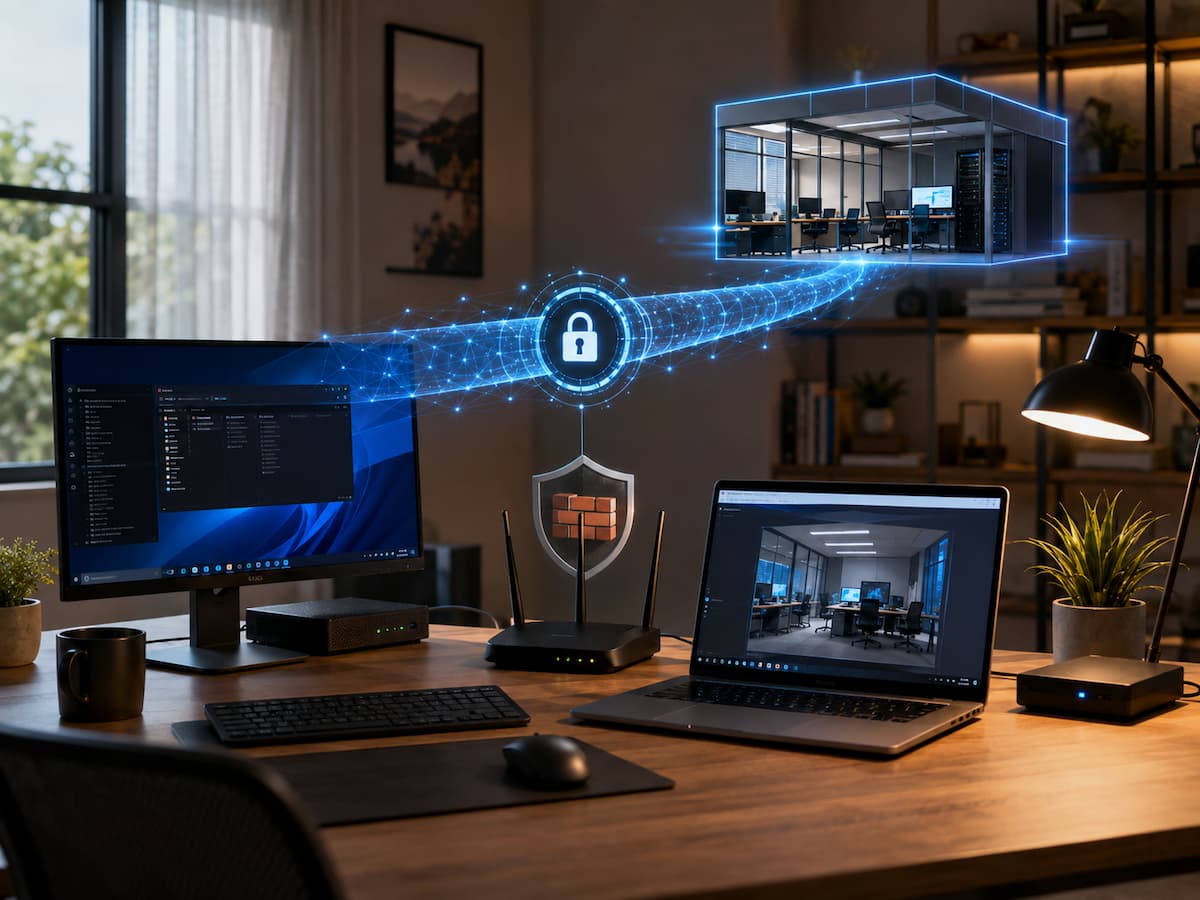
A Virtual Private Network creates an encrypted tunnel between your remote device and your home or office network. After authentication, your computer behaves almost as though it were physically connected to the local network. Once the VPN connection is established, Remote Desktop operates through that secure tunnel rather than being exposed directly to the internet. This method is widely used by businesses because the remote desktop service itself remains inaccessible to outsiders. Attackers would first have to compromise the VPN before they could even attempt to reach internal systems. VPNs require initial setup and ongoing maintenance, but they remain one of the most effective methods for securely accessing private networks from remote locations.
2. Remote Access Services Using Secure Relay Servers
Several remote support platforms use encrypted relay servers instead of requiring direct inbound connections. Both the local and remote computers establish outbound encrypted sessions to a trusted service, which securely connects them together. Because outbound internet connections are generally allowed through routers and firewalls, this approach often works without configuring port forwarding. It also means your router does not advertise an open remote desktop service to the public internet. These services vary in features, pricing, and management options, but for many home users and small businesses, they provide a practical balance between simplicity and security.
3. Zero Trust Network Access (ZTNA)
Organizations are increasingly replacing traditional remote access models with Zero Trust Network Access. Instead of automatically granting broad access after someone connects, ZTNA verifies identity, device health, and access policies before allowing communication with specific applications or systems. While enterprise implementations can be complex, the underlying idea is straightforward: trust should never be assumed simply because someone is connected to the network. Every request is evaluated individually, reducing the impact of stolen credentials or compromised devices.
How Multi-Factor Authentication Strengthens Remote Access
Commonly used authentication methods include mobile authentication apps, hardware security keys, fingerprint recognition, and temporary verification codes. Security experts recommend using authentication apps or hardware security keys instead of SMS whenever possible, as SMS is vulnerable to attacks.
MFA is one of the simplest security upgrades, as many remote access solutions offer this feature by default. Once set up, it significantly reduces the risk of stolen credentials interrupting remote desktop connections with minimal effort. Backup recovery codes must also be stored securely. A lost phone should not make your system inaccessible, but recovery codes should never be stored in plain text on a secure computer.
Set Up Remote Access Using Least Privilege
A common mistake made by beginners is granting administrator privileges to every account, because this simplifies permission management. While this simplifies permission management, it does increase the risk of account theft. Security experts adhere to the principle of least privilege, which means that users should only have the necessary access rights.
Imagine that you regularly use your home computer to organize photos or update software. When a regular user account can perform most file management tasks, an administrator account becomes redundant. Employees working remotely rarely need full access to all servers, shared folders, or programs on the corporate network.
Separating administrator and user accounts is another sensible practice. Use a regular account to log in for routine tasks and an administrator account for system updates. If a regular account is hacked by malware or if the password is stolen, the attacker’s privileges are limited. The same applies to devices. Laptops intended solely for remote use should not have access to all network resources. Restricting permissions during installation can be cumbersome, but it reduces the chance of errors later on.
Protecting the Devices Behind the Connection
Even the most secure remote access methods cannot protect a hacked computer. Both devices in the connection are responsible for security. Maintain your computer before considering using a VPN or authentication. Operating system upgrades often fix new vulnerabilities, making them crucial. Older software is often the target of attacks due to the vulnerabilities hidden within it. Automatic updates reduce the chance of missing security patches.
Security software can help. Modern operating systems are equipped with firewalls, virus detection, and exploit counter features. Keep these features enabled unless absolutely necessary. Strong passwords are also crucial. Even if a website is hacked, your remote desktop logins remain unaffected as long as each account uses a different password. Password managers can generate and store long, random passwords that are difficult to guess but easy to recover. Physical security is equally important. An unlocked laptop left in a public place can be bypassed even with the most robust cybersecurity measures. Securing remote access always requires both digital and physical protection.
Common Configuration Mistakes That Create Unnecessary Risk
Many security problems come from simple configuration errors rather than advanced hacking techniques. These mistakes are usually easy to avoid once you understand why they are dangerous.
- Leaving default usernames unchanged. Accounts with predictable names make automated attacks more efficient.
- Reusing passwords. A password leaked from an unrelated website should never unlock your remote desktop.
- Ignoring software updates. Delaying updates for months can leave known vulnerabilities unpatched.
- Disabling the firewall permanently. Firewalls are designed to filter unwanted traffic and should remain active unless temporarily disabled for troubleshooting.
- Sharing administrator credentials. Every user should have an individual account whenever possible.
- Forgetting to remove unused accounts. Old employee accounts, temporary users, or abandoned devices can become unnoticed entry points.
Another frequent mistake is assuming that home networks are automatically safe because they are small. Home routers receive the same kinds of internet traffic as business networks. Attackers do not usually care whether a target belongs to a large company or an individual user. Automated tools scan everything they can reach. Taking a few extra minutes during setup often eliminates these risks before they become problems.
Monitoring Remote Access Without Making It Complicated
You do not need an enterprise security operations center to notice suspicious activity. Many operating systems, routers, VPN servers, and remote access platforms maintain connection logs that record successful and failed login attempts. Reviewing these logs occasionally can reveal unusual behavior before it turns into a larger issue. For example, repeated failed login attempts from unfamiliar locations may indicate someone is trying to guess your credentials. A successful login at an unusual time might deserve closer attention if nobody should have been connected.
Many services also support login notifications. Receiving an email or mobile alert whenever a new device signs in allows you to react quickly if an unauthorized login occurs. If multiple people share responsibility for managing remote systems, documenting authorized users and expected access times helps distinguish normal activity from suspicious behavior. Monitoring is not about constantly watching dashboards. It is about creating enough visibility that unusual events do not go unnoticed.
Choosing the Right Remote Access Method for Your Situation
There is no single solution that fits everyone. The safest choice depends on how often you connect, who needs access, and how much control you have over the network.
| Situation | Recommended Approach | Reason |
|---|---|---|
| Accessing a home computer while traveling | VPN or secure remote access service | Keeps the computer hidden from direct internet exposure. |
| Helping family members occasionally | Trusted remote support platform | Simple to use without changing router settings. |
| Small business employees working remotely | Business VPN with MFA | Provides encrypted access with stronger identity verification. |
| Managing multiple business applications | Zero Trust Network Access | Limits access to specific resources instead of the entire network. |
The common theme across these options is that none require exposing Remote Desktop Protocol directly to the public internet. Modern remote access solutions focus on reducing visibility while verifying identity before granting access.
Remote Access Security Is an Ongoing Process, Not a One-Time Setup
Establishing a straightforward maintenance protocol ensures the security of remote access while demanding minimal time investment. Regularly inspect for updates to the operating system and applications, ensure that multi-factor authentication is activated, eliminate accounts that are no longer necessary, and reassess security configurations following the replacement of a router or alteration of internet service providers. If you utilize a VPN or remote access service, periodically review its release notes to stay informed about significant security enhancements or modifications in suggested configurations.
It is advisable to evaluate your remote access configuration every few months. Verify that recovery techniques are still effective, backup authentication codes are accessible, and trusted devices are up-to-date. These little verifications are significantly simpler than attempting to restore access in a crisis. Effective security should not entail complicating remote access. The focus is on ensuring ease of access for authorized individuals while substantially complicating illegitimate entry.
Conclusion
Remote desktop technology enables work, technical assistance, and computer management from virtually any location. The ease of use is indisputable, although such simplicity must not jeopardize the security of an entire network. Directly exposing Remote Desktop ports to the internet was previously a prevalent practice, but it is no longer the most secure choice for the majority of residential customers or enterprises.
Contemporary options like VPNs, secure remote access systems, and Zero Trust frameworks enable device connectivity without exposing remote desktop services to the public internet. Integrating these strategies with robust passwords, multi-factor authentication, frequent software upgrades, and restricted user access establishes several tiers of defense that function cohesively.
Security is seldom attained with an isolated configuration or item. Rather, it arises from making deliberate choices that minimize exposure and safeguard access over time. By comprehending the hazards and selecting safe connection techniques, you can relish the convenience of remote desktop access while significantly enhancing your network’s defense against prevalent internet dangers.
FAQs
1. Is it ever secure to directly expose Remote Desktop Protocol (RDP) to the internet?
In the majority of circumstances, negative. Although supplementary safeguards like robust passwords, account lockout protocols, and multi-factor authentication enhance security, the direct exposure of RDP amplifies your vulnerability. A VPN or an alternative secure access technique is typically the more secure option.
2. Does employing a VPN entirely eradicate security threats?
A VPN secures data transmission and reduces direct vulnerability, although it fails to safeguard against feeble passwords, compromised devices, obsolete software, or pilfered credentials. It ought to be regarded as a component of a more comprehensive security framework.
3. Is it possible to utilize remote desktop securely within a residential network?
Affirmative. Numerous residential consumers securely connect to their computers via a VPN or by utilizing trustworthy remote access providers that create encrypted outbound connections rather than necessitating open incoming ports.
4. What is the significance of multi-factor authentication for remote access?
Passwords may be surmised, duplicated, or pilfered. Multi-factor authentication necessitates an extra verification procedure, significantly increasing the difficulty for an individual to infiltrate your system with merely a compromised password.
5. What is the recommended frequency for reviewing my remote access configuration?
A brief assessment every few months is generally adequate for the majority of residential users. Examine for software updates, eliminate unnecessary accounts, ensure authentication mechanisms remain functional, and verify that security configurations have not altered following hardware or network enhancements.