A lot of people think that lowering power use always means lowering speed, but that’s not always the case. Modern computers, storage devices, operating systems, and server software all have many features that are meant to make them more efficient without slowing down normal tasks. Usually, hardware that isn’t being used, bad cooling, old settings, or background services that aren’t needed use a lot more power than the server actually needs.
This guide shows you easy ways to lower the power your home server uses without affecting its speed. You’ll learn how to choose energy-efficient hardware, optimize your operating system settings, manage your storage effectively, improve cooling, monitor your energy use, and avoid common mistakes that lead to unnecessary upgrades.
Understand Where Your Server Uses Power
It’s helpful to know which parts use the most power before trying to cut down on their use. The processor, storage drives, cooling fans, memory, motherboard, and power supply are some of the parts of a normal home server that use power. But they don’t usually use the same amount of energy. Mechanical hard drives and high-performance processors are some of the biggest power users, especially when you leave them on all the time.
Furthermore, the amount of work is important. A virtualization server that runs several virtual machines every day is not at all like a media server that streams pictures for a few hours every night. Some systems run for only short periods of time, while others run at close to full performance for long periods of time. Understanding how your server is utilized makes it easier to find realistic ways to lower energy use.
Before you make any upgrades, you should wait a few days and see how the server normally works. Checking processor, storage, network traffic, and system temperatures can help you see what needs fixing first. Before making any changes, you should check how much power the server is using now. This way, you can compare the results of each optimization and figure out what really saves energy.
Choose Energy-Efficient Hardware
Because every part of the server works when it’s turned on, the hardware you choose has a long-lasting effect on how much electricity it uses. Older processors, power sources that don’t work well, and expansion cards that aren’t needed may use a lot more electricity than newer options while not adding much to the performance of a home server.
When building a new server, pick parts that are efficient instead of those that give you the best speed. Today’s processors often have great speed and use a lot less power when they’re not in use. Also, choosing a power supply with a high-efficiency certification helps cut down on wasted electricity by turning more of the power that comes in into energy that the server can use.
Installing hardware that doesn’t do anything is not a wise idea. Extra network adapters, storage drivers, or graphics cards that you don’t use still draw electricity, even if you don’t use them very often. It is often better for both energy efficiency and long-term reliability to keep the hardware setup simple.
| Component | Energy-Efficient Choice |
|---|---|
| Processor | Modern low-power multi-core CPU |
| Power Supply | 80 PLUS certified efficient PSU |
| Storage | SSD for operating system and frequently used data |
| Cooling | Large, efficient low-speed fans |
| Network | Integrated network adapter when suitable |
Optimize Processor Performance Without Wasting Energy
Many modern processors change their operating frequency instantly based on how much work they have to do. When there isn’t much going on, they use less power but are still ready to boost speed when they need to process more. By keeping these power management features on, the processor can automatically find the best balance between speed and efficiency.
Some home servers have demanding jobs that run in the background even when they’re not doing anything useful. Reviewing scheduled tasks, indexing services, media library scans, or virtual machines that aren’t needed can lower the server’s total processor activity and electricity use without affecting its main functions.
Setting the processor to run at full speed all the time is not recommended unless your workload really needs it. For many home users, automatic performance scaling gives them almost the same responsiveness every day while using a lot less power when they’re not using it.
Reduce Storage Power Consumption
Many home computers have storage devices that are always on, which makes them an important place to save energy. Because they use mechanical parts that spin, traditional hard disk drives usually use more power than solid-state drives. Hard drives are still a cheap way to store a lot of data, but they should be used carefully to get the best performance and storage space.
A smart move would be to put the operating system and apps that you use most often on an SSD and use bigger hard drives for backups, media libraries, and old files. This mix speeds up the system while still letting you access big amounts of storage at a reasonable price.
Many operating systems also have drive sleep settings that let hard drives that aren’t being used use less power after a while. Before you turn on these features, you might want to think about how often you access your files. Drives that wake and sleep often may wear out faster than necessary, defeating the purpose of saving energy.
Use Memory Efficiently
Memory usually uses less energy than processors or storage, but using RAM inefficiently can make the whole system use more power. Running programs that aren’t needed or giving virtual machines too much memory makes the processor and storage system work harder, which makes the whole server use more energy.
Check your server’s memory allocation every so often and remove any software that you no longer need. If you have virtual machines, don’t just give them too much memory; instead, give them the right amount for the job. Memory management that works well helps keep speed high while cutting down on unnecessary background activity.
Sometimes, adding more memory can also make things run faster. If your server often uses disk sharing because it doesn’t have enough RAM, adding more memory may cut down on storage activity, making the server faster and more power-efficient when it’s under a lot of stress.
Remove Unnecessary Software and Services
Even if an app only does occasional jobs, it still uses system resources when it’s running in the background. Over time, servers can accumulate software that you no longer need. This can include media services that aren’t being used, backup tools that are out of date, monitoring apps, development environments, and virtual machines that aren’t being used. Even though each program may only use a small amount of processing power, all of them working together can make the energy bill go up noticeably.
Regularly check the software you’ve installed and turn off any services you no longer need. Many operating systems start apps in the background when they boot up, even if you don’t use them very often. Stopping unnecessary services from starting reduces processor activity, memory use, and server startup time. This keeps the server cleaner and more efficient.
For security reasons, automatic updates should still be turned on, but planning big maintenance jobs for times when demand is low helps spread out work more evenly. A well-maintained server does what it needs to do without wasting resources on unnecessary background activities.
Improve Cooling Without Increasing Electricity Use
Cooling is necessary for servers to work properly, but cooling that doesn’t work well can use more energy. Fans that are always running at full speed use more power and usually mean that there are problems with airflow rather than a lot of work to be done. By making the flow of air better, cooling parts can work better while keeping temperatures safe.
Dust should not be in the air vents, and the server should be placed so that cool air can flow easily. If you put equipment inside cabinets that don’t let air flow through well, the cooling fans will have to work harder to get rid of the heat. Putting cables in order also helps air flow by clearing out the server case.
Larger fans that run at slower speeds usually cool better, make less noise, and use less power than a bunch of small fans that run at high speeds. Regularly checking the temperature helps make sure that the cooling keeps working without using more electricity than needed. Cleaning the dust off of the fans, filters, and heatsinks every couple of months can make the cooling work better and stop the fans from running when they’re not needed to.
Regularly Check the Power Usage
To make energy use more efficient, you should first find out how much electricity the server actually uses. By keeping track of how much power you use before and after making changes, you can see which optimizations really save money and which don’t.
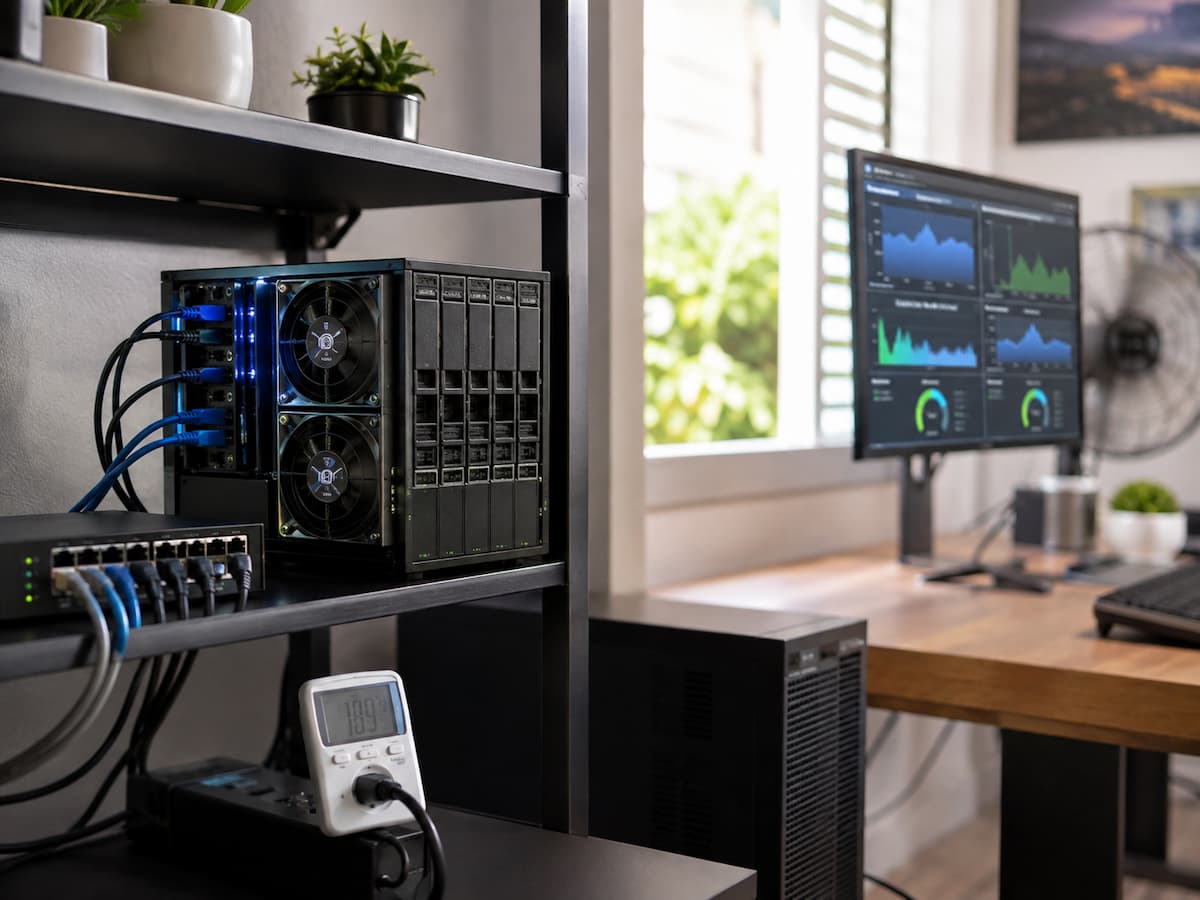
Many current operating systems include tools that let you monitor how your processor, storage, and memory are being used. Dedicated power meters can also measure how much electricity you use right at the wall outlet. This gives a clear picture of how much it really costs to run the business throughout the day.
Monitoring shouldn’t just be done once; it should be done all the time. Over time, changes like adding more storage drives, new software, virtualization workloads, or more media streams may cause the computer to use more electricity. Reviewing these trends on a regular basis helps find them before they have a big effect on long-term running costs.
| Optimization | Potential Benefit |
|---|---|
| Enable CPU power management. | Lower idle power consumption |
| Use SSD for operating system. | Improved efficiency and responsiveness |
| Remove unused services. | Reduced processor activity |
| Improve airflow | Lower fan speeds and better cooling |
| Monitor electricity usage. | Identify long-term savings opportunities. |
Common Energy-Saving Mistakes
A usual mistake is lowering the performance settings too much. Limiting processor speeds or turning off important services might make the computer use less electricity, but they can also make it less reliable and cause response times to be slower. Instead of limiting useful speed, you should get rid of unnecessary power use.
Another mistake is failing to consider older devices. It may save you more money over time to replace an old or inefficient power source or hard drive than to spend hours adjusting software settings. In the same way, adding more cooling fans without resolving problems with airflow often makes the electricity bill go up without making the temperature much better.
Some users also don’t update their operating systems or firmware. Manufacturers often release updates that make hardware work better and make systems more stable. Maintaining up-to-date software helps devices work more reliably and use energy more efficiently. Don’t change the BIOS or firmware settings that are more complicated unless you know what they are for. If the configuration is wrong, the system may not be stable or the server may not work consistently.
Tips for Long-Term Maintenance
Taking care of an energy-efficient home server is an ongoing process, not an improvement that you do just once. Over time, dust builds up inside the system, software needs change, and storage needs continue to grow. Regular maintenance keeps the server running well even as your workload changes.
Every two months, check the air filters, cooling fans, and connections. Get rid of files and programs that you don’t need, check your scheduled tasks, and make sure that backup jobs are still running smoothly. Getting rid of failing hard drives as soon as possible also stops the need for repeated mistake correction processes that could make the processor and storage work harder.
It’s also a good idea to look over your server’s purpose every so often. A lot of home computers keep running services that aren’t needed anymore just because they were set up years ago. Often, making the overall configuration simpler increases reliability, saves energy, and lowers the need for maintenance.
Conclusion
Cutting down on the power used by a home server doesn’t mean giving up performance or reliability. You can significantly lower running costs while keeping reliable service by choosing hardware that uses less power, allowing modern power management features, making the most of storage space, getting rid of software that isn’t needed, improving airflow, and keeping an eye on how much electricity is being used.
It’s more likely that a series of small changes that work together over time will make a big difference. With careful planning, regular maintenance, and reviews, you can make sure that your server keeps working well even as your storage needs and workloads change. You can get the most out of a powerful home server while also keeping your long-term energy use in check if you take a measured approach.
FAQs
1. Does lowering the amount of power used always slow down the server?
No, many improvements that save energy focus on getting rid of power use that isn’t needed instead of limiting speed. When you have efficient hardware, automatic engine scaling, optimized software, and better cooling, you can often use less electricity while keeping the same level of responsiveness for everyday tasks.
2. Is it true that SSDs use less power than hard drives?
A lot of the time, yes. Because they don’t have any moving parts, SSDs usually use less power. They also make the system more efficient. Traditional hard drives, on the other hand, are still a cheap way to store a lot of data, especially when used with SSDs for the operating system.
3. Should I always leave my home computer on?
That is up to you and how you use it. Continuous operation is often good for servers that do things like backups, media streaming, remote access, or automation. Setting up automatic shutdowns or sleep periods for the server may help save electricity without changing how convenient it is to use.
4. How important is the power source?
A good, efficient power source changes electricity more efficiently and wastes less of it. Getting a power supply that is the right size and works well can save you money in the long run and make your system more reliable overall.
5. Does virtualization make people use more electricity?
Yes, running more than one virtual machine does use more processor time, memory, and storage space. Regularly looking at how virtual machines are being used and shutting down instances that aren’t needed can help cut down on total resource use.
6. How often should I clean my server?
Most homes only need to be cleaned every three to six months, but places that get a lot of dust may need to be cleaned more often. Keeping cooling parts clean increases airflow, lowers fan speeds, and helps the system run efficiently for a long time.
7. What is the easiest way to keep track of how much electricity is being used?
A plug-in power meter is one of the easiest and most accurate ways to find out how much energy you really use. When used with monitoring tools for the operating system, it helps figure out how changes to hardware or software affect energy savings over time.
References
- U.S. Department of Energy – Energy Saver: https://www.energy.gov/energysaver
- ENERGY STAR: https://www.energystar.gov/
- National Institute of Standards and Technology (NIST): https://www.nist.gov/
- Cybersecurity and Infrastructure Security Agency (CISA): https://www.cisa.gov/
- Intel – Power Management Technologies: https://www.intel.com/
- AMD – Processor Technologies: https://www.amd.com/
- The Green Grid: https://www.thegreengrid.org/