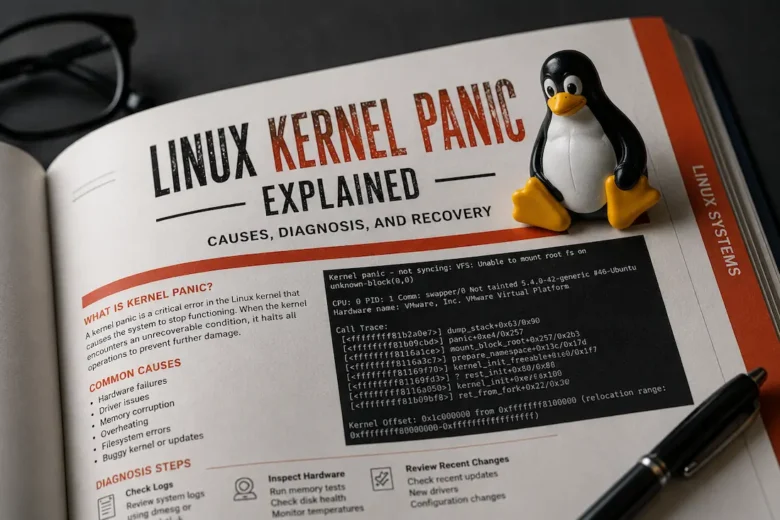
Few Linux errors create more uncertainty than a kernel panic. Unlike an application crash or a failed system service, a kernel panic indicates that the operating system has encountered an unrecoverable condition and intentionally halts execution to prevent filesystem corruption, memory damage, or unpredictable behavior.
For administrators managing production servers, virtualization hosts, NAS appliances, Kubernetes nodes, or self-hosted infrastructure, a kernel panic is rarely the root problem. Instead, it is the final symptom of an issue involving hardware, kernel code, device drivers, firmware, storage, memory management, or system configuration. Recovering successfully requires more than rebooting. The real objective is to determine why the panic occurred, verify whether it can be reproduced, and identify whether the root cause lies in software, hardware, or the interaction between them.
What Is a Linux Kernel Panic?
A kernel panic is the Linux kernel’s built-in mechanism for handling unrecoverable internal errors. Unlike user-space applications, which can crash without affecting the operating system, the kernel manages memory allocation, CPU scheduling, interrupt handling, storage, networking, filesystems, and hardware communication. If it detects corruption or enters a state where continuing execution could compromise system integrity, it deliberately stops the system.
Before halting—or rebooting if configured—the kernel records diagnostic information such as register contents, loaded modules, process information, and a stack trace to help identify the failure. The panic itself is not the problem. It is the operating system preventing further damage after detecting a fatal condition.
What Happens During a Kernel Panic?
When a fatal exception occurs, Linux immediately stops normal scheduling and disables interrupts to prevent additional code from executing. It then records diagnostic information, including:
- CPU state
- Register values
- Kernel call trace
- Loaded kernel modules
- Current process
- Memory addresses related to the fault
Depending on configuration, the system may:
- Freeze indefinitely
- Automatically reboot after a timeout
- Trigger a crash dump with kdump
- Save panic information to persistent logs
- Notify remote management systems
Enterprise environments commonly enable automatic crash dumps because simply rebooting destroys valuable forensic evidence.
Kernel Panic vs. Application Crash
Kernel panics are fundamentally different from ordinary software crashes.
| Behavior | Application Crash | Kernel Panic |
|---|---|---|
| The operating system continues running | Yes | No |
| Other applications remain available | Usually | No |
| SSH remains accessible | Often | Usually unavailable |
| Requires reboot | Rarely | Almost always |
| Indicates kernel failure | No | Yes |
An application crash affects a single process. A kernel panic indicates the operating system itself can no longer guarantee safe execution.
Common Causes of Kernel Panics
Although kernel panics can appear random, most fall into a few well-understood categories.
Hardware Memory Failures
Defective RAM remains one of the leading causes of unpredictable kernel crashes. Because the kernel constantly allocates and frees memory, corrupted memory locations can damage internal kernel structures without warning.
Typical symptoms include the following:
- Random panic locations
- Different stack traces for each crash
- Segmentation faults in unrelated applications
- Filesystem corruption
- Unexpected reboots
Servers using ECC memory can often detect and correct single-bit memory errors before they become kernel failures, making ECC strongly recommended for production systems.
Faulty Kernel Modules
Kernel modules execute with full kernel privileges. A single invalid pointer, race condition, or memory corruption bug inside a driver can immediately destabilize the operating system.
Common offenders include:
- Proprietary GPU drivers
- Third-party storage drivers
- Experimental filesystem modules
- VPN kernel extensions
- Out-of-tree drivers
Kernel upgrades may expose bugs in older modules because internal kernel APIs change over time. Modules compiled for previous kernel releases may behave unpredictably after an upgrade.
Storage and Filesystem Failures
Storage problems frequently appear as kernel panics instead of obvious disk failures.
Common examples include:
- failing SSDs
- unstable NVMe firmware
- RAID metadata corruption
- filesystem journal corruption
- storage controller timeouts
- SAN connectivity problems
Modern filesystems such as ext4, XFS, and Btrfs include extensive recovery mechanisms, but catastrophic I/O failures can still force the kernel to halt to protect data integrity.
Kernel Bugs
Linux is exceptionally stable, but genuine kernel bugs do occur.
Most appear only under specific hardware combinations or unusual workloads involving:
- scheduler edge cases
- NUMA memory management
- networking regressions
- virtualization
- filesystem interactions
- driver regressions
Long-term support kernels generally minimize this risk by backporting stability fixes instead of adopting every upstream feature immediately.
CPU and Firmware Instability
Overclocking, unstable BIOS settings, outdated firmware, overheating, and hardware defects can all produce intermittent kernel panics.
Watch for related symptoms such as:
- Machine Check Exceptions (MCE)
- CPU cache errors
- corrected ECC events
- PCIe bus errors
- spontaneous reboots
- thermal throttling
These warnings often appear long before a complete kernel panic.
Reading a Kernel Panic Message
A kernel panic screen contains a large amount of diagnostic information, but several fields deserve immediate attention.
| Information | Why It Matters |
|---|---|
| Panic reason | Identifies what triggered the halt |
| Call trace | Shows the execution path leading to failure |
| Loaded modules | Identifies third-party drivers involved |
| Process name | Reveals which workload was running |
| CPU number | Indicates which processor detected the fault |
| Register dump | Useful for advanced debugging |
Do not focus exclusively on the final panic message. The warnings printed immediately beforehand often reveal the actual root cause.
Diagnosing a Kernel Panic
Effective troubleshooting begins with preserving evidence rather than immediately rebooting the machine.
If the panic screen is still visible, capture:
- the complete panic message
- kernel call trace
- loaded modules
- timestamps
- hardware error messages
- the workload that was running
In production environments, serial consoles, IPMI, Redfish, or virtual KVM consoles provide far more reliable evidence than photographs of the screen. The next step is determining whether the panic is reproducible. Crashes that occur under identical workloads typically indicate software, drivers, or kernel regressions. Random panics are more commonly associated with failing hardware, unstable firmware, thermal problems, or memory corruption. Also review recent system changes. New kernels, BIOS updates, firmware upgrades, hardware replacements, or configuration changes often correlate directly with the first occurrence of a panic.
Review System Logs
If the system rebooted automatically, inspect logs from the previous boot:
journalctl -b -1Look for recurring warnings such as the following:
- I/O errors
- Machine Check Exceptions
- filesystem corruption
- kernel BUG messages
- watchdog timeouts
- soft or hard lockups
- driver initialization failures
Repeated warnings often precede a kernel panic by several minutes or even hours.
Next, inspect the kernel ring buffer:
dmesgPay particular attention to messages containing:
- BUG
- panic
- Oops
- Call Trace
- DMA
- NMI
- I/O error
- hung task
- watchdog
Storage-related failures frequently produce repeated controller resets or timeout messages before the kernel eventually panics.
Kernel Oops vs. Kernel Panic
A kernel oops is less severe than a panic.
An “oops” indicates the kernel encountered an unexpected error but continued running, often terminating only the affected process.
| Kernel Oops | Kernel Panic |
|---|---|
| The system usually continues running | The system halts |
| May affect one subsystem | The entire kernel stops |
| Often recoverable | Unrecoverable |
| Can precede future panics | Final fatal condition |
Repeated Oops messages should never be ignored, as they frequently precede a complete kernel panic.
Capture Crash Dumps
Production servers should enable kdump whenever possible. The kernel reserves a small amount of memory during boot. If a panic occurs, a secondary capture kernel starts immediately and saves a complete memory dump before rebooting.
Crash dumps are invaluable for investigating the following:
- memory corruption
- scheduler failures
- kernel regressions
- driver bugs
- filesystem failures
- intermittent production crashes
Without crash dumps, investigators must rely primarily on console output and system logs, which often provide only part of the picture.
Validate Hardware Health
Hardware faults can produce almost any type of kernel panic, making them one of the most difficult causes to diagnose. When panic locations vary between crashes or the stack trace changes each time, hardware should be investigated before assuming a software issue.
Test Physical Memory
Defective RAM often causes random panics because corrupted memory may affect different kernel structures each time the system runs. A proper memory test should be performed outside the operating system so every memory address can be checked.
Run several complete test passes rather than a quick scan, especially if the crashes occur only after prolonged uptime or under heavy workloads. Systems equipped with ECC memory should also be checked for corrected and uncorrected error counts, as increasing ECC corrections often indicate failing DIMMs before they begin causing application or kernel crashes.
Verify Storage Health
Storage failures frequently masquerade as kernel bugs. Review SMART statistics for HDDs, SSDs, and NVMe drives, paying close attention to:
- Media errors
- Uncorrectable read errors
- Controller resets
- Unsafe shutdown counts
- Increasing bad block counts
- High operating temperatures
Enterprise NVMe drives may also report firmware events that explain intermittent controller failures. Avoid running filesystem repair utilities until the underlying storage has been verified. Repairing a filesystem on failing hardware can introduce additional corruption rather than resolving it.
Check System Stability
Kernel panics occurring only under specific workloads often point toward hardware instability.
Look for patterns such as crashes occurring:
- During backups
- While rebuilding RAID arrays
- Under heavy CPU utilization
- During virtualization workloads
- Immediately after resuming from sleep
- During sustained disk I/O
Also review hardware monitoring data for thermal throttling, power irregularities, PCIe errors, and machine check exceptions. Dust accumulation, failing cooling fans, unstable power supplies, or outdated firmware can all produce intermittent kernel failures that appear unrelated at first glance.
Kernel Panics in VMs and Containers
Virtualized environments present an additional level of complexity because faults can originate in the guest operating system or in the host. If you see numerous virtual machines panic at the same time, check the hypervisor, storage subsystem, or physical hardware before troubleshooting each guest. If the same guest is always crashing, then the problem is likely in the kernel, drivers, or workload of that guest.
The reason containers behave differently is that they use the host kernel as their own instead of executing their own. A regular program running in Docker or a similar container runtime cannot panic the kernel directly unless it triggers a pre-existing kernel flaw.
Container-related kernel panics typically involve:
- Overlay filesystem bugs
- Networking subsystem regressions
- eBPF issues
- cgroup bugs
- Resource exhaustion exposing latent kernel defects
When multiple containers fail after a panic, they are almost always victims of the host kernel failure rather than the cause.
Recovering After a Kernel Panic
Rebooting restores service but does not confirm the underlying issue has been resolved. Before returning the system to production, verify that all critical services, storage arrays, databases, virtual machines, and container workloads have recovered successfully.
Applications interrupted during write operations should be checked for data consistency. Databases, in particular, may require transaction recovery before accepting production traffic again. If hardware remains suspect, consider temporarily removing the system from production until diagnostic testing has been completed. Continuing to operate an unstable server increases the likelihood of repeated outages and possible data loss.
A Practical Troubleshooting Workflow
A structured investigation prevents unnecessary configuration changes and makes recurring incidents easier to analyze.
| Investigation Stage | Objective | Common Tools |
|---|---|---|
| Preserve evidence | Capture panic details | IPMI, serial console, kdump |
| Review logs | Identify preceding warnings | journalctl, dmesg |
| Check recent changes | Correlate updates with failures | Package history, configuration management |
| Validate hardware | Eliminate physical faults | SMART, Memtest86+, hardware diagnostics |
| Isolate software | Test kernels, drivers, and modules | Older kernels, module unloading |
| Reproduce safely | Confirm the root cause | Test environment or staging server |
| Apply the fix | Resolve the verified cause | Kernel updates, firmware updates, hardware replacement |
Changing multiple variables simultaneously makes root-cause analysis significantly more difficult. Whenever possible, make one change at a time and verify the result before proceeding.
Rolling Back a Problematic Kernel
Kernel updates occasionally introduce regressions affecting specific hardware or workloads. If panics begin immediately after installing a new kernel, booting a previous version is often the quickest way to restore stability.
Most Linux distributions retain earlier kernels specifically for this purpose. If reverting eliminates the problem, investigate release notes and bug reports before upgrading again. Keep in mind that newer kernels often expose existing firmware or driver defects rather than introducing entirely new ones. The regression may lie outside the kernel itself.
When Firmware Is the Real Problem
Firmware bugs can produce symptoms nearly identical to kernel defects.
Modern Linux systems depend on firmware running on the following:
- Motherboards
- CPUs
- RAID controllers
- NVMe drives
- Network adapters
- GPUs
- Baseboard Management Controllers (BMCs)
Firmware problems may appear only under heavy workloads or after kernel upgrades that begin using newer hardware features. Review vendor release notes before updating, and perform firmware upgrades during scheduled maintenance windows with verified backups.
Preventing Future Kernel Panics
Although kernel panics cannot be eliminated entirely, several best practices significantly reduce both their frequency and operational impact:
- Use supported, stable kernel releases for production workloads.
- Keep firmware and hardware drivers current according to vendor recommendations.
- Monitor SMART statistics, ECC memory events, temperatures, and machine check exceptions.
- Avoid unnecessary proprietary or out-of-tree kernel modules.
- Enable persistent logging so evidence survives unexpected reboots.
- Configure kdump on systems where uptime and troubleshooting are important.
- Document every kernel panic, including the root cause and corrective action, to simplify future investigations.
Preventative monitoring is often the difference between replacing a failing component during scheduled maintenance and responding to an unexpected outage.
FAQs
1. Can a kernel crash lead to data loss?
Yes. All data located in memory or being written to disk at the moment of a crash can be lost. A file system with journaling can reduce the risk of file system corruption. Even after an unexpected shutdown, the consistency of programs such as databases must still be checked.
2. Does every kernel panic indicate failing hardware?
Not always. Hardware failures are often the culprit, but kernel, driver, or firmware errors, file system corruption, or virtualization issues can also cause kernel crashes. To find the root cause, you must review log files, hardware status, and recent system changes.
3. Can Docker cause a kernel crash?
Containers share the host kernel, so typical containerized applications do not directly cause operating system crashes. However, they can expose flaws in the host kernel, particularly in networks, file systems, or eBPF subsystems.
4. Should production systems automatically restart after a kernel crash?
Automatic restarts can save downtime, but without kdumps and persistent logging, they can lose valuable diagnostic information. In many enterprise environments, organizations combine crash dumps with automatic restart strategies to strike a balance between availability and incident investigation.
Conclusion
Kernel crashes are the Linux kernel’s final safeguard against inconsistencies or corruption. While a restart can restore services, long-term stability requires identifying the root cause of the crash, rather than just treating the symptoms.
A successful troubleshooting process includes the following steps: preserving evidence, analyzing log files, checking hardware, isolating recent changes, and investigating the root cause before taking corrective measures. A systematic investigation will reduce downtime and prevent recurrence, whether the root cause is a memory issue, a firmware error, a driver regression, or a genuine kernel error. Organizations that implement proactive monitoring, continuous logging, crash dump collection, rigorous change management, and frequent hardware checks are better able to quickly detect kernel crashes and maintain a stable Linux infrastructure in the long term.