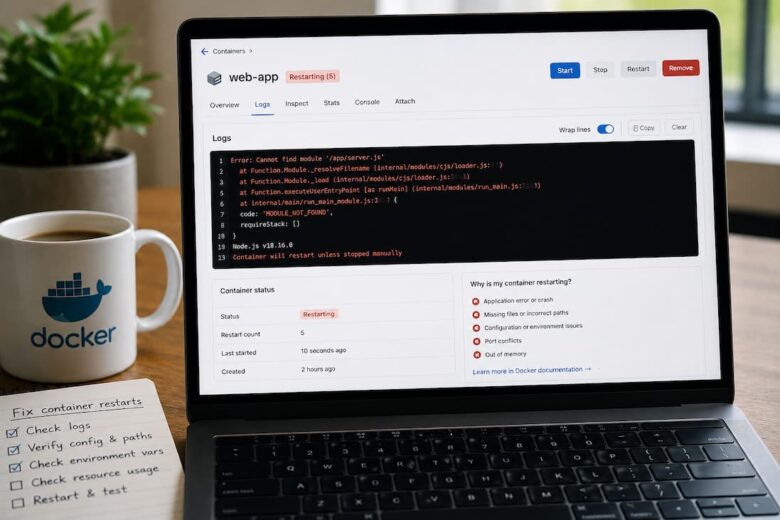
A Docker container that repeatedly restarts is rarely the actual problem. The restart is simply Docker doing exactly what it was configured to do. Something inside the container is exiting, crashing, or failing a health check, and Docker responds according to its restart policy.
The objective is not to stop the restarts. The objective is to determine why the application inside the container cannot remain healthy. Many administrators immediately delete and recreate containers. Sometimes that appears to solve the issue because configuration changes are applied during redeployment. More often, the same failure returns because the underlying cause was never identified.
Recognizing the Symptoms
Containers Restart Every Few Seconds
This is the most obvious symptom.
Running:
docker psmay show an uptime measured in seconds while the STATUS field repeatedly changes.
Examples include:
- Up 5 seconds
- Restarting (1) 2 seconds ago
- Restarting (137) 10 seconds ago
The exit code shown in Docker often provides the first useful clue.
Services Become Intermittently Available
Sometimes users only notice that an application randomly becomes unavailable. This usually isn’t noticeable until multiple dependent services begin failing.
For example:
- Reverse proxies return 502 errors.
- Monitoring systems report intermittent outages.
- Scheduled jobs fail unexpectedly.
- Databases reject new connections.
The container may technically be restarting successfully, but users experience recurring downtime.
Understanding What Docker Is Actually Doing
Restart Policies Only Control Recovery
Docker restart policies are frequently misunderstood.
Policies such as:
noon-failurealwaysunless-stopped
Do not prevent crashes.
They only determine what Docker should do after a process exits.
For example, a container configured with:
restart: alwayswill continue restarting indefinitely even if the application crashes immediately after launch. Changing the restart policy may stop the visible restart loop, but it does not fix the application failure.
Docker Expects One Primary Process
A container is considered alive only while its primary process (PID 1) remains running. Once that process exits, Docker assumes the workload has completed. A surprisingly common mistake is launching an application that immediately backgrounds itself. From Docker’s perspective, PID 1 has exited successfully, so the container stops even though child processes may briefly remain. Applications designed for traditional Linux service managers sometimes require additional configuration to run correctly inside containers.
Start With Exit Codes Before Reading Logs
Exit Codes Narrow the Search Quickly
Exit codes eliminate many possibilities before you begin reading logs.
Some common examples include:
| Exit Code | Meaning |
|---|---|
| 0 | Process completed normally |
| 1 | Generic application error |
| 125 | Docker failed before starting the container |
| 126 | The command cannot execute |
| 127 | Command not found |
| 137 | Killed, often by the kernel due to memory pressure |
| 143 | Graceful termination via SIGTERM |
An exit code of 137 frequently leads administrators toward Docker configuration when the actual issue is system memory exhaustion.
Inspect the Container State
Use:
docker inspect <container>Pay particular attention to:
- ExitCode
- Error
- RestartCount
- State
- OOMKilled
If itOOMKilled is true, the Linux kernel—not Docker—terminated the process.
That distinction matters because increasing Docker restart attempts cannot solve memory exhaustion.
Logs Explain What the Exit Code Cannot
Review Standard Output First
The fastest diagnostic step is usually:
docker logs <container>If the application writes meaningful startup information, the problem may become immediately obvious.
Typical examples include the following:
- Missing configuration files
- Database connection failures
- Invalid environment variables
- Permission errors
- Port conflicts
The documentation often explains how to configure the application but leaves out which startup failures cause immediate termination.
Applications Sometimes Log Somewhere Else
Not every application writes to standard output. Some continue writing to internal log files inside mounted volumes.
If itdocker logs appears empty, inspect:
docker exec -it <container> shor
docker exec -it <container> bashdepending on the image.
Check application-specific log directories before assuming logging is broken.
Configuration Errors Cause More Restart Loops Than Software Bugs
Environment Variables
Containers frequently depend on required environment variables.
Examples include:
- Database credentials
- API keys
- Time zone settings
- Storage paths
- License information
Missing values may cause applications to terminate immediately during initialization.
Volume Mounts
Incorrect bind mounts are another common source of restart loops.
For example:
volumes:
  - ./config:/config
If it./config If it contains incomplete or incompatible configuration files, the application may never start successfully. This problem becomes especially common after restoring backups created by older application versions.
Memory Pressure Is Often Misdiagnosed
Out-of-Memory Kills Look Like Application Crashes
Linux may terminate a process when available memory becomes critically low. Docker simply observes that the process exited and restarts it.
From Docker’s perspective, everything behaved normally. From the administrator’s perspective, the application appears unstable.
Checking:
dmesgor
journalctl -kOften reveals kernel OOM messages that never appear inside container logs.
Health Checks Can Trigger Restarts Without a Crash
Health checks are intended to detect an application that is running but no longer functioning correctly. They are not startup checks, yet they are often treated as if they were.
A container can be perfectly healthy from the operating system’s perspective while failing every health check. If another orchestrator such as Docker Swarm or Kubernetes is managing the container, repeated health check failures may cause it to be restarted even though the application never actually crashed. This distinction matters because troubleshooting a failed health check is different from troubleshooting a process that exits.
A Health Check Must Reflect Real Application Health
Consider a simple health check:
healthcheck:
  test: ["CMD", "curl", "-f", "http://localhost:8080/health"]
  interval: 30s
  timeout: 5s
  retries: 3
The check works well only if the application exposes a meaningful health endpoint. A common mistake is checking whether the web server responds with HTTP 200 while ignoring whether the application can still connect to its database, message broker, or storage backend. The service appears healthy, yet users continue experiencing failures.
A useful health check should answer one question:
Can the application currently perform its intended work?
Startup Time Matters
Applications like Nextcloud, GitLab, Elasticsearch, Immich, and many Java-based services may require tens of seconds—or several minutes—to initialize after updates.
If the health check starts immediately, Docker may conclude the container is unhealthy before initialization completes. This delay usually isn’t noticeable until hardware becomes slower or databases grow larger. Adjusting parameters such as start_periodtheseretries often resolves false failures without masking genuine problems.
Networking Problems Often Look Like Application Failures
Connection Refused Doesn’t Always Mean the Service Is Down
Many applications exit because they cannot reach a required dependency during startup.
Examples include:
- PostgreSQL
- MariaDB
- Redis
- LDAP
- DNS
- SMTP servers
The application itself may be perfectly functional. It simply refuses to continue because a required service is unavailable. Instead of examining only the failing container, verify that communication between containers is working.
docker network inspect <network>Confirm that expected containers are attached to the same network.
DNS Resolution Inside Docker
Docker provides an internal DNS server for user-defined bridge networks. Most Compose deployments should reference services by their service names instead of IP addresses.
Instead of:
192.168.1.42use:
databaseIP addresses frequently change after recreating containers. Service names do not. This makes deployments more resilient during maintenance and upgrades.
Dependency Ordering Is Frequently Misunderstood
Depends_on Does Not Mean “Ready”
One of the most common misconceptions in Docker Compose is assuming this configuration waits until another service is usable:
depends_on:
  - database
It does not.
It merely ensures Docker starts the database container first. If PostgreSQL requires another twenty seconds to complete recovery, an application that immediately attempts a connection may fail and exit. The documentation explains the syntax correctly but omits the operational implication: container startup order is not the same as application readiness.
Applications Should Retry Connections
Whenever possible, applications should retry database connections instead of exiting permanently. If an application supports configurable retry intervals, enabling them usually creates a much more resilient deployment than relying on Docker restart behavior. This becomes increasingly important after power outages, where storage checks and database recovery naturally increase startup time.
Storage Problems Are More Common Than They Appear
Permission Errors Are Easy to Miss
Applications running inside containers execute as specific users and groups. If mounted directories have incompatible UID or GID values, startup may fail immediately.
For example:
Permission denied
Cannot create configuration file
Unable to write database
These errors often appear only briefly before the container exits. Checking ownership on the host is frequently more productive than modifying permissions inside the container.
ls -ln /path/to/dataCompare the numeric ownership with the user expected by the container image.
Read-Only Filesystems
Some administrators intentionally mount configuration directories as read-only. While this approach improves security, certain applications expect to generate configuration during the first startup. The result is an immediate failure. Understanding whether an application requires write access during initialization helps avoid unnecessary troubleshooting.
Resource Limits Can Introduce New Failure Modes
Memory Limits
Docker allows explicit memory limits such as the following:
mem_limit: 2gThese limits protect the host from a single container consuming all available RAM. However, an aggressive limit can create failures that resemble software bugs. For example, an indexing service may function normally until processing a large dataset, after which the kernel terminates it due to insufficient memory. The application logs may end abruptly with no obvious error because the operating system—not the application—ended execution.
CPU Limits
CPU constraints usually cause applications to slow down or become unresponsive, rather than crashing them directly. Instead, they slow startup enough that health checks begin failing. The resulting restart loop is a secondary symptom. Increasing CPU allocation appears to “fix” the issue, but the real problem was an unrealistic health check timeout.
Updates Can Introduce Configuration Incompatibilities
Container Images Change
Recreating a container with a newer image does not guarantee compatibility with existing configurations. Applications evolve. Configuration schemas change. Deprecated options disappear. Database migrations become mandatory. This assumption is understandable because containers themselves are designed to be disposable. Configuration and persistent data are not. Please review the release notes before upgrading production services, and avoid using the latest version in production.
Avoid Using the Latest in Production
Using:
image: example:latestprovides convenience but removes predictability.
An automatic image update may introduce the following:
- configuration changes
- database migrations
- new environment variables
- changed defaults
- removed features
Pinning images to tested versions gives administrators control over when operational changes occur.
Build a Repeatable Diagnostic Process
When multiple containers begin restarting, resist the urge to troubleshoot randomly. A structured process consistently reduces investigation time.
- Identify the container that fails first.
- Check its exit code.
- Review application logs.
- Inspect Docker state.
- Verify memory and kernel logs.
- Confirm storage permissions.
- Test network connectivity.
- Validate configuration changes.
- Review recent upgrades.
- Only recreate the container after understanding why it failed.
Skipping directly to redeployment often destroys evidence that would have identified the root cause.
Verification Before Declaring Success
A container remaining online for five minutes is not proof that the issue has been resolved.
Instead, verify:
- Restart count remains unchanged.
- Health checks consistently report health.
- Application logs no longer contain startup errors.
- Clients can successfully use the service.
- Backups continue running.
- Scheduled tasks execute successfully.
- Monitoring systems report stable operation.
Operational stability should be measured over time rather than immediately after deployment.
Preventing Future Restart Loops
Most troubleshooting eventually comes back to operational discipline rather than Docker itself.
A few practices significantly reduce unexpected restart loops:
- Pin image versions instead of relying on them.
- Store composed files in version control.
- Document required environment variables.
- Monitor memory usage before exhaustion occurs.
- Test upgrades in a staging environment.
- Use meaningful health checks rather than simple port checks.
- Keep persistent data outside containers.
- Read release notes before major upgrades.
These practices require additional effort initially but reduce downtime during future maintenance.
Conclusion
Docker rarely causes restart loops. They are usually the visible result of an application, operating system, or infrastructure problem that prevents a service from remaining healthy. The fastest path to a permanent fix is understanding why the process exited rather than trying to stop Docker from restarting it. Exit codes, logs, health checks, resource usage, networking, storage permissions, and recent configuration changes together provide a complete picture of what happened.
Experienced administrators develop a repeatable diagnostic workflow instead of relying on trial and error. That approach scales from a single Raspberry Pi in a home lab to clusters supporting dozens of production services, and it turns restart loops from frustrating mysteries into predictable troubleshooting exercises.
FAQs
1. Why does my container keep restarting even though it docker logs shows no errors?
The application may not be writing logs to standard output, or the Linux kernel may be terminating the process before it can log an error. Check docker inspect for the exit code, inspect kernel logs, and verify whether the container was OOM-killed.
2. Does changing the restart policy fix restart loops?
No. Restart policies only determine what Docker does after a process exits. If the application continues crashing, changing the policy merely changes Docker’s response—it does not address the underlying cause.
3. Why does my application fail immediately after a server reboot?
Many services depend on databases, storage, or network resources that may not yet be ready. If the application exits instead of retrying its connections, Docker will repeatedly restart it until those dependencies become available.
4. Should I recreate the container when it keeps restarting?
Only after identifying the root cause. Recreating a container may temporarily hide the problem and can overwrite logs or runtime state that would have helped diagnose the failure.
5. How can I reduce restart loops in production?
Use pinned image versions, monitor resource usage, implement meaningful health checks, keep configuration under version control, validate upgrades in a test environment, and document dependencies between services. These practices reduce both the frequency of failures and the time required to recover when they occur.