Running a single Docker container is a good introduction to self-hosting. Running several containers that depend on one another is where Docker Compose becomes valuable. Most self-hosted applications are not a single container. A media server may need a database. A password manager might require a reverse proxy. Monitoring software often consists of multiple services working together. Docker Compose turns those individual containers into a single project that you can deploy, update, stop, and back up as one unit.
For NAS owners, this feature is particularly useful. Whether you’re using TrueNAS SCALE, Synology with Container Manager, QNAP Container Station, Unraid, OpenMediaVault, or a Linux server acting as a NAS, Docker Compose provides a consistent way to manage applications regardless of the underlying platform.
The goal isn’t simply to make containers start. The goal is to create a deployment that remains understandable months later, even when an update fails, a disk fills up, or hardware needs replacing.
Before Choosing an Application, Understand What a Compose Stack Really Is
Many beginners think Docker Compose is another container runtime. It isn’t. Docker already knows how to run containers. Compose describes how multiple containers should work together.
Instead of running commands individually, like
- Create a network
- Create a volume
- Start a database
- Wait for it to initialize
- Start the application
- Publish ports
- Restart services after reboot
Compose stores those instructions in a single compose.yaml file. That file becomes documentation as much as configuration. Months later, it answers questions like
- Which ports are exposed?
- Where is application data stored?
- Which environment variables were configured?
- Which image version is installed?
- Which containers belong together?
Most administrators eventually appreciate Compose less for automation than for consistency.
Start with an Application That Doesn’t Hide Docker Concepts
A simple application teaches more than an overly complex one.
Projects such as:
- Whoami
- Homepage
- File Browser
- Gitea
- Uptime Kuma
are excellent first deployments because they introduce persistent storage, networking, environment variables, and published ports without requiring five supporting services. Beginning with a complex application containing Redis, PostgreSQL, authentication providers, and reverse proxies often makes troubleshooting unnecessarily difficult because multiple components can fail simultaneously. Learning Docker is easier when every moving part has a clear purpose.
Plan the Directory Structure Before Creating Anything
One decision affects almost every future upgrade and backup: where application data lives.
A practical layout might look like this:
/docker
├── compose
│   ├── homepage
│   ├── uptime-kuma
│   └── gitea
└── data
    ├── homepage
    ├── uptime-kuma
    └── gitea
Keeping Compose files separate from application data makes migrations simpler. If the operating system needs reinstalling, the Compose files can be recreated from version control while persistent data remains untouched. Mixing configuration files, downloaded media, databases, and Compose projects into one directory often works initially but becomes difficult to maintain once dozens of applications are involved.
Read the compose file before running it.
Many tutorials encourage copying a Compose file and immediately executing:
docker compose up -dThat works—until it doesn’t. Spend a few minutes reading the file first.
Pay particular attention to:
- Image names
- Published ports
- Volume mappings
- Environment variables
- Restart policies
- Network definitions
This usually reveals potential conflicts before containers are created. For example, if another application already uses port 8080, changing the mapping now is easier than discovering the conflict after deployment.
Understanding the Most Important Sections
A Compose file often appears intimidating because of YAML syntax, but most projects use only a handful of directives.
Image
The image determines what software will run. Avoid automatically changing image tags unless you understand the project’s release policy.
Using latest may appear convenient, but it removes predictability. Some projects are treated latest as stable, while others publish development builds under the same tag.
Choosing explicit version tags makes updates intentional rather than accidental.
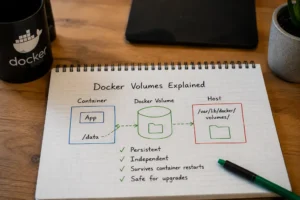
Volumes
Volumes determine what survives container recreation. This area is one of the most misunderstood parts of Docker. Containers are designed to be disposable. Your application data is not. Databases, uploaded files, configuration, and user accounts should always reside outside the container.
If a volume is missing or incorrectly mapped, deleting the container may also delete everything users expected to keep. Many people only discover these issues after their first failed upgrade.
Environment Variables
Environment variables customize application behavior without modifying the container itself.
Examples include:
- User IDs
- Group IDs
- Time zones
- Database credentials
- API keys
- Feature flags
Documentation usually explains what each variable does but often omits which values are optional and which are mandatory. If an application refuses to start, missing or incorrect environment variables are among the first places to investigate.
Restart Policies
A restart policy determines what Docker should do if a container exits.
For self-hosted services, it’s It’s a small setting that significantly improves resilience during maintenance or unexpected power outages.
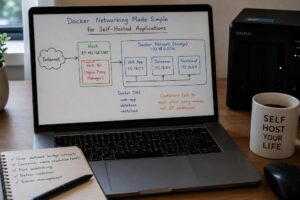
Create an Isolated Network
Docker automatically creates a network for each Compose project. Leave it that way unless there’s a reason not to. Some users connect every application to one shared network because communication becomes simpler. It also becomes less secure.
Separate networks reduce accidental interactions between unrelated applications and make troubleshooting considerably easier. Applications that genuinely need to communicate—such as a reverse proxy and backend services—can share an additional network without exposing everything else.
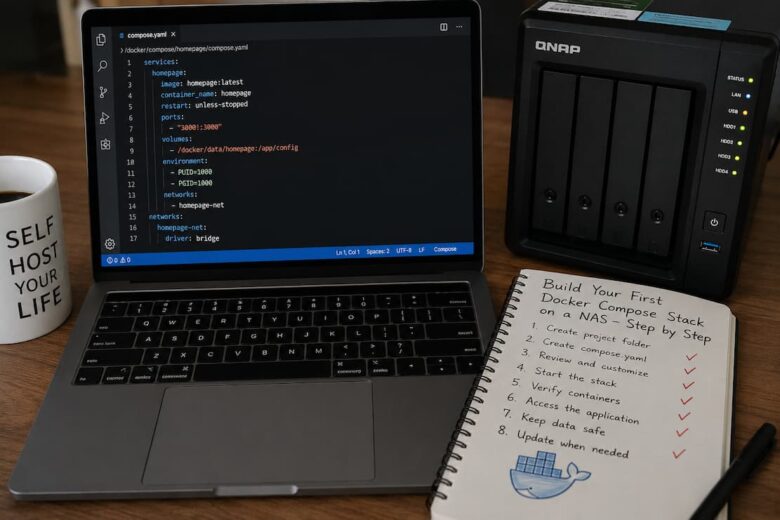
Deploy the Stack
Once the Compose file has been reviewed, navigate to the project directory and start the stack:
docker compose up -dDocker will:
- Download missing images.
- Create networks.
- Create persistent volumes if necessary.
- Start containers.
- Connect everything together.
The first deployment usually takes longer because images must be downloaded. Subsequent deployments are much faster.
Verify That Everything Started Correctly
A running container does not necessarily mean a working application.
Check:
docker compose psThen inspect logs:
docker compose logsor follow them live:
docker compose logs -fMany deployment problems appear immediately:
- Incorrect passwords
- Missing environment variables
- Database connection failures
- Permission issues
- Port conflicts
Reading logs often saves far more time than repeatedly restarting containers.
File Permissions Are Responsible for More Problems Than Docker
Many NAS operating systems store files using different user and group IDs than expected by container images.
Symptoms include:
- Configuration files cannot be created.
- Downloads remain incomplete.
- Databases fail to initialize.
- Applications repeatedly restart.
This behavior surprises many first-time users because the directories appear writable from the NAS interface. Linux permissions still apply inside containers. Many Compose projects expose files PUIDandPGID variables specifically to align container users with NAS file ownership. The exact implementation varies between images, so always consult the project’s documentation rather than assuming every container uses the same approach.
Updating a Compose Stack Safely
Updating isn’t just replacing containers.
A safer workflow is:
docker compose pull
docker compose up -d
Compose downloads new images, recreates containers where necessary, and preserves persistent data through existing volume mappings. Before major upgrades, please review the release notes. Database schema changes, deprecated environment variables, or breaking configuration updates occasionally require manual intervention. The documentation is technically correct about the update process but often assumes applications are stateless. Self-hosted services rarely are.
Backups Should Include More Than Application Data
Backing up only persistent volumes may not be enough.
A complete recovery usually requires the following:
- Compose files
- Environment files
- Secrets
- Reverse proxy configuration
- Persistent application data
- Databases
Without the Compose configuration, rebuilding a server becomes significantly more difficult because critical deployment details are easy to forget. Disaster recovery is much smoother when you can recreate infrastructure from configuration files rather than from memory.
When a Compose Stack Grows
Most home labs begin with one application. Eventually, they include authentication services, monitoring, dashboards, media servers, automation platforms, and backup tools. That’s the point where organization matters more than individual containers.
Keep each application in its project directory. Use descriptive names. Avoid editing containers manually after deployment. Treat the Compose file as the authoritative source of configuration. This approach requires slightly more discipline upfront, but it dramatically simplifies maintenance, migration, and troubleshooting as the environment grows.
FAQs
1. Can I use Docker Compose on every NAS?
Not every NAS includes Docker support. Platforms such as TrueNAS SCALE, Unraid, OpenMediaVault, and most modern Synology and QNAP models support Docker or compatible container runtimes, although management interfaces and available features differ between vendors.
2. Should every application have its own Compose file?
In most cases, yes. Keeping unrelated applications in separate Compose projects makes updates, backups, troubleshooting, and migrations much easier than maintaining one large configuration.
3. Is Docker Compose replacing Docker?
No. Docker Compose is part of the Docker ecosystem and works alongside the Docker Engine. It defines how containers should be deployed rather than replacing the container runtime itself.
4. Is it safe to use the latest image tag?
Only if you understand how the project publishes releases. Many experienced administrators prefer explicit version tags because they make updates predictable and simplify rollback if a new release introduces problems.
5. Do I need a reverse proxy for my first stack?
No. Publishing a single application on a local network is perfectly reasonable while learning. A reverse proxy becomes more valuable as the number of services grows or when secure remote access is required.