Introduction
To perform their daily work, people often need to work from different locations. With remote desktop, it becomes much easier to connect to your office computer from home, help family members with computer problems, or manage files while traveling. Even if you are not at the other computer, you can connect securely via the internet or local network and use it as if you were there. Many beginners find setting up a remote desktop complex because it requires computer settings and network configuration. However, most computers come with all the necessary software, allowing you to get started quickly. The hardest part is figuring out which settings to use and how to ensure a secure connection.
This concise and easy-to-understand guide is perfect for beginners. You will learn how remote desktops work, what tools you need, how to set up two computers, how to improve security, how to resolve common connection issues, and what the safest methods for remote connections are. After reading this guide, you will be able to establish secure remote desktop connections.
What is a Remote Desktop?
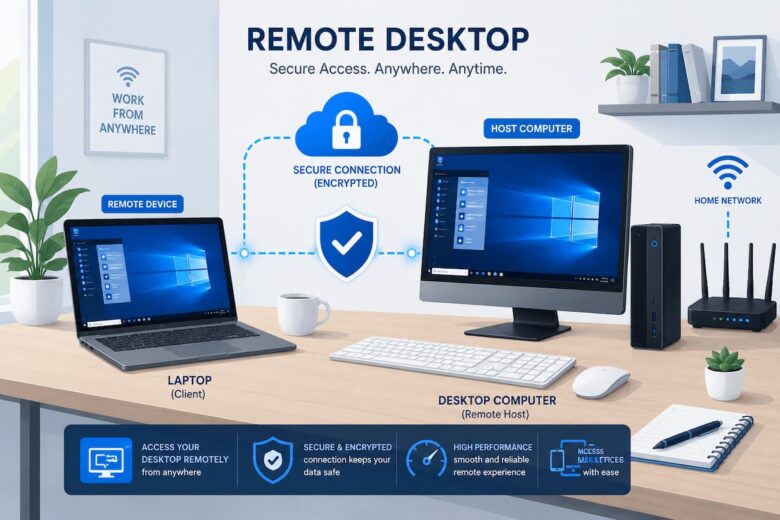
With a remote desktop, you can control another computer from a different room. You can view the content on the remote computer’s screen and operate it using your own keyboard and mouse, without needing to be physically present.
Businesses use remote desktops daily to help customers resolve technical issues, monitor computer performance, and allow employees to work from home. Remote desktops are also very useful for users who need access to personal files, want to help friends with problems, or want to control devices remotely. Once connected, you can open programs, edit documents, send files, install software, and perform many other common tasks without touching the remote computer.
Fun fact:
Using remote desktops does not increase your computer’s speed. It simply allows you to control another computer via a secure network connection.
Common Uses for Remote Desktop
- Doing work from home
- Getting to office computers
- Offering technical help
- In charge of servers
- Getting back important files
- Running software that was set up on a different computer
What You Need Before You Begin
Before setting up Remote Desktop, make sure both computers meet a few basic requirements. Preparing everything first helps avoid connection issues later.
| Requirement | Why It Matters |
|---|---|
| Reliable internet connection | Maintains a stable remote session |
| Remote Desktop supported operating system | Required for hosting connections |
| User account with password | Improves security and authentication |
| Remote Desktop enabled | Allows incoming connections |
| Firewall permissions | Lets Remote Desktop communicate properly |
It is also helpful to know the name or IP address of the computer you want to access. Without this information, your computer won’t know where to establish the connection.
Supported Devices
Remote Desktop is available on many platforms. Windows computers include Microsoft’s Remote Desktop feature, while macOS, Android, and iPhone users can install compatible Remote Desktop applications to connect to Windows computers.
Tip: Give each computer a clear device name, such as Office-PC or Home-Laptop. This makes it easier to identify the correct computer during setup.
How to Enable Remote Desktop
The next step is to connect to the computer you want to use Remote Desktop on. The host computer is another name for the computer you want to connect to. Once you turn it on, authorized users can connect to Remote Desktop from another device.
Steps for Basic Setup
- Open up the Settings on your machine.
- Refer to the System part.
- To access Remote Desktop, please look for it.
- Start up Remote Desktop.
- Check any security questions.
- Don’t change anything.
Your computer may change its firewall settings automatically during setup so that Remote Desktop connections can be made. If it doesn’t, you’ll have to tell your firewall to let Remote Desktop through by hand.
Note: If a computer’s password is blank, you should never enable Remote Desktop on that computer. Always protect user accounts with strong passwords before giving remote access.
There are versions of Windows that can connect to Remote Desktop but not host sessions that come in. Before you start setting up, make sure that your operating system can handle hosting.
Connecting to Another Computer
After the host computer is ready, you can connect using another computer or supported mobile device. The process is straightforward and only requires a few pieces of information.
Information You’ll Need
- Computer name or IP address
- User account name
- Password
- Stable internet or local network connection
Open your Remote Desktop application, enter the computer name or IP address, and select Connect. When prompted, enter the username and password for the remote computer. If everything has been configured correctly, the remote computer’s desktop will appear on your screen. Once you’re connected, it feels almost as if you were sitting in front of that computer, allowing you to work just like you would there. You can open applications, edit files, manage folders, print documents, and even restart the remote computer if necessary.
Expert Tip: Save frequently used computers inside your Remote Desktop application. This lets you reconnect quickly without typing the computer name every time.
How to Use Remote Desktop Over the Internet
It’s usually straightforward to connect to another computer on the same home or office network. But getting to a computer from somewhere else takes a little more planning. The faraway computer must be accessible over the internet, but it must also be safe from unauthorized users. A Virtual Private Network (VPN) is a way for many businesses to connect a remote device safely to the office network. Some routers also have safe remote access features for home users that make the process easier without putting the computer directly on the internet.
If you don’t fully understand the security risks, don’t open any network ports that you don’t need. If you don’t protect your computer properly, direct internet access can leave it open to attacks.
It’s a wise idea to use a VPN before joining through Remote Desktop if you can. With a VPN, your internet data is encrypted, which makes it even safer.
How a normal remote connection works
- Link up with the web.
- If you need to, start your VPN.
- Start up the Remote Desktop program.
- Enter the name or address of the computer you want to connect to.
- Use your account information to sign in.
- Start your session remotely.
Setting up a secure and reliable remote connection can be different based on your network, but these basic steps will help you get started.
Keeping Remote Desktop Secure
Security should always be a priority when using Remote Desktop. Because you’re allowing remote access to a computer, weak security settings could expose sensitive files or personal information.
Fortunately, protecting your Remote Desktop connection does not require advanced technical knowledge. Following a few simple practices can greatly reduce the risk of unauthorized access.
Essential Security Tips
- Create strong passwords for every user account.
- Enable multi-factor authentication whenever possible.
- Install operating system updates regularly.
- Keep antivirus software up to date.
- Disconnect Remote Desktop when you finish using it.
- Only allow trusted users to connect.
- Monitor login attempts if your system provides logs.
| Security Measure | Benefit |
|---|---|
| Strong Passwords | Prevents easy unauthorized access |
| Multi-Factor Authentication | Adds an extra verification step |
| System Updates | Fixes security vulnerabilities |
| VPN Connection | Encrypts network traffic |
| Account Permissions | Limits who can access the computer |
If several people use the same computer, create separate user accounts instead of sharing one login. This makes access easier to manage and improves security.
Improve Remote Desktop Performance
Remote Desktop works well even on average internet connections, but a few adjustments can make the experience smoother. If the remote screen responds slowly or videos appear choppy, improving performance settings may help.
Ways to Improve Speed
- Use a wired Ethernet connection whenever possible.
- Close unnecessary applications before connecting.
- Reduce the remote desktop display resolution.
- Disable visual effects if performance is poor.
- Pause large downloads during remote sessions.
- Restart both computers occasionally.
A reliable internet plan helps, but consistency is often more important than maximum speed. A stable connection with low latency usually provides a better Remote Desktop experience than an unstable high-speed connection.
| Setting | Recommended for Better Performance |
|---|---|
| Connection Type | Ethernet preferred over Wi-Fi |
| Screen Resolution | Lower if bandwidth is limited |
| Background Apps | Close unnecessary programs |
| File Downloads | Pause during important work |
| Internet Stability | More important than peak speed |
Troubleshooting Common Remote Desktop Problems
Even when everything is configured correctly, connection problems can still happen. The positive news is that most Remote Desktop issues have straightforward solutions.
Common Problems and Solutions
| Problem | Possible Solution |
|---|---|
| Cannot connect | Check the internet connection and computer name. |
| Incorrect password | Verify login credentials carefully. |
| Firewall blocking connection | Allow Remote Desktop through the firewall. |
| Black screen after connecting | Reconnect or restart the remote computer. |
| Very slow performance | Reduce display quality and close unused apps. |
| The connection keeps disconnecting | Check network stability and router performance. |
Simple Troubleshooting Checklist
- Restart both computers.
- Verify internet connectivity.
- Confirm Remote Desktop is enabled.
- Verify that the remote computer is powered on.
- Ensure the correct user account is being used.
- Install pending operating system updates.
- Review firewall settings.
Popular Remote Desktop Alternatives
Although many people widely use Microsoft’s Remote Desktop, it is not the only remote access solution available. Depending on your operating system and needs, other tools may provide additional features or easier setup.
| Solution | Best For | Main Advantage |
|---|---|---|
| Microsoft Remote Desktop | Windows environments | Built into Windows |
| Chrome Remote Desktop | Cross-platform access | Simple browser-based setup |
| RustDesk | Personal and business use | Open-source option |
| AnyDesk | Fast remote support | Lightweight application |
| TeamViewer | Remote assistance | Feature-rich management tools |
The best choice depends on your devices, security requirements, and how often you plan to use remote access. Beginners often appreciate solutions with simpler setup, while businesses may prioritize advanced management and security features.
Regular Remote Desktop Maintenance Tips
Once your Remote Desktop connection is working properly, a little routine maintenance can keep it reliable and secure. Many connection problems develop over time when you don’t update your computer or ignore basic maintenance. Spending a few minutes each month checking your system can prevent larger issues later.
Monthly Maintenance Checklist
- Install Windows and software updates.
- Check for Remote Desktop application updates.
- Restart both the host and client computers.
- Review connected user accounts and remove unused ones.
- Verify firewall and antivirus settings.
- Back up important files regularly.
- Check available storage space on both computers.
- Monitor internet performance if connections become slow.
Keeping your operating system current improves both security and compatibility. Software updates often include bug fixes that make Remote Desktop more stable and reliable.
Tip: Schedule a monthly reminder to review your Remote Desktop settings. A few minutes of maintenance can prevent hours of troubleshooting later.
Best Practices for Remote Desktop Users
Whether you use Remote Desktop occasionally or every day, following a few best practices helps create a safer and smoother experience. These habits reduce the chances of connection failures, security risks, and accidental data loss.
Recommended Best Practices
- Always lock or sign out when your work is finished.
- Use strong passwords that are unique for each account.
- Avoid connecting through unsecured public Wi-Fi whenever possible.
- Save important work frequently during long remote sessions.
- Keep your antivirus software enabled and updated.
- Use wired internet when stability is important.
- Monitor storage space on the remote computer.
- Only install trusted software on systems you access remotely.
| Best Practice | Reason |
|---|---|
| Use strong passwords | Protects against unauthorized access. |
| Keep software updated | Improves stability and security. |
| Use secure networks | Reduces the risk of data interception. |
| Disconnect when finished | Prevents unauthorized access if the device is left unattended. |
| Back up important files | Helps protect your data from unexpected problems. |
Warning: Avoid keeping Remote Desktop sessions active for long periods when you are not using them. Always disconnect or sign out after completing your work.
FAQs
1. Is it safe to use Remote Desktop?
Yes. When it is set up correctly, Remote Desktop is usually safe. You can help keep it safe from unauthorized access by using strong passwords, enabling multi-factor authentication (if possible), keeping your operating system up to date, and connecting through secure networks.
2. Can I use my phone or tablet to connect to Remote Desktop?
Yes. Microsoft has Remote Desktop apps for both Android and iOS phones and tablets. With these apps, you can connect to compatible Windows computers and do many useful things when you’re away from work.
3. What’s wrong? I can’t connect to my computer from afar.
Usually, connection issues happen because Remote Desktop is not turned on, the computer is off, the firewall is blocking the connection, or the wrong computer name or password is being used. Usually, checking these things resolves the issue.
4. Is a fast internet link needed for Remote Desktop?
Not all the time. Usually, a stable internet connection is more important than downloading rapidly. A lot of standard broadband connections work well for everyday office tasks like editing documents and keeping track of files.
5. Can more than one person connect to Remote Desktop at the same time?
This is different for each operating system and model. Many standard desktop operating systems only let one user session be active at a time. On the other hand, server operating systems can support multiple remote users as long as they are licensed and set up correctly.
6. Is it best to always have Remote Desktop on?
It might be helpful to leave your computer on if you often use it from afar. But if you only use Remote Desktop sometimes, turning it off when you’re not using it can help keep your computer safer.
7. What is the difference between sharing your screen and using Remote Desktop?
During meetings or talks, screen sharing lets more than one person see the same screen. With Remote Desktop, you can directly handle another computer. You can open programs, change files, and run the system as if you were sitting in front of it.
Conclusion
A useful tool called Remote Desktop lets you connect to another computer from almost anywhere. Learning the basics of Remote Desktop can save you time and effort whether you’re working from home, helping someone with a tech issue, or getting back important files while you’re away.
Getting ready for online access is the first step to making it work. Using strong passwords, setting up Remote Desktop correctly, keeping your computers in good shape, and following best practices for security can all help make your experience safe and reliable. There are also easy ways to fix many common connection issues before they need more complex solutions.
If you follow the advice and best practices in this guide, you’ll be able to set up a reliable Remote Desktop that helps you with your daily work and keeps your data safe.
References
- Microsoft Learn – Remote Desktop Documentation — https://learn.microsoft.com/windows-server/remote/remote-desktop-services/
- Microsoft Support — https://support.microsoft.com/
- National Institute of Standards and Technology (NIST) — https://www.nist.gov/
- Cybersecurity and Infrastructure Security Agency (CISA) — https://www.cisa.gov/
- Internet Society — https://www.internetsociety.org/
- Center for Internet Security (CIS) — https://www.cisecurity.org/