Reading Time: 12–15 Minutes
Introduction
One of the most critical gadgets in your home is your Wi-Fi router. That’s how every phone, laptop, smart TV, game console, security camera, and smart home gadget links up. Many spend time safeguarding their laptops with antivirus software but forget that the router is the key gateway to their entire home network.
Most routers ship with some security settings turned on, but the defaults are rarely enough to protect you from today’s cyber dangers. Weak passwords, old firmware, and unneeded features might help attackers get easy access to your network. Hackers may not be able to steal your personal files directly, but they can slow your internet connection, monitor network activity, or utilize your connection for harmful purposes.
The good news is that it is not difficult to secure your router. You can adjust most critical parameters in a few minutes without sophisticated tech understanding. There are a few simple changes you can make that will greatly limit the likelihood of an unauthorized user getting access, all without stopping your network. In this post, you’ll discover the router security settings that all beginners should turn on. We’ll explain what each option does and why it matters, common mistakes to avoid, and practical advice that helps keep your home network secure for years to come.
Why Security for Routers Matters
Think of your router as the front door to your digital house. Every bit of information exchanged between your devices and the internet goes through it. Someone getting access to your router can snoop on your traffic, divert your websites, or even disable your internet.
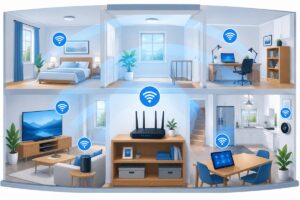
Modern homes are filled with dozens of connected devices. Computers and smartphones aside, your router is the backbone of smart speakers, security cameras, streaming gadgets, printers, and home automation systems. The more devices you connect, the more important it becomes to keep your network security strong. “People think hackers only target businesses, but automated attacks are constantly looking for home networks that still have factory settings or outdated software on their routers. These attacks are simple to execute and generally successful since users never change the default setup.
| Without Router Security | With Proper Security |
|---|---|
| Weak passwords | Strong authentication |
| Higher hacking risk | Better protection |
| Unauthorized users | Controlled access |
| Possible data exposure | Improved privacy |
| Outdated software | Regular security updates |
Change the Default Administrator Password
One of the first things every router owner should do is change the administrator password. This password controls access to your router’s settings page. Unfortunately, many routers ship with easy-to-guess usernames and passwords such as “admin” or “password.”
These default credentials are widely known and publicly available. Anyone connected to your network, or someone exploiting another weakness, could try to log into the router using these common combinations.
How to Change the Administrator Password
- Open your router’s management page in a web browser.
- Sign in using the current administrator credentials.
- Navigate to the Administration or System Settings menu.
- Create a new password with at least 14–16 characters.
- Save the changes and store the password safely.
A good administrator password should include uppercase letters, lowercase letters, numbers, and symbols while avoiding common words or personal information.
Best Practice: Your router administrator password should never be the same as your Wi-Fi password.
Warning: Losing your administrator password may require resetting the router to factory settings, which removes all custom configurations.
Create a Strong Wi-Fi Password
Your Wi-Fi password protects access to your wireless network. A weak password makes it easier for attackers or even nearby neighbors to connect without permission. Unauthorized users may consume bandwidth, reduce internet speeds, or attempt to access devices on your network.
Many people choose passwords that are easy to remember, such as birthdays, phone numbers, or simple words. Unfortunately, these are also among the easiest passwords for automated tools to guess.
Characteristics of a Strong Wi-Fi Password
- At least 16 characters long.
- Uses random words or passphrases.
- Includes uppercase and lowercase letters.
- Contains numbers.
- Includes symbols where supported.
- Avoids personal information.
Instead of creating a complicated string that is impossible to remember, consider using a long passphrase made from unrelated words. Long passwords are generally much harder to crack than short, complex ones.
| Weak Password | Strong Password |
|---|---|
| john123 | River! Apple 92 Forest & Train |
| password1 | Sunset#Tiger88Mountain! |
| home Wi-Fi | Cloud7*GardenRiver!Coffee |
Tip: If your router supports QR code sharing, guests can connect without you revealing the actual password.
Use WPA3 or WPA2 encryption.
Encryption protects information traveling between your devices and your router. Without proper encryption, nearby attackers may have an easier time intercepting wireless communications.
Today’s routers usually support WPA2 or the newer WPA3 security standard. If your router and devices support WPA3, enable it. For most home users, WPA2-AES is still a secure choice if WPA3 is not available.
Encryption Standards Comparison
| Security Standard | Recommendation | Status |
|---|---|---|
| WEP | Never Use | Outdated |
| WPA | Avoid | Old |
| WPA2-AES | Recommended | Secure |
| WPA3 | Best Choice | Most Secure |
If your router offers multiple encryption modes, avoid selecting compatibility modes that still allow WEP or older WPA versions unless absolutely necessary for legacy devices.
Warning: Using outdated encryption can expose your wireless network to attacks that modern security standards specifically prevent.
Keep Router Firmware Updated
Router firmware is the operating system that controls how your router works. Manufacturers regularly release firmware updates to fix security vulnerabilities, improve performance, and add compatibility for newer devices.
Unfortunately, many users install a router once and never check for updates again. As a result, the router may continue running software with known security flaws that attackers can exploit.
How Often Should You Check?
- Check manually every one to two months.
- Enable automatic updates if your router supports them.
- Install security patches as soon as practical.
- Restart the router after major firmware upgrades if required.
Expert Tip: Firmware updates improve both security and overall network stability, making them one of the easiest ways to protect your home network.
Before installing updates, avoid turning off the router during the upgrade process. Interrupting a firmware installation can sometimes corrupt the software and require additional recovery steps.
Disable WPS (Wi-Fi Protected Setup)
Wi-Fi Protected Setup, commonly known as WPS, was created to make connecting devices to a wireless network easier. Instead of typing a long Wi-Fi password, users could simply press a button on the router or enter an eight-digit PIN. While this feature is convenient, it has also become one of the most commonly criticized router features from a security standpoint.
Over the years, researchers have discovered weaknesses in the WPS PIN system that make it vulnerable to brute-force attacks. Although many router manufacturers have improved their implementations, disabling WPS completely is still considered one of the simplest ways to improve home network security.
Should You Turn Off WPS?
For most households, the answer is yes. Modern devices connect easily by entering the Wi-Fi password once, making WPS unnecessary.
| WPS Enabled | WPS Disabled |
|---|---|
| Faster device pairing | Better network security |
| Possible PIN attacks | Reduced attack surface |
| Convenient but outdated | Recommended for most homes |
Turn Off Remote Management
Many routers include a feature called Remote Management (also known as Remote Administration or Web Access from WAN). This allows you to log into your router from outside your home network.
Although this feature can be useful for advanced users who manage networks remotely, most homeowners never need it. Leaving it enabled unnecessarily exposes your router to internet-based login attempts.
When Should Remote Management Be Enabled?
Only enable remote management if you have a specific need and understand how to secure it properly. Otherwise, keep it disabled.
Additional Safety Measures
- Disable remote administration unless required.
- Use HTTPS instead of HTTP if remote access is necessary.
- Enable two-factor authentication if supported.
- Restrict access to trusted IP addresses whenever possible.
Create a Separate Guest Network
Friends and family often ask for your Wi-Fi password when visiting. While sharing internet access is perfectly normal, giving guests access to your primary network isn’t always the best idea. A guest network creates a separate wireless connection that provides internet access without allowing visitors to communicate directly with your personal devices.
This separation helps protect devices such as the following:
- Laptops
- Desktop computers
- Network storage (NAS)
- Security cameras
- Smart home hubs
- Wireless printers
| Main Network | Guest Network |
|---|---|
| Trusted household devices | Visitors |
| Access to shared devices | Internet only |
| Private resources available | Limited permissions |
Best Practice: Use a different password for your guest network and change it occasionally if many visitors have used it.
Regularly Monitor Connected Devices
One of the easiest ways to detect suspicious activity is by checking the list of devices connected to your router. Nearly every modern router includes a page showing all currently connected devices.
You should recognize every phone, computer, smart TV, streaming device, gaming console, and smart appliance on this list.
Look for Signs of Trouble
- Unknown device names
- Unexpected MAC addresses
- Devices connected late at night
- Connections from devices you no longer own
- Large amounts of unexplained network activity
If you discover an unfamiliar device, disconnect it immediately, change your Wi-Fi password, and restart the router.
Tip: Give your devices friendly names inside your router settings. It’s much easier to identify “Living Room TV” than a random string of letters and numbers.
Enable Your Router’s Built-In Firewall
Most home routers include a built-in firewall that helps block unwanted incoming internet traffic. Unlike antivirus software, which protects individual computers, the router firewall protects the entire network before traffic reaches your devices. In most cases, the firewall is enabled by default, but it’s worth confirming that it remains active after firmware updates or factory resets.
Benefits of a Router Firewall
- Blocks unauthorized incoming connections.
- Reduces exposure to internet scans.
- Adds another layer of network protection.
- Works for every connected device.
| Firewall Disabled | Firewall Enabled |
|---|---|
| Greater exposure | Additional protection |
| Higher attack risk | Blocks suspicious traffic |
| Less network filtering | Improved security |
Disable Universal Plug and Play (UPnP) If You Don’t Need It
Universal Plug and Play (UPnP) allows devices on your network to automatically open communication ports on the router. This makes online gaming, video conferencing, and some smart devices easier to set up. However, not every household needs UPnP. Malware running on an infected device may also attempt to use UPnP to expose services to the internet. If none of your applications require it, disabling UPnP reduces unnecessary network exposure.
Warning: Some online games and smart devices may stop working correctly after disabling UPnP. Test your devices before deciding whether to leave them off permanently.
Use Secure DNS Servers
Every time you visit a website, your router uses a Domain Name System (DNS) server to translate website names into IP addresses. Many internet providers automatically assign DNS servers, but you may choose secure alternatives that offer better privacy, security, or filtering features.
Benefits of Secure DNS
- Faster website lookups in some cases.
- Protection against known malicious domains.
- Improved browsing reliability.
- Optional parental controls with supported providers.
Changing DNS settings is optional, but it can be a useful improvement for households that want another layer of online protection.
Expert Tip: If you change DNS providers, make a note of your previous settings so you can restore them if needed.
Restart Your Router Regularly
Many people never restart their router unless something goes wrong. While routers are designed to run continuously, an occasional reboot can improve stability, install completed updates, clear temporary memory, and refresh network connections. You don’t need to restart your router every day. For most homes, restarting once every few weeks or after installing firmware updates is enough.
Simple Maintenance Checklist
- Restart the router monthly.
- Check firmware updates.
- Review connected devices.
- Confirm the firewall is enabled.
- Verify guest network settings.
- Replace weak passwords if necessary.
Maintenance Tip: Spending just five minutes each month checking your router can prevent many common security problems before they become serious.
Conclusion
Your router is the foundation of your home network, and keeping it secure doesn’t require advanced technical skills. A few simple changes—such as replacing default passwords, enabling WPA3 or WPA2 encryption, updating firmware, disabling unnecessary features like WPS and remote management, and creating a guest network—can dramatically improve your protection against common cyber threats.
Router security isn’t something you configure once and forget forever. Make it a habit to check for firmware updates, review connected devices, and verify your settings every month. These small maintenance tasks take only a few minutes but can help prevent much larger problems in the future.
As more smart devices become part of everyday life, securing your home network becomes even more important. By following the best practices in this guide, you’ll create a safer environment for your personal data, your family, and every device connected to your Wi-Fi.
Key Takeaway: Strong passwords, modern encryption, updated firmware, and regular maintenance are the four pillars of a secure home network.
References
- National Institute of Standards and Technology (NIST). Cybersecurity Resources for Home Users.
- Cybersecurity and Infrastructure Security Agency (CISA). Securing Home Networks.
- Federal Communications Commission (FCC). Wireless Network Security Tips.
- Wi-Fi Alliance. Wi-Fi CERTIFIED WPA3™ Security.
- National Cyber Security Centre (NCSC, UK). Home Network Security Guidance.
- OWASP Foundation. IoT Security Guidance.
- Cisco. Home Network Security Best Practices.
- Microsoft Security Documentation. Protecting Home Networks and Connected Devices.