The encouraging news is that Docker problems often follow certain patterns. Learn a systematic approach to identifying and resolving issues, rather than guessing blindly or rebuilding containers. Understanding why an error occurred is often more important than memorizing a single command, because the same troubleshooting methods apply to multiple programs. This guide covers the most common problems with Docker containers, their causes, and solutions. Our goal is not to get to know a specific application, but to be able to debug virtually any Docker implementation.
Understanding Docker Error Messages
One of the most common mistakes beginners make is misinterpreting Docker error messages. Often, screen messages are the final indication of a startup problem. The fact that a container stops immediately does not necessarily mean that Docker has crashed. Containerized applications can crash due to configuration issues, service errors, or missing files. Docker only reports that the container has stopped.
Check the container logs first. These logs typically contain missing configuration values, authorization issues, failed database connections, and application-specific errors, which are more useful than the container exit status. When debugging Docker, use evidence, not assumptions. Reading the logs before changing configurations can save time and often reveal the root cause of the problem. By applying this approach early on, you can avoid unnecessary adjustments that could cause new problems without solving the original issue.
Containers Stop Immediately
This is a common problem for Docker beginners. Containers appear and then disappear again shortly afterward. Docker can crash, although containers usually behave normally. Every container holds a master process. When that process is completed or fails, the container terminates automatically. Docker closes containers when the script has been executed successfully and there are no more tasks. Applications can be terminated due to missing dependencies, such as environment variables, configuration files, or databases.
| Possible Cause | Typical Solution |
|---|---|
| Main application exits immediately | Please verify the startup command and the application behavior. |
| Missing environment variables | Review container configuration and required settings. |
| Application startup error | Inspect container logs for detailed messages. |
| Missing dependent service | Confirm that required databases or APIs are available. |
Instead of repeatedly restarting the container, identify why the primary application is terminating. Solving the underlying issue usually resolves the startup problem immediately.
Image Download Failures
Network connectivity issues can cause similar symptoms. Image downloads will fail if the Docker host cannot reach the registry due to firewall limitations, proxy settings, DNS issues, or temporary internet outages, even if the image is available. Private registries can also cause authentication issues. Access credentials may have expired or the account may no longer have image retrieval authority. If an image cannot be downloaded, check the repository name, image tag, internet connectivity, and authentication before presuming the registry is down.
Port Conflicts Stop Container Start
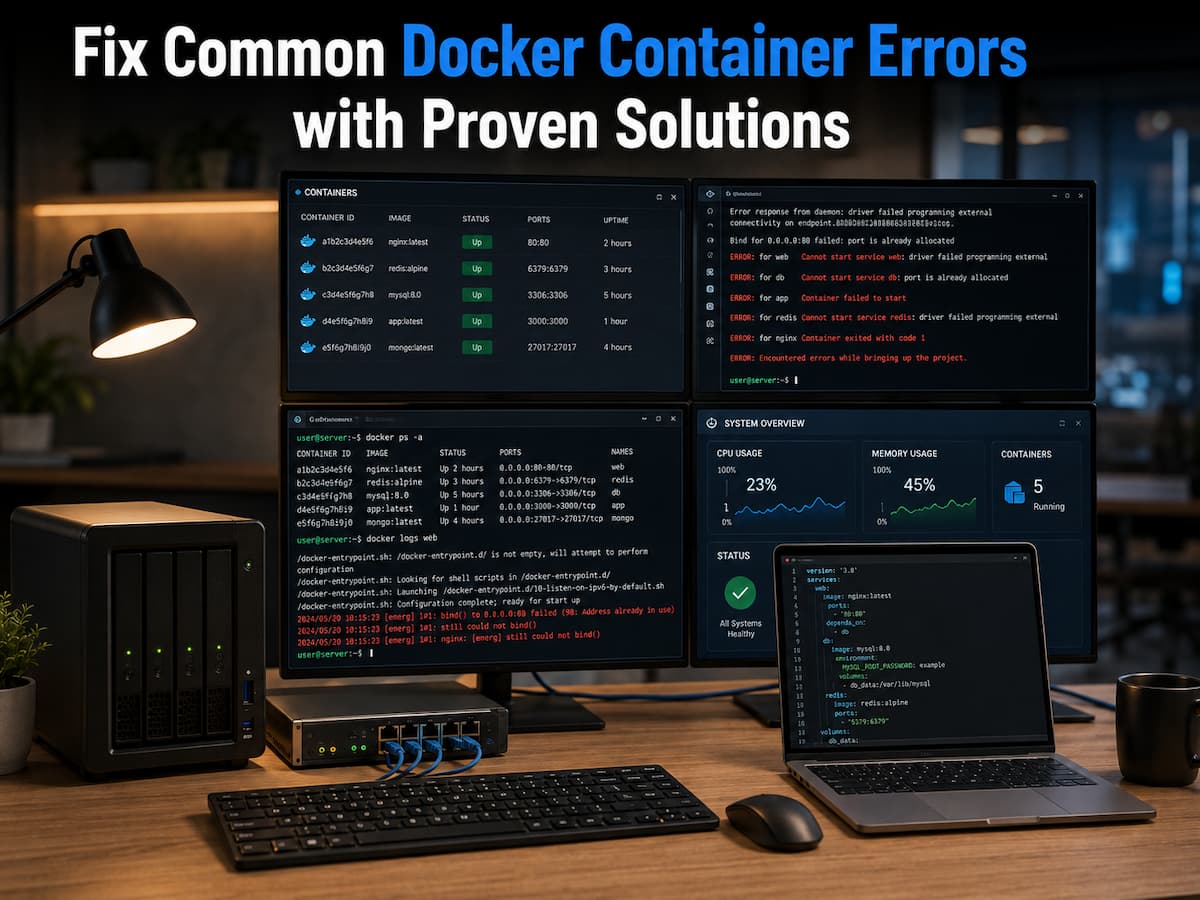
Many Docker containers provide network services, including web apps, databases, and APIs. Each service must bind to a host system port to accept incoming connections. An error often occurs when another application uses the desired port. A host-based web server may already use port 80, preventing a Docker container from using it.
Existing service may not need to be stopped. You can map host ports to container internal ports in Docker. Web applications listening on port 80 in containers can typically be published through another host port without impacting their internal setup. Before altering Docker settings to fix port conflicts, find out which application owns the port. Randomly choosing ports without knowing the network structure can cause confusion.
Volume and Mounted Directory Permission Errors
Docker’s persistent storage functionality is useful since it preserves application data during container reconstruction. However, mounted folders cause file permission issues, a common source of annoyance. The OS regulates file and directory access through ownership and permission settings. A container can run behind a user account that cannot read or write mounted directory files.
Migrating data from another system, recovering backups, or manually establishing directories before container deployment commonly causes these complications. Although the files exist, the program inside the container cannot access them using its specified rights. Determine the container’s expected user or group before granting unlimited rights to every directory. Adjusting ownership correctly is safer and more reliable than giving everyone access.
Networking Issues Between Containers
Containers commonly communicate with databases, caching servers, message queues, and other containers. When communication fails, it may appear that one program is down when the real issue is the network. Docker has many networking options for different situations. Instead of using IP addresses, containers in the same custom bridge network can communicate with each other using their container names. Two linked containers on different networks may not be able to communicate even though they are running normally.
DNS resolution is another confused topic. Docker automatically resolves names for containers on the same network, but not if they are isolated. Before modifying application settings, make sure the containers share the right Docker network. When apps need to accept connections from outside Docker, firewall rules on the host system can also impede communication. Reviewing Docker networking and host firewall policies frequently solves the problem faster than restarting containers.
Containers Restart Frequently
A container that begins, pauses, and restarts can be frustrating since it may never be online long enough to investigate manually. A restart policy and a startup-failing application often induce this behavior. Restart policies automatically restore services following server reboots or unforeseen failures. If the program crashes every few seconds, Docker restarts it according to the policy.
Reviewing the logs from the first failed startup is better than focusing on the repeated restarts. Common causes include configuration errors, inaccessible databases, missing certificates, and improper environment variables. Troubleshoot by temporarily disabling automatic restarts. Keeping the container halted lets you examine configuration files, mounted disks, and log output without an automatic restart loop.
Memory Leaks and Resource Overuse
Sometimes containers need more memory or processor time than planned. This may suggest an application issue, but resource exhaustion can also come from insufficient limits, severe workloads, or unexpected traffic. All Docker containers share host system hardware. If one container uses too much memory, other apps may slow down or crash. Resource utilization monitoring detects these issues before they harm the server. Resource waste might result from large log files, memory-intensive apps, or ineffective database searches. Examine application behavior before increasing hardware capacity.
| Symptom | Possible Cause | Recommended Action |
|---|---|---|
| High memory usage | Application workload or memory leak | Monitor usage patterns and review application logs. |
| High CPU utilization | Heavy processing tasks | Identify resource-intensive operations. |
| Server becomes unresponsive | Multiple containers competing for resources | Balance workloads and allocate resources carefully. |
| Large disk usage | Growing logs or unused images | Review storage consumption and perform routine cleanup. |
Resource monitoring tools provide valuable insight into how containers behave over time. Instead of reacting only after performance declines, regular monitoring allows you to identify trends before they become service interruptions.
Configuration File Mistakes
When troubleshooting, please compare your configuration with the official documentation rather than copying values from unrelated manuals. Older online examples may not work for newer versions of the same application. Version control simplifies troubleshooting configuration files. When a service stops working after changes, older versions have often been updated.
Updating Docker Images and Containers
Running older versions of containers may not cause immediate problems, but it does increase the likelihood of compatibility issues, software bugs, and security risks. Regular maintenance is just as important as troubleshooting. Most container updates involve fetching a new image and rebuilding the container, while preserving existing data. Because application data resides outside the container, updates are safer than reinstalling the host operating system.
Back up important configuration files and application data before making major changes. Recent backups can simplify the recovery process if an upgrade causes unexpected behavior. Unused images, stopped containers, and leftover resources should be removed regularly. Cleaning up redundant Docker items saves storage space and simplifies management.
Make Troubleshooting Repeatable
When problems occur, it is tempting to change multiple settings at once to resolve the issue. However, this strategy often leads to more confusion because it is difficult to determine which adjustment solved the problem or caused it. A better approach is to troubleshoot consistently. Identify the problem first. Determine if the container is not starting, is shutting down abruptly, is inaccessible via the network, or is behaving abnormally. Locating the problem first before making adjustments saves time.
Next, gather evidence. Check container logs, resource usage, mounted volumes, network connectivity, and application documentation to verify your configuration. Each piece of information helps rule out potential causes. Change only one item at a time and test it. If the problem persists, roll back the changes and try the next possible cause. This cautious approach may seem slower, but it is usually faster to find a reliable solution than adjusting a large number of settings. Troubleshooting regularly is more effective than learning individual solutions. Once you have mastered the process, you will be able to diagnose most problems with Docker deployments.
Preventing Docker Problems Before They Happen
- Use official or well-maintained container images whenever possible.
- Read your application documentation before changing default settings.
- Store critical data in persistent volumes, not in containers.
- Back up configuration files and application data before performing major updates.
- Regularly monitor CPU, memory, storage, and network usage.
- Update Docker Engine and container images to stable versions.
- Regularly remove unused images, networks, volumes, and stopped containers.
- Log custom ports, mount points, and environment variables for future use.
These habits reduce the occurrence of unexpected problems and make troubleshooting easier when issues do occur.
Conclusion
Docker makes application deployments more consistent, but no deployment platform is immune to errors. Startup errors, network issues, permissions, resource exhaustion, and misconfigurations are inevitable problems when managing containerized applications. The difference between a frustrating and an efficient experience often lies in knowing how to investigate problems, rather than relying on trial and error.
The most effective troubleshooting begins with careful observation. Reading log files, checking the container status, verifying the network connection, and reviewing configuration files are usually much faster ways to find the root cause than repeatedly rebuilding containers or randomly changing settings. Once you are familiar with Docker troubleshooting tools, many problems that initially seemed unsolvable become easy to resolve. By combining good maintenance practices with structured diagnostic processes, you can create Docker environments that are easier to manage, easier to recover, and more reliable over time. Whether you host personal projects, home servers, or enterprise applications, these troubleshooting skills will always be crucial as your container deployments scale.
FAQs
1. Why does my Docker container stop immediately after starting?
In most cases, the main process in the container has finished running or an error has occurred. Checking the container log files is the fastest way to determine whether the problem is related to the configuration, missing files, environment variables, or the application itself.
2. How do I determine if the problem lies with Docker or the application?
If Docker successfully starts a container but the application inside does not work, the problem usually lies with the application’s configuration or dependencies, not with Docker itself. Container logs and application-specific error messages are the best starting point for investigation.
3. Is it safe to delete unused Docker images?
Yes, provided the running containers no longer need them. Deleting unused images helps free up storage space and makes the Docker environment easier to maintain. Please ensure that images required by the current deployment are not deleted.
4. Do containers need to be restarted every time they crash?
Repeated restarts usually do not resolve the underlying problem. It is generally best to review the logs, verify the configuration files, and determine the cause of the error before attempting a restart.
5. How often should Docker containers be updated?
There is no fixed update frequency, but it is advisable to check regularly for stable image updates. Security updates and bug fixes should generally be applied immediately after thorough testing, especially for services accessible via the internet.
6. Can multiple Docker containers use the same host port?
No. A host port can only be assigned to one service at a time. If multiple containers provide similar services, assign each container to a different host port or place them behind a reverse proxy to ensure that incoming requests are forwarded correctly.
References
- Docker Documentation. Docker Engine Documentation. https://docs.docker.com/engine/
- Docker Documentation. Volumes. https://docs.docker.com/storage/volumes/
- Docker Documentation. Networking Overview. https://docs.docker.com/network/
- Docker Documentation. Docker Compose. https://docs.docker.com/compose/
- Open Container Initiative (OCI). OCI Runtime Specification. https://opencontainers.org/