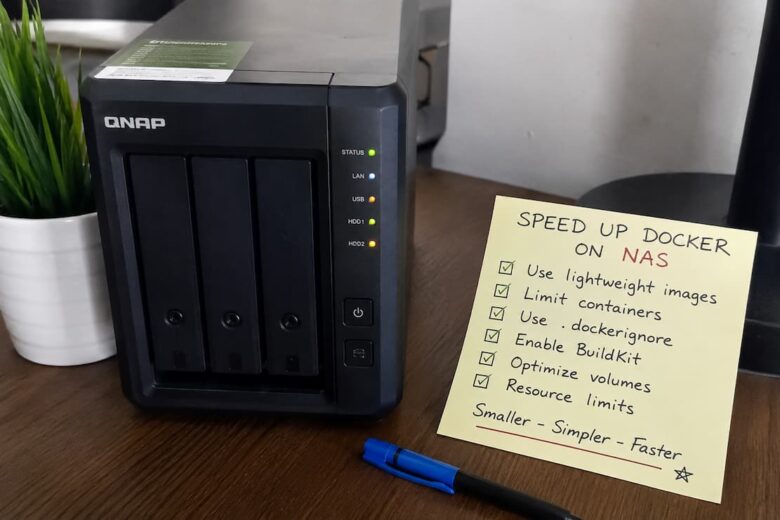
When containers feel slow on a NAS, Docker usually isn’t the bottleneck. The underlying hardware, storage layout, filesystem, container configuration, and application behavior almost always determine performance. Docker itself introduces relatively little overhead because containers share the host kernel instead of emulating hardware like traditional virtual machines.
This distinction changes how you troubleshoot the problem. If the host struggles to provide CPU time, memory, or disk I/O, replacing Docker with another container runtime rarely changes anything. A useful question is not, “How do I speed up Docker?” but rather, “Which resource is limiting this workload?”
Understand What Your NAS Is Actually Good At
Low-power NAS hardware is designed around efficient storage, not high-performance computing. Many consumer and SMB NAS systems use processors such as Intel Celeron, Intel Atom, AMD Embedded Ryzen, or ARM-based SoCs. These CPUs excel at serving files continuously with modest power consumption, but they have limited headroom for workloads that involve indexing, image processing, machine learning, large databases, or software compilation.
Applications like Plex media transcoding, Immich machine learning, Elasticsearch, Nextcloud preview generation, and Paperless-ngx OCR stress hardware very differently than lightweight services such as Pi-hole, AdGuard Home, Vaultwarden, or Nginx Proxy Manager. Recognizing the workload is the first optimization decision. No amount of tuning will make a dual-core Celeron behave like a modern desktop CPU.
Identify the Real Bottleneck Before Changing Anything
Changing settings without measuring the system often makes troubleshooting harder. Start by observing resource utilization while the application is under normal load.
Useful tools include:
docker stats
htop
iostat -xz 1
vmstat 1
Each answers a different question.
docker statsshows container resource usage.htopidentifies CPU saturation.iostatexposes storage latency.vmstathelps identify swapping and memory pressure.
The documentation explains these commands correctly but leaves out an important point: one metric in isolation rarely identifies the bottleneck. CPU usage may appear low while storage latency is extremely high, causing applications to wait rather than compute.
Reduce Storage Latency Before Increasing CPU Resources
On low-power systems, storage performance often limits application responsiveness long before CPU utilization reaches 100%. This surprises many administrators because modern NAS appliances frequently have multiple CPU cores but continue using mechanical hard drives for application data. Thousands of small random reads and writes are dramatically slower on HDDs than on SSDs.
Applications that frequently suffer include:
- PostgreSQL
- MariaDB
- SQLite-based services
- Home Assistant
- Nextcloud
- Git services
- Photo management platforms
- Media indexing applications
Moving application data to SSD storage usually provides a larger improvement than allocating additional CPU cores. Large media libraries can remain on HDDs while databases and application directories reside on SSDs. This hybrid approach balances cost and performance.
Separate Application Data From Bulk Storage
A common mistake is storing everything on the same volume. Application databases generate continuous random I/O. Media files generate mostly sequential reads. Backups generate sustained writes. When these workloads share one mechanical disk array, latency increases for every application. Separating workloads provides more predictable performance than simply adding additional memory.
For example:
- Store databases on an SSD.
- Store media libraries on HDD.
- Store backups on separate storage if possible.
- Avoid placing Docker metadata on slow USB drives or SD cards.
This architecture scales better as additional containers are deployed.
Memory Shortages Often Appear as CPU Problems
When RAM becomes scarce, Linux begins reclaiming memory aggressively. Eventually, inactive pages may be swapped to disk if swap space is configured. On systems using HDDs, swap latency can be hundreds of times slower than physical memory. Users often describe this as “Docker becoming slow.” Docker has not changed. The operating system is spending significant time moving memory pages instead of running applications.
Monitor memory usage with:
free -h
and monitor swap activity:
vmstat 1
Frequent swap activity indicates that reducing memory usage is likely more effective than increasing CPU allocation.
Don’t Overcommit Memory to Every Container
Some administrators assign generous memory limits to every container under the assumption that more memory always improves performance. Unused reserved memory cannot help other services. Instead, size containers according to actual requirements.
For example:
- DNS services typically require very little memory.
- Reverse proxies remain lightweight under modest traffic.
- Databases benefit from additional cache.
- Search engines often require significantly more RAM.
Allocating resources based on workload improves overall system responsiveness and reduces the chance that memory pressure will affect unrelated containers.
CPU Limits Are Useful, but Only for the Right Workloads
Docker allows limiting CPU usage through Compose or the command line. Many users immediately assign limits to every container. That approach prevents a single application from monopolizing the system, but it also introduces artificial bottlenecks. Background services that occasionally require short bursts of CPU may complete tasks more slowly when constrained unnecessarily.
CPU limits make sense when
- multiple users share the NAS
- one workload consistently consumes all available CPU
- interactive responsiveness is more important than batch processing
They are usually unnecessary for lightly loaded home lab systems.
Avoid Running More Services Than the Hardware Can Sustain
Containers are lightweight. Applications are not. Running thirty services on a NAS does not mean the hardware is comfortably supporting them. Idle containers consume relatively few resources, but databases, scheduled jobs, indexing tasks, backup processes, thumbnail generation, and update checks accumulate over time. This usually isn’t noticeable until several maintenance tasks begin simultaneously. Understanding background workload is more valuable than counting containers.
Storage Drivers Rarely Need Changing
Many articles recommend switching Docker storage drivers to improve performance. For most NAS deployments, this is poor advice. Modern Linux distributions already choose an appropriate storage driver automatically. Changing storage drivers affects compatibility, upgrade procedures, backups, and migration. Unless benchmarking identifies the storage driver itself as the limiting factor—which is uncommon—it’s better to spend effort optimizing storage hardware and application placement. The maintenance burden of changing storage drivers generally outweighs the performance benefit for home labs and SMB environments.
Bind Mounts Are Usually the Right Choice for NAS Deployments
Docker volumes and bind mounts solve different problems. Bind mounts work well when administrators want direct visibility into configuration files, backups, or application data on the host operating system. Docker-managed volumes simplify lifecycle management but can complicate manual inspection and disaster recovery. For NAS appliances where administrators regularly access files outside Docker, bind mounts often provide the most operational flexibility. The trade-off is that administrators become responsible for permissions, ownership, and directory organization.
Reduce Startup Work During Boot
Many services begin heavy initialization immediately after the NAS starts. Databases recover transactions. Applications scan libraries. Backup software verifies repositories. Media servers index content. Starting every container simultaneously increases disk contention precisely when storage is already busy. Staggering startup for resource-intensive services often produces a smoother boot sequence. This is especially valuable on systems with mechanical drives.
Watch Scheduled Jobs, Not Just Interactive Performance
A NAS that feels responsive during the day may become overloaded every night.
Look for overlapping tasks, such as
- filesystem scrubbing
- RAID consistency checks
- SMART tests
- backups
- media indexing
- thumbnail generation
- antivirus scans
Individually, these jobs are reasonable. Running together, they compete for the same CPU, storage, and memory resources. Adjusting schedules often provides measurable improvements without changing hardware.
Choose Lightweight Applications Where Appropriate
Not every self-hosted application has the same resource profile. Some modern web applications depend on multiple services, consume several gigabytes of memory, and continuously index data. Others provide similar functionality using a fraction of the resources.
The right choice depends on priorities. If you require maximum functionality, you may justify higher resource consumption. If the NAS also handles backups, file sharing, and virtualization, choosing lighter alternatives leaves more capacity for essential infrastructure services. Understanding operational cost is more valuable than comparing feature lists alone.
Verify That Changes Actually Improved Performance
Optimization without validation becomes guesswork.
After each change, observe:
- average CPU utilization
- storage latency
- memory usage
- swap activity
- application response time
- container restart frequency
Make one significant change at a time. If multiple settings change simultaneously, determining which modification produced the improvement becomes difficult. Keeping brief notes during optimization also simplifies future troubleshooting after upgrades or hardware replacements.
When New Hardware Is the Better Decision
There is a practical limit to optimization. If workloads consistently exceed available CPU capacity, memory remains exhausted after tuning, or storage latency stays high despite SSD placement, the hardware has become the limiting factor. At that point, continued optimization produces diminishing returns.
Typical upgrade priorities are the following:
- Increase RAM if memory pressure is frequent.
- Move application data to SSD storage.
- Upgrade CPU capability only when compute-intensive workloads dominate.
- Expand storage capacity after performance bottlenecks have been addressed.
This order generally provides better value than replacing the entire NAS prematurely.
Reader Takeaway
Most Docker performance issues on low-power NAS hardware originate below the container layer. Storage latency, insufficient memory, competing workloads, and unrealistic expectations account for far more slowdowns than Docker itself.
Treat optimization as a process of identifying the limiting resource rather than applying generic tuning advice. Measure first, change one variable at a time, and validate the result before moving on. That approach scales from a two-bay home NAS running a handful of services to a multi-user SMB appliance hosting dozens of applications.
FAQs
1. Should I move every Docker container to an SSD?
No. Prioritize databases, application data, and metadata that generate random I/O. Large media libraries and backups generally benefit far less from SSD storage and are often better suited to HDDs.
2. Does allocating more CPU cores always improve container performance?
No. Many self-hosted applications spend more time waiting for storage or network operations than performing CPU-intensive work. Monitoring resource usage before increasing CPU allocations prevents unnecessary tuning.
3. Is Docker slower than running applications directly on Linux?
In most cases, no. Docker’s overhead is relatively small because containers share the host kernel. Performance differences are typically caused by storage, networking, filesystem configuration, or application design rather than the container runtime.
4. Should I enable swap on a low-memory NAS?
It depends on the workload. A modest amount of swap can prevent abrupt out-of-memory terminations, but sustained swapping on mechanical disks significantly reduces performance. Frequent swap usage is usually an indicator that the system needs more RAM or fewer concurrent workloads.
5. How many Docker containers can a low-power NAS realistically run?
There is no meaningful fixed number. Ten lightweight infrastructure services may consume fewer resources than a single photo management platform performing image indexing. Evaluate workloads based on CPU, memory, storage I/O, and maintenance tasks rather than container count alone.