Keeping Docker containers updated is necessary for security, stability, and new features, but updating without a strategy often causes avoidable downtime. The container itself is disposable. The data, configuration, networking, and dependencies surrounding it are not included.
Docker itself does not cause many failed updates. They result from configuration drift, incompatible image changes, forgotten environment variables, missing volume backups, or assumptions about image tags that no longer hold true. A safe update process focuses less on replacing containers and more on protecting the surrounding infrastructure.
Understand What Actually Changes During a Docker Update
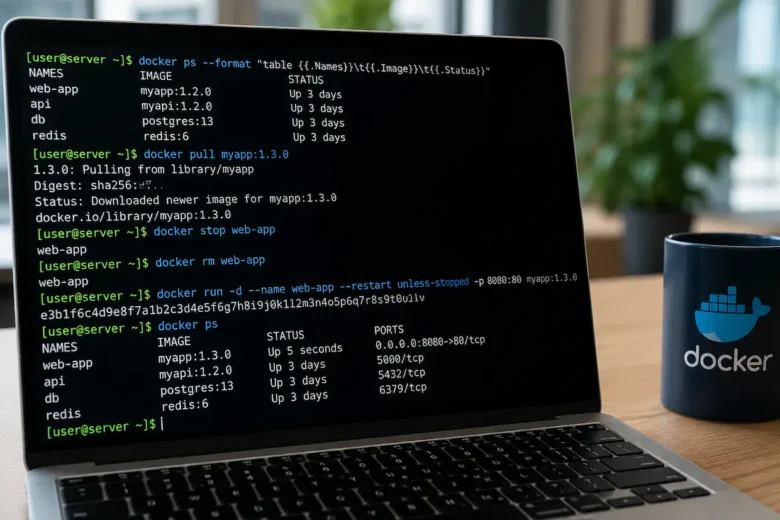
One of the most common misconceptions is that updating a Docker container modifies the existing container. It does not. Docker images are immutable. Updating means downloading a newer image, stopping the existing container, removing it, and creating an entirely new container using the updated image. Your persistent data survives only if it resides outside the container. That distinction explains why correctly configured volumes are fundamental to reliable Docker deployments.
The components involved in an update include:
| Component | Updated? | Persistent? |
|---|---|---|
| Docker Image | Yes | No |
| Container | Recreated | No |
| Named Volumes | No | Yes |
| Bind Mounts | No | Yes |
| Networks | Usually reused | Yes |
| Docker Compose File | Optional | Yes |
| Environment Variables | Reused if configured | Yes |
Understanding this lifecycle removes much of the uncertainty around updates.
Never Use Latest Without Understanding the Consequences
Using the latest tag appears convenient but introduces unpredictability. The tag simply points to whichever image the publisher currently defines as the latest. That definition can change without warning and may introduce the following:
- Breaking application changes
- Database migrations
- Configuration changes
- Removed features
- Updated dependencies
- Different base operating systems
Instead, pin images to a specific version whenever operational stability matters.
Example:
image: jellyfin/jellyfin:10.10.7rather than
image: jellyfin/jellyfin:latestVersion pinning allows updates to happen deliberately instead of unexpectedly. This process usually isn’t noticeable until an automatic update suddenly introduces a major release that requires manual intervention.
Read Release Notes Before Pulling a New Image
Most update failures could have been anticipated by reading release documentation.
Release notes frequently mention:
- required database migrations
- deprecated configuration options
- changed environment variables
- renamed Docker images
- authentication changes
- filesystem requirements
- minimum Docker version
- reverse proxy changes
Documentation explains how to upgrade but often omits operational implications. For example, a database migration may technically succeed while preventing rollback because the schema has permanently changed. That changes the recovery plan entirely.
Back Up Persistent Data Before Every Update
Containers are replaceable. Persistent application data is not.
Every update should begin with verified backups of:
- Named Docker volumes
- Bind-mounted directories
- Configuration files
- Database files
- Secrets
- Compose files
For databases, application-aware backups are preferable to filesystem copies.
Examples include:
- PostgreSQL dumps
- MariaDB backups
- MySQL logical exports
Copying live database files without consistency guarantees may produce backups that cannot be restored. The backup is only useful if restoration has been tested.
Keep Docker Compose as the Source of truth.
Containers created manually using long docker run commands become increasingly difficult to maintain.
Docker Compose provides the following:
- version-controlled configuration
- reproducible deployments
- easier updates
- clearer networking
- documented environment variables
- predictable recreation
A compose file becomes infrastructure documentation. Months later, rebuilding a server becomes significantly easier because every deployment decision remains documented.
A Safe Docker Update Workflow
The safest update process follows a repeatable sequence.
1. Review Available Updates
Pull new images without replacing running containers.
docker compose pullThe existing containers continue operating while images download.
This allows updates to be staged before deployment.
2. Review Configuration Changes
Compare:
- release notes
- environment variables
- mounted directories
- exposed ports
- required permissions
Do not assume compatibility because the image downloaded successfully.
3. Create Verified Backups
Protect:
- application data
- databases
- configuration
- compose files
Store backups outside the Docker host whenever practical.
4. Recreate Containers
Deploy the updated images.
docker compose up -dCompose recreates only services whose images or configuration changed.
5. Verify Application Health
Successful container startup does not mean the application is functioning.
Verify:
- application login
- web interface
- scheduled jobs
- reverse proxy connectivity
- SSL certificates
- API responses
- database connectivity
- background workers
Many applications start successfully while internal migrations continue for several minutes. Restarting them repeatedly during migration can create additional problems.
Verify the Correct Image Is Running
Many administrators assume the update succeeded because Docker downloaded a newer image.
Instead, verify the running container.
Useful commands include:
docker psdocker imagesdocker inspectdocker compose imagesConfirm:
- image version
- image digest
- creation timestamp
- container uptime
This avoids situations where an older container continues running after a failed recreation.
Understand Database Migration Risks
Applications frequently evolve faster than their databases. Some updates automatically migrate schemas during startup.
Those migrations may be:
- irreversible
- partially reversible
- dependent on application version
- dependent on extension versions
Rolling back the Docker image alone does not necessarily restore compatibility. If a rollback is required, preserve a database backup created immediately before the upgrade. Most troubleshooting eventually comes back to data compatibility rather than Docker itself.
Avoid Automatic Updates for Critical Services
Automatic update tools reduce maintenance effort but introduce operational risk.
Services such as:
- password managers
- monitoring systems
- identity providers
- databases
- business applications
- backup servers
benefit from controlled maintenance windows.
Automatic updates work best for:
- development environments
- non-critical dashboards
- disposable test services
They become less appropriate as application dependencies increase. An update performed at 3 AM provides little value if it silently breaks authentication before the next workday.
Update One Service at a Time
Updating an entire Docker stack simultaneously complicates troubleshooting.
Instead:
- Pull all images.
- Update one service.
- Verify functionality.
- Continue with the next service.
This step isolates failures.
If multiple containers change simultaneously, identifying the source of an issue becomes significantly harder.
Keep Environment Variables Under Version Control
Many deployment failures occur because environment variables gradually diverge between servers.
Store:
.env- Compose files
- reverse proxy configuration
- custom scripts
inside version control whenever appropriate. Avoid storing secrets directly in repositories. Version control makes configuration drift immediately visible after months of incremental changes.
Use Health Checks Instead of Startup Timing
Container startup does not necessarily indicate application readiness.
Applications may still be:
- initializing databases
- generating certificates
- rebuilding indexes
- restoring caches
Docker health checks provide a more reliable readiness signal than startup order alone.
Example:
healthcheck:
  test: ["CMD", "curl", "-f", "http://localhost:8080"]
  interval: 30s
  timeout: 10s
  retries: 5
Dependent services can then wait for actual availability instead of assuming readiness based on process startup.
Know When to Use Image Digests Instead of Tags
For highly reproducible environments, image tags may still change if publishers republish images.
Image digests eliminate that ambiguity.
Example:
image: nginx@sha256:...Digests guarantee identical deployments across environments.
The trade-off is increased maintenance, since digest updates must be managed explicitly.
This approach is particularly valuable for production infrastructure where reproducibility outweighs convenience.
Common Update Mistakes That Cause Downtime
| Mistake | Operational Impact |
|---|---|
Using latest everywhere |
Unexpected major upgrades |
| No backup before update | Permanent data loss |
| Updating every service simultaneously | Difficult troubleshooting |
| Ignoring release notes | Configuration incompatibilities |
| Editing containers manually | Lost changes after recreation |
| No health checks | Dependent services fail unpredictably |
| Storing data inside containers | Data disappears after recreation |
| Skipping post-update validation | Hidden failures remain undetected |
Recovering From a Failed Update
When an update fails, avoid repeatedly restarting containers before identifying the cause. A structured recovery process reduces the risk of compounding the problem.
Begin by examining container logs:
docker compose logsIf the issue is related to configuration, compare the updated environment variables and mounted files against the previous deployment. Configuration mismatches are often easier to correct than rolling back immediately.
If the application has not modified its data format, reverting to the previous image version is usually sufficient:
image: application:previous-versionRun:
docker compose pull
docker compose up -d
If the application performed an irreversible database migration, restoring the previous image alone will not resolve compatibility issues. In that situation, restore both the previous application version and the database backup created before the upgrade. Avoid deleting volumes unless you are intentionally restoring from backup. Removing a container is routine; removing persistent storage is often irreversible.
Building a Repeatable Update Policy
Reliable Docker maintenance is less about individual commands and more about consistency. Establishing a documented update process reduces human error and makes future maintenance more predictable.
A practical policy includes:
- Scheduling regular maintenance windows instead of updating ad hoc.
- Pinning image versions rather than relying on floating tags.
- Reviewing release notes before every deployment.
- Creating and verifying backups before recreating containers.
- Updating one service at a time.
- Validating application functionality after each update.
- Keeping Docker Compose files, environment variables, and supporting configuration under version control.
- Monitoring application health after deployment helps detect delayed failures.
As self-hosted environments grow, the surrounding operational practices become more important than the update command itself. The container lifecycle remains straightforward; the complexity lies in managing persistent data, dependencies, configuration, and recovery procedures with the same level of discipline applied to any production infrastructure.
FAQs
1. Do we stop the containers before fetching new images?
No. Running docker-compose pull will pull updated images without taking down the running containers. The downtime occurs just while we are recreating the containers.
2. Can we just use the prior image to rollback?
Only if the data in the app is still compatible with the older version. If the update did any irreversible migrations to the database or configuration, restoring the prior image might not be enough.
3. Is Watchtower manufacturing ready? Or is it a toy?
Upgrades via automatic update tools are fine for low-risk services, but they are normally a poor choice for critical infrastructure, where upgrades should be vetted, tested, and deployed during scheduled maintenance times.
4. How often do I need to update my Docker containers?
The frequency of updates should strike a balance between security needs and operational stability. Internet-facing services tend to be updated more frequently than isolated internal apps, but every update should follow the same backup, validation, and rollback process.
5. Should we use named volumes or bind mounts?
Both are right. Bind mounts allow direct access to host files. This is useful when you need to update configuration outside of the container. Named volumes limit the possibility of unintentional alteration and simplify data management. The choice is driven by the operational requirements of the application, not just by performance.