It may seem strange at first to consider running a complete operating system on a NAS, but it is a viable option. After all, most people consider virtual machines to be powerful desktop computers or enterprise servers. But today’s high-end NAS devices come with multi-core CPUs, expandable memory and virtualization software that makes running another operating system surprisingly viable. This means that one gadget can do several things without needing further hardware. If you’re interested in trying out virtualization but don’t want to invest extra computer resources in it, your NAS may already contain all you need. Knowing how virtual machines work, what hardware you need and when virtualization makes sense can tell you if your NAS can be more than just a storage appliance.
What is a Virtual Machine?
A virtual machine, or VM for short, is a software computer running within another physical computer. It has its own operating system, virtual hardware, storage, memory allocation, and network connection. To the operating system running within it, the virtual machine looks a lot like just another physical computer.
It is similar to having one desktop computer but being able to split its resources into a number of independent systems. You might have one VM running Windows to test out applications, another running Linux to learn command-line tools, and the NAS device could still be doing file storage in the background. Each environment is segregated; therefore, faults in one virtual machine are often isolated from the others.
This isolation is one of the main advantages of virtualization. You don’t need to acquire several computers for different tasks; instead, you can use one capable device more efficiently. Developers, IT pros, students, and tech enthusiasts often use virtual PCs to test software, review upgrades, or learn new operating systems without changing their main environment. The same applies when virtualization is available on a NAS. The NAS still carries the job of storing files but can also act as a lightweight server that can host one or more guest operating systems.
Why Run VM’s on a NAS vs. a PC?
Desktop computers are commonly the first choice for virtualization because they generally have higher computing capability. But firing up a desktop all day long for the sake of one or two virtual machines is not always practicable. A NAS is already built for uptime, so it is a great platform for workloads that need to stay up.
Imagine a home lab scenario in which you want to experiment with Linux, host a tiny web server, or build a private development environment. If your NAS is on all the time, then those virtual machines are always there without needing your primary computer to be active. Another advantage is central management. The virtual machine is right next to your stored data, your backups, and your shared folders. Most NAS operating systems come with web-based management interfaces, so you can build, start, stop, or monitor virtual machines from just about any device on your network.
Business might also benefit. Small offices might benefit from virtual machines on NAS for lightweight internal services such as inventory apps, testing environments, documentation systems, or network monitoring tools. The NAS combines many functions onto one device so you don’t need to have separate hardware for each tiny service. That stated, a NAS should not be a substitute for a specialized virtualization server. Performance depends greatly on how many existing services are already using the processor, which is critical before deploying mission-critical applications.
The Hardware Your NAS Requires for Virtualization
Not all NAS devices support virtual computers. Entry-level models are frequently dedicated to file storage and media streaming and use processors intended for low power consumption rather than virtualization. Before you plan any VM deployment, examine whether your NAS operating system has virtualization capability and whether your processor supports hardware-assisted virtualization technologies.
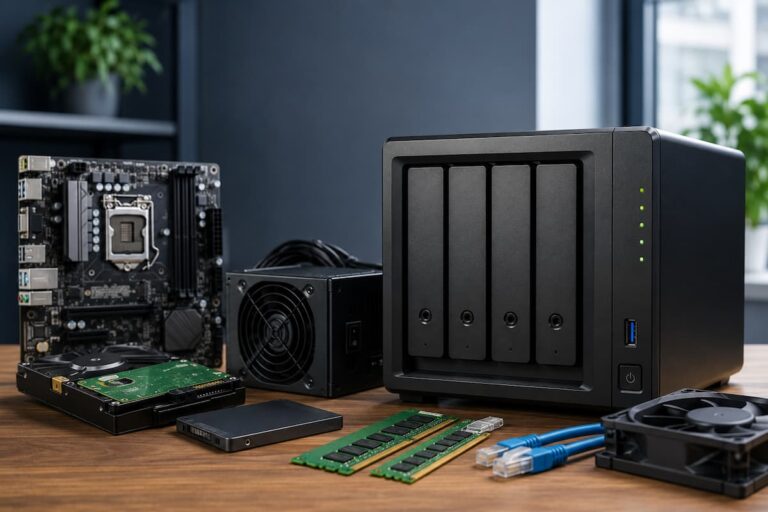
The processor is significant because every virtual machine shares the NAS’s CPU resources. Most modern Intel and AMD processors with virtualization extensions can typically do this task far more effectively than older or less capable chips. Memory is usually the first hardware constraint that consumers run across. Each virtual machine needs its RAM while it’s running. If you just have 2 or 4GB of memory in your NAS, the alternatives for virtualization will be limited. Many users update their NAS to 8GB, 16GB, or more before running several guest OSes.
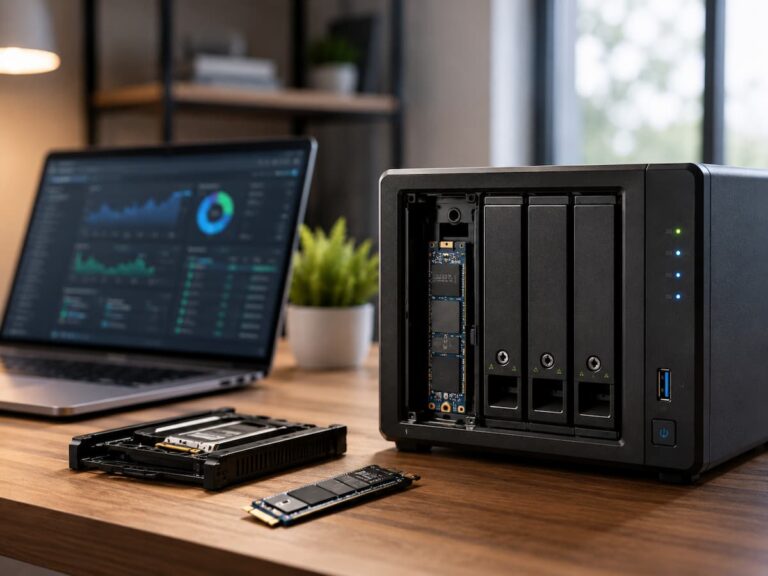
Storage performance is just too important. When they are running, virtual computers are continually reading and writing. Running VMs from solid state drives typically yields a significantly smoother experience than just relying on regular hard disks. Many recent NAS devices provide SSD caching or even dedicated SSD storage pools, and they can make virtualization substantially more responsive.
| Hardware Component | Why It Matters |
|---|---|
| Multi-core Processor | Allows multiple virtual machines to share processing resources efficiently. |
| Virtualization Support | Enables hardware-assisted virtualization for better performance. |
| RAM | Determines how many virtual machines can run simultaneously. |
| SSD Storage | Improves boot times and application responsiveness inside virtual machines. |
| Fast Network Connection | Provides smoother remote access and data transfers. |
How Virtualization Works Inside a NAS
When you create a virtual machine, the NAS allocates part of its processor time, memory, storage, and networking resources to that guest operating system. A virtualization platform—commonly called a hypervisor—acts as the manager who distributes these resources while keeping each virtual machine isolated from the others.
Instead of installing Windows or Linux directly onto the NAS hardware, you install the operating system inside a virtual disk file. This file behaves like a physical hard drive from the VM’s perspective. The guest OS boots from it, installs software, stores files, and runs applications just as it would on a dedicated computer.
The NAS operating system continues functioning alongside the virtual machines. It still manages file sharing, user accounts, backups, storage pools, and other services while the hypervisor schedules computing resources among the guest operating systems. One advantage of this design is flexibility. Virtual machines can often be paused, restarted, cloned, backed up, or restored much more easily than physical computers. If you make a configuration mistake while experimenting with a Linux server, restoring a previous snapshot can return the virtual machine to an earlier working state within minutes.
Common Uses for NAS-Based Virtual Machines
Virtual machines become much more valuable when they solve practical problems instead of simply demonstrating new technology. Many people begin with experimentation but quickly discover useful everyday applications. One common example is creating a dedicated Linux environment for learning server administration. Rather than installing Linux on your personal computer or purchasing another device, you can launch a VM whenever you want to practice terminal commands, configure web servers, or learn scripting.
Software developers often use virtual machines to test applications in clean operating system installations. If a program causes instability, it only affects the virtual machine. After testing, the VM can be reset or restored from a snapshot without changing the host NAS. Another popular use involves hosting lightweight internal services such as development environments, documentation platforms, monitoring dashboards, automation software, or small business applications. Keeping these services on the NAS centralizes management while reducing the number of physical devices that need maintenance.
Some users also create temporary Windows virtual machines for running software that is incompatible with their primary operating system. Instead of dual-booting a computer, the required application can run inside the virtual machine whenever needed.
Preparing Your NAS Before Creating a Virtual Machine
Spending a few minutes preparing your NAS can prevent many of the problems people encounter after launching their first virtual machine. Although every NAS operating system has its interface, the preparation process is generally similar regardless of the manufacturer. Start by updating the NAS operating system to the latest stable version. Updates often include security fixes, performance improvements, and compatibility enhancements for virtualization features. Running an outdated system may lead to unexpected issues or missing functionality.
Next, review your available resources. Check how much RAM is installed, how much storage remains free, and how heavily the existing services are already using the processor. Your NAS is handling media streaming, backup jobs, and file synchronization around the clock; launching multiple virtual machines could affect overall performance.
Storage planning is equally important. A virtual machine is stored as one or more large disk files, and these files grow over time as applications and data are added. Creating a dedicated storage volume or shared folder for virtual machines makes them easier to organize and back up. Finally, verify that your backup strategy includes the virtual machines themselves. While snapshots provide a convenient way to roll back changes, they should not replace proper backups stored on another device or in another location.
Creating Your First Virtual Machine
Once the virtualization application is installed on your NAS, creating a virtual machine follows many of the same steps you would see on a desktop hypervisor. The software guides you through allocating hardware resources before installing the operating system. You normally begin by selecting the guest operating system, such as Windows or a Linux distribution. This allows the virtualization platform to apply suitable default settings. You then choose the number of processor cores, the amount of memory to reserve, and the size of the virtual hard disk.
Most operating systems are installed from an ISO image, which is a digital copy of an installation disc. After uploading the ISO file to your NAS, you attach it to the virtual machine and boot it for the first time. The installation process is almost identical to installing an operating system on a physical computer. After installation, you can adjust settings if necessary. Adding more RAM, increasing storage capacity, or assigning additional processor cores is often possible without recreating the virtual machine, although some changes may require a restart. Many virtualization platforms also provide guest integration tools. Installing these tools improves display performance, enables smoother mouse interaction, and allows the guest operating system to communicate more efficiently with the host.
Managing Resources Without Slowing Down Your NAS
The biggest challenge when running virtual machines on a NAS is balancing performance. Every virtual machine consumes processor time, memory, storage bandwidth, and network resources. If you assign too many resources to guest operating systems, the NAS itself may become sluggish. A common beginner mistake is allocating nearly all available RAM to a virtual machine. While the guest operating system may perform well, the NAS still needs memory to handle file sharing, backups, media services, and its own operating system. Leaving sufficient resources for the host ensures that everything continues running smoothly.
Processor allocation deserves similar attention. Assigning every CPU core to a single VM usually decreases overall performance. Instead, leave some processing capacity available for the NAS and any additional virtual machines that may run at the same time. Storage speed also affects responsiveness. If several virtual machines perform disk-intensive tasks while backup jobs are writing large amounts of data, traditional hard drives can become a bottleneck. Placing active virtual machines on SSD storage while using hard drives for bulk file storage often produces a better balance between performance and capacity.
| Resource | Best Practice |
|---|---|
| CPU | Avoid assigning every available core to one virtual machine. |
| Memory | Reserve enough RAM for the NAS operating system and background services. |
| Storage | Use SSDs for active virtual machines whenever possible. |
| Networking | Use a wired Ethernet connection for consistent performance. |
| Backups | Protect virtual machines separately from snapshots. |
Networking Considerations for Virtual Machines
Backups, Clones, and Snapshots
One of the biggest benefits of virtualization is the ability to save a virtual machine’s state before making modifications. This is snapshotting. You may usually restore the snapshot and virtual machine to its previous condition after an operating system update, software installation, or configuration change. Learning new technologies with snapshots is helpful. You can explore freely, knowing that you can typically fix faults without reinstalling the OS.
You can expand this idea by cloning a virtual machine. You can clone and customize a configured VM instead of installing it again. Development teams often use clones to standardize testing. Remember that snapshots are not backups. Snapshots on the same NAS may be lost if the storage array fails or files corrupt. Protecting important virtual machines requires regular backups on another device, external storage, or cloud service.
Common Performance Issues and Solutions
Do not assume your NAS can’t virtualize if your first virtual machine is slow. Resource allocation or storage configuration, not the virtualization platform, often drives performance concerns. Insufficient memory is prevalent. The NAS may switch data to storage when RAM runs out, which is far slower than accessing physical memory. Virtualization workloads benefit most from RAM improvements if your NAS supports them.
Storage performance often lags. Virtual machines read and write small files regularly, making disk speed more important than file capacity. Moving active VMs to SSD storage or using a dedicated SSD volume can speed up startup times and application performance. Also track processor utilization. Multiple virtual machines doing heavy applications may overload the CPU. Instead of assigning extra virtual CPUs, reduce active VMs or schedule resource-intensive tasks during separate times.
Finally, test your network. Virtualization happens inside the NAS, but many users view their VMs remotely via web browser or remote desktop. A connected Gigabit Ethernet connection is smoother than Wi-Fi, especially for file transfers and graphics apps.
Best Practices for Running Virtual Machines on a NAS
You can manage virtualization much more easily when you establish a few good habits from the beginning. These practices improve reliability, simplify maintenance, and reduce the likelihood of unexpected downtime.
- Keep the NAS operating system and virtualization software updated with stable releases.
- Allocate only the CPU cores and memory that each virtual machine actually needs.
- Use SSD storage for frequently used virtual machines whenever possible.
- Create snapshots before installing major updates or making significant configuration changes.
- Back up important virtual machines to another device or location instead of relying solely on snapshots.
- Monitor processor, memory, and storage usage to identify resource bottlenecks early.
- Remove unused virtual machines to reclaim storage space and simplify management.
- Protect administrative accounts with strong passwords and multi-factor authentication if supported.
Following these practices helps your NAS remain responsive while ensuring your virtual machines are easier to recover if something goes wrong.
Conclusion
Running virtual machines directly on a NAS transforms it from a simple storage device into a versatile server capable of handling many different tasks. Whether you are keen to learn Linux, test software, host lightweight business services, or build a small home lab, virtualization allows you to do so without purchasing additional hardware.
The experience depends largely on choosing suitable hardware and managing resources carefully. A NAS with a capable processor, sufficient RAM, and fast storage can comfortably support one or more virtual machines while continuing to perform its primary storage duties. Understanding how processor allocation, memory usage, storage performance, and networking work together makes it much easier to create a stable environment.
Virtualization also encourages experimentation. Features such as snapshots and cloning make it possible to test new software, practice system administration, or evaluate updates with far less risk than using a physical computer. Combined with regular backups and sensible security practices, a NAS-based virtualization platform can become one of the most valuable tools in a home office, development environment, or small business network.
FAQs
1. Can all NAS devices run virtual machines?
No. Many entry-level NAS systems mainly serve as file storage and backup devices. Virtualization typically requires a compatible processor (that supports hardware virtualization), sufficient memory, and a NAS operating system with virtualization capabilities.
2. How much memory do I need?
The answer depends on the operating system and the applications you want to run. For a lightweight Linux virtual machine, 8 GB of system memory might be sufficient, whereas running multiple Windows virtual machines or heavier workloads requires 16 GB or more of memory.
3. Do virtual machines have to be stored on SSDs?
Although virtual machines can run from hard drives, SSDs generally offer faster boot times, slower application load times, and a smoother overall experience. Many users store running virtual machines on SSDs and use hard drives for long-term file storage.
4. Are snapshots and backups the same thing?
No. Snapshots capture the state of a virtual machine at a specific moment and can be used to undo changes. They should not replace backups, as these are typically located on the same storage system as the original virtual machine.
5. Can I remotely access virtual machines hosted on my NAS?
Yes. Most virtualization platforms offer the ability to manage remotely via a web interface, and guest operating systems can usually be accessed using protocols such as Remote Desktop or SSH. It is recommended to use a secure method for remote access, such as a VPN, rather than exposing the service directly to the internet.
References
- Microsoft Learn. Hyper-V Documentation. https://learn.microsoft.com/windows-server/virtualization/hyper-v/
- Red Hat. Virtualization Documentation. https://access.redhat.com/documentation/
- VMware Documentation. VMware vSphere Documentation. https://docs.vmware.com/
- QEMU Project Documentation. https://www.qemu.org/documentation/
- Open Virtualization Alliance. Virtualization Resources. https://www.openvirtualizationalliance.org/