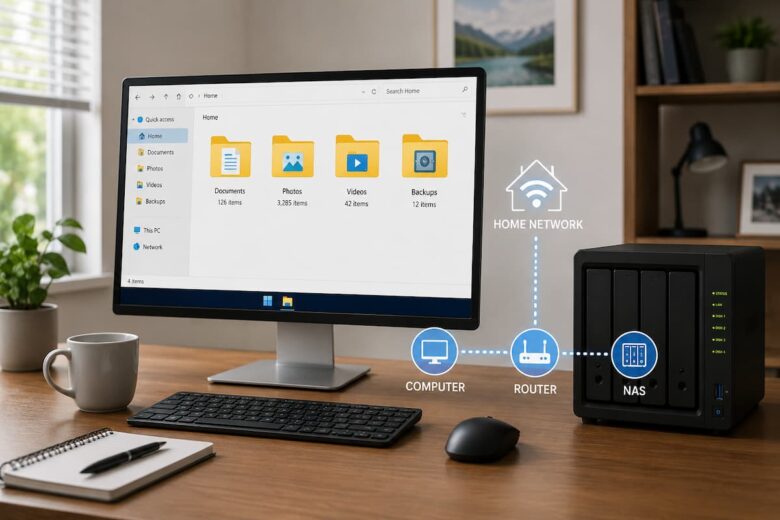
Why Every NAS Needs a Backup Strategy
Many people assume that storing files on a NAS is the same as having a backup. In reality, a NAS is primarily a storage system. If files are accidentally deleted, corrupted, or affected by hardware problems, they may not be recoverable unless additional backups exist.
A backup strategy creates extra copies of your important data so that you can recover files when unexpected situations occur. Even small mistakes, such as deleting the wrong folder or overwriting an important document, become much less stressful when reliable backups are available. Having multiple copies of your files also helps reduce downtime and allows you to continue working without rebuilding lost information from scratch.
Understand the Difference Between Storage and Backup
Although these terms are often used together, storage and backup have different purposes.
| Storage | Backup |
|---|---|
| Holds your everyday files. | Creates additional copies of important files. |
| Used for daily access. | Used for recovery after data loss. |
| Files can still be deleted or damaged. | Provides protection against accidental loss. |
| Usually contains the current version. | May contain older versions that can be restored. |
Understanding this difference is the first step toward building an effective data protection plan.
Identify the Files That Need Protection
Not every file has the same level of importance. Before creating backups, take some time to identify which data should always be protected.
For most home users, the following files deserve the highest priority:
- Family photos and videos
- Personal documents
- School assignments
- Work-related files
- Financial records
- Creative projects
- Important scanned documents
Organizing these files into clearly labeled folders makes future backups easier to manage and restore.
Follow the 3-2-1 Backup Principle
One of the most widely accepted backup methods is the 3-2-1 backup principle. Its goal is to reduce the risk of losing all copies of your data at the same time.
- Keep 3 copies of important files.
- Store them on 2 different types of storage.
- Keep 1 copy in a separate location.
For example, you might store your original files on your computer, keep a copy on your NAS, and maintain another backup in a separate location. If one copy becomes unavailable, another remains accessible. This simple strategy has helped many users recover important files after accidental deletion, hardware failures, or unexpected events.
Create a Backup Schedule
Backups are most effective when they happen regularly. Waiting until you remember to copy files manually increases the chance of missing important updates.
Choose a backup schedule based on how often your files change.
| Type of User | Suggested Backup Frequency |
|---|---|
| Home User | Weekly |
| Student | Every few days |
| Photographer | After every photo session |
| Remote Worker | Daily |
| Small Business | Daily or multiple times per day |
Consistency is more important than complexity. A simple schedule that you follow regularly provides far better protection than an advanced plan that is rarely used.
Organize Files Before Backing Them Up
A well-organized folder structure makes backups faster and easier to manage. Instead of storing everything in one large folder, separate your files into categories based on their purpose.
For example, create individual folders for personal documents, photos, videos, work files, and archived projects. Clear folder names also make it much easier to restore files when needed. Spending a little time organizing your data before creating backups can save a significant amount of time in the future.
Choose the Right Backup Method
Not every backup works the same way. The best method depends on how often your files change and how much data you need to protect. Understanding the most common backup types helps you create a strategy that fits your daily routine.
| Backup Type | How It Works | Best For |
|---|---|---|
| Full Backup | Creates a complete copy of all selected files. | First-time backups and periodic complete protection. |
| Incremental Backup | Copies only files that changed since the last backup. | Saving storage space and reducing backup time. |
| Differential Backup | Copies all changes made since the last full backup. | Faster recovery with moderate storage usage. |
Many people begin with a full backup and then continue with incremental or differential backups to keep the process efficient.
Automate Your Backup Routine
One of the easiest ways to protect your data is by automating backups. Manual backups are often forgotten, especially during busy weeks or when working on multiple projects.
Automatic backups run according to a schedule, helping ensure that recent files are copied without requiring constant attention. This reduces the chance of losing important work because of missed backup sessions. For example, if you edit documents every evening, scheduling backups overnight allows your files to remain up to date without interrupting your daily activities.
Keep Multiple Versions of Important Files
Sometimes the newest version of a file is not the one you want. A document may be edited incorrectly, a spreadsheet could become corrupted, or an important photo might be overwritten by mistake.
Maintaining multiple versions of important files allows you to restore an earlier copy whenever necessary. This approach is especially useful for projects that change frequently over time. Version history can also help students, writers, designers, and office workers recover previous work without starting over.
Verify That Your Backups Actually Work
Creating backups is only part of the process. You should also verify that they can be restored successfully. Occasionally select a few files and perform a test restoration. Open the restored files to confirm that they are complete and usable. This simple check provides confidence that your backup strategy will work when it is truly needed.
Many users discover backup problems only after experiencing data loss. Regular testing helps avoid this situation.
Protect Your Backups from Accidental Changes
Backup copies should remain separate from the files you use every day. If both the original files and their backups are modified or deleted at the same time, recovery becomes much more difficult. Organize backup folders carefully and avoid making unnecessary changes to completed backup sets. Clear folder names, consistent organization, and regular reviews help keep backups reliable.
- Create dedicated backup folders.
- Use meaningful folder names.
- Avoid deleting old backups without checking them first.
- Review backup storage periodically.
Common Backup Mistakes to Avoid
Even a simple backup strategy can become less effective if common mistakes are overlooked. Fortunately, these problems are easy to prevent with a little planning.
- Depending on only one copy of important files.
- Forgetting to update backups regularly.
- Mixing backup folders with everyday files.
- Never testing restored files.
- Deleting older backups too quickly.
- Ignoring changes in storage requirements.
Avoiding these mistakes greatly improves the reliability of your overall backup plan.
Create a Simple Backup Routine
You do not need a complicated process to protect your data. A consistent routine often works better than an advanced system that is difficult to maintain.
For example, a home user might organize files every Friday, verify backup completion once a month, and perform a restoration test every few months. These small habits require very little time but significantly improve long-term data protection. Building backup tasks into your regular schedule makes them easier to remember and less likely to be skipped.
Review Your Backup Strategy Regularly
Your storage needs will probably change over time. New devices, larger files, additional family members, or work-related projects may require adjustments to your backup plan.
Review your backup strategy every few months. Check whether your storage capacity is still sufficient, verify that scheduled backups continue to run successfully, and confirm that your most valuable files remain included in the backup process. Regular reviews help ensure that your backup strategy continues to provide reliable protection as your digital data grows.
Maintain Your Backup Strategy Over Time
A backup strategy should not be something you create once and forget. As your collection of files grows, your backup plan should grow with it. New folders, important documents, and personal photos should become part of your regular backup routine.
Set aside a few minutes every month to review your backup settings. Confirm that scheduled backups are still running, check that enough storage space is available, and remove backup copies that are no longer needed. Regular maintenance helps ensure your backups remain reliable without becoming difficult to manage.
How to Test Your Backup Plan
A backup is only useful if it can successfully restore your files. For this reason, testing your backups should become a normal part of your data protection routine.
Choose a few files from different folders and restore them to another location. Open each restored file to confirm it works correctly. If documents, images, or videos open without problems, your backup process is working as expected. Testing backups every few months provides confidence that your data can be recovered whenever necessary.
Simple NAS Backup Checklist
Use this checklist to make sure your backup strategy covers the most important areas.
| Task | Status |
|---|---|
| Organize important files into folders. | ✔ |
| Create regular backup schedules. | ✔ |
| Keep multiple copies of valuable files. | ✔ |
| Review storage space regularly. | ✔ |
| Test file restoration. | ✔ |
| Update the backup plan as storage grows. | ✔ |
Reviewing this checklist regularly helps keep your backup strategy organized and effective.
Benefits of a Well-Planned NAS Backup Strategy
A reliable backup strategy offers more than protection against hardware problems. It also makes everyday file management easier and reduces stress when unexpected situations occur.
- Reduces the risk of permanent data loss.
- Provides quicker file recovery.
- Keeps important documents organized.
- Protects family photos and personal memories.
- Supports business continuity for small offices.
- Helps maintain confidence when storing valuable information.
These advantages demonstrate why backups should be considered an essential part of using any NAS system.
Summary
A NAS provides an excellent location for storing your digital files, but it becomes much more valuable when combined with a well-planned backup strategy. By understanding the difference between storage and backups, following the 3-2-1 backup principle, organizing files carefully, creating automatic backup schedules, maintaining multiple file versions, and testing recovery procedures, you can significantly reduce the risk of losing important data.
Regular reviews and simple maintenance habits help ensure that your backup strategy continues to meet your needs as your collection of files grows. A consistent approach to backups offers long-term protection and makes recovering from unexpected situations much easier.
FAQs
1. Is storing files on a NAS enough to protect my data?
No. A NAS is designed for centralized storage, but additional backups are recommended to protect against accidental deletion, hardware failures, or file corruption.
2. How often should I back up my NAS?
The ideal schedule depends on how frequently your files change. Many home users perform weekly backups, while business users often back up their data daily.
3. What is the 3-2-1 backup strategy?
The 3-2-1 principle recommends keeping three copies of important data, storing them on two different types of storage, and keeping one copy in a separate location for additional protection.
4. Why should I test my backups?
Testing confirms that your backup files can be restored successfully. Without testing, you may not discover problems until you actually need to recover your data.
5. Can I back up only selected folders?
Yes. Many users choose to back up only their most valuable files, such as documents, photos, videos, work projects, and financial records, while excluding temporary or unnecessary files.