A home server can feel slow for reasons that have very little to do with the server itself. A file transfer may crawl because of a weak Wi-Fi connection, while a self-hosted application may be slow because the server is short on memory or waiting on storage. From the user’s perspective, both situations can look like the same problem: something takes too long to respond.
That makes troubleshooting a little more complicated than simply checking whether the processor is powerful enough. Before replacing a CPU, adding RAM, changing drives, or buying a faster router, it is worth finding out where the limitation actually occurs. A useful way to do that is to separate the server’s internal performance from the network path and test them independently.
The goal is not to find the component with the lowest specification. It is to identify the component that is actually holding back the workload you care about.
Start By Identifying What Is Actually Slow
The first clue is often the type of task that feels slow.
If an application responds slowly even when accessed from another device on the same local network, the server itself deserves closer attention. CPU usage, memory pressure, storage latency, an overloaded database, or the application configuration could all be involved.
A different situation occurs when the service works quickly from inside the house but becomes slow when accessed remotely. In that case, the internet connection, upload capacity, VPN, routing, or remote-access configuration may be responsible.
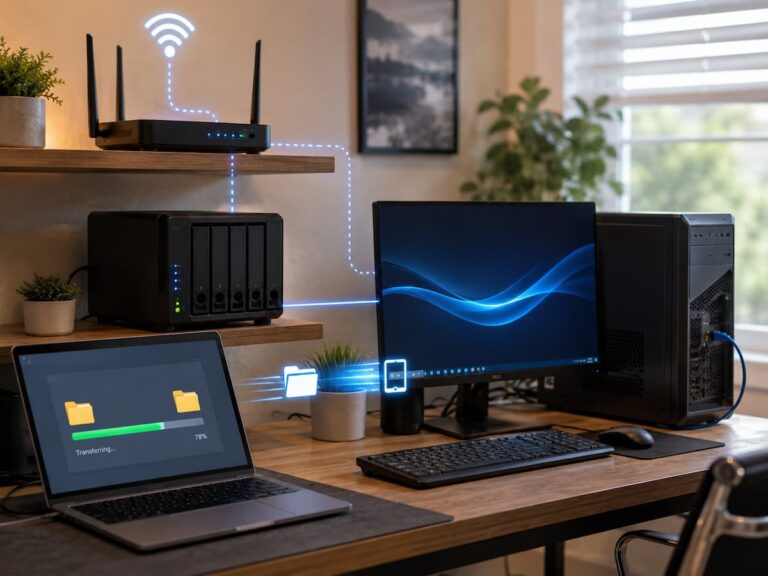
File transfers provide another useful example. Copying a file between two locations on the server primarily tests the server’s storage system. Copying that same file from the server to a laptop introduces the network, the laptop’s storage, and the file-sharing protocol into the equation.
This is why a single benchmark rarely tells you enough. The first job is to determine which path is actually experiencing the slowdown.
Use A Local Test Before Blaming The Network
One of the simplest ways to narrow down a problem is to perform a task without involving the network.
Suppose your server contains a large media library and you notice that applications accessing those files are sluggish. Try a representative file operation directly on the server. If the storage system itself struggles, there is little reason to start changing the router or Wi-Fi equipment.
The same principle applies to CPU-heavy workloads. If video transcoding causes the server to become unresponsive while the network is barely being used, the network is unlikely to be the main limitation.
On a Linux server, tools such as top, htop, iostat, and vmstat can help reveal what is happening while the workload is running. You don’t need to monitor every metric at once. The important thing is to observe the system during the slowdown, not several minutes later when everything has returned to normal.
A server sitting at low CPU usage after a problem has occurred doesn’t tell you much. A server repeatedly hitting high CPU utilization at exactly the moment an application becomes slow is much more useful evidence.
CPU Usage Can Reveal A Hardware Bottleneck
CPU limitations are most obvious with workloads that require significant processing.
Video transcoding, virtual machines, software compilation, compression, encryption, and certain databases can put substantial pressure on the processor. Some Docker applications can also consume considerably more CPU than others.
If CPU usage repeatedly approaches full utilization while the problematic task is running, the processor may be limiting performance. However, overall CPU percentage should not be the only thing you examine.
An application may heavily use a single CPU core while the remaining cores are mostly idle. On a multi-core server, that can produce poor performance even though the overall CPU utilization doesn’t look particularly high.
Temperature is another factor. A processor that becomes too hot can reduce its operating frequency to protect itself. If the server starts a workload quickly and then becomes progressively slower as temperatures rise, cooling and airflow should be investigated before assuming the CPU needs to be replaced.
Your existing Server Airflow Optimization article can be useful here because thermal problems can create performance symptoms that initially look like inadequate hardware.
Don’t Overlook Memory Pressure
Insufficient RAM can make a server feel slow even when CPU utilization appears perfectly reasonable.
When available memory becomes scarce, the operating system may move data between RAM and storage. Depending on the workload, this can create significant delays. Applications may take longer to respond, containers may become sluggish, and storage activity can increase unexpectedly.
This becomes more important as a home server takes on additional responsibilities. A machine running several Docker containers, a database, file sharing, media services, monitoring tools, and virtual machines will have very different memory requirements from a server used only for occasional file storage.
Check memory usage while the problem is happening. Look for signs of sustained memory pressure and swap activity rather than simply checking how much RAM is installed.
If the server is consistently struggling to keep active workloads in memory, adding RAM can provide a much larger improvement than replacing a processor that was never actually the bottleneck.
Storage Can Be The Hidden Limitation
Storage is one of the easiest bottlenecks to overlook because the server may have an otherwise impressive specification.
A modern CPU with plenty of RAM cannot make a storage system respond instantly to every operation. Hard drives, SSDs, RAID arrays, filesystems, and network storage can behave very differently depending on the workload.
Large sequential transfers may perform well while workloads involving many small files become painfully slow. Databases, virtual machines, application caches, thumbnail generation, and multiple simultaneous Docker services can create large numbers of storage operations.
When investigating this type of problem, look at disk utilization and I/O wait while the slowdown occurs.
If applications are waiting for storage while CPU usage remains relatively low, the storage subsystem deserves attention. It may be overloaded, approaching capacity, suffering from poor random I/O performance, or dealing with an unhealthy drive.
Drive health also matters. SMART warnings, increasing read errors, unusual latency, or other signs of a failing disk can cause performance problems before a complete drive failure occurs.
Test The Network Separately
Once you have a reasonable picture of the server’s internal performance, test the network independently.
Whenever possible, start with a wired Ethernet connection. Wi-Fi introduces additional variables, including signal strength, interference, channel congestion, distance, wireless adapter capability, and physical obstacles.
A tool such as iperf3 is useful because it measures network throughput without requiring the normal file-sharing workload. That makes it easier to determine whether the network itself can move data at the expected rate.
This distinction is important. A file transfer through SMB, NFS, or another protocol involves more than the network. Storage speed, filesystem behavior, protocol overhead, CPU processing, and the client device can all influence the result.
A dedicated network throughput test gives you a cleaner answer to a basic question:
Is the network capable of carrying the amount of data the server can produce?
Compare Wired And Wireless Performance
One of the most useful practical tests is to compare the same client over Ethernet and Wi-Fi.
Imagine that a desktop connected by Ethernet transfers files from the server quickly, while a laptop using Wi-Fi in another room is dramatically slower. That points toward the wireless portion of the connection rather than the server’s CPU or storage.
The problem might be a weak signal, interference, an older wireless adapter, a congested channel, distance from the access point, or a lower-than-expected negotiated connection rate.
It is also important not to confuse the advertised Wi-Fi link speed with actual file-transfer performance. A wireless connection may display a high theoretical link rate while delivering considerably less real-world throughput.
That doesn’t necessarily mean anything is broken. Wireless communication has overhead and is affected by environmental conditions in ways that a simple specification sheet cannot predict.
Check The Actual Ethernet Link Speed
Wired connections are generally more predictable, but they can still be misconfigured or operating below their intended speed.
A server, switch, router, or client may support gigabit Ethernet while the actual connection has negotiated at 100 Mbps. A damaged cable, faulty port, or connection problem can sometimes cause this.
Check the negotiated link speed on both ends of the connection.
If a server expected to have a 1 Gbps connection is actually operating at 100 Mbps, replacing the server’s processor would accomplish very little. The problem may be solved by changing a cable, replacing a damaged switch port, or correcting the network connection.
This is a good example of why diagnosis should come before purchasing hardware.
Understand The Difference Between Gigabits And Megabytes
Network specifications can also create unnecessary confusion.
Internet connections and Ethernet equipment are generally advertised in bits per second, while operating systems commonly display file-transfer speeds in bytes per second.
Since eight bits equal one byte, a 1 Gbps connection has a theoretical maximum of 125 MB/s before overhead. Real file transfers will normally be lower than that.
Therefore, seeing a file transfer around 100–120 MB/s on a healthy gigabit network does not necessarily mean the connection is performing badly.
The same principle becomes increasingly important with faster networking. A 2.5 Gbps or 10 Gbps interface can only improve a workload if the server, storage, client, and network path are capable of taking advantage of it.
Test More Than One Client
Testing a second device can sometimes solve the mystery surprisingly quickly.
If one desktop transfers files quickly while another laptop is consistently slow, the server may be functioning normally. The problem could be specific to the laptop’s wireless adapter, network configuration, location, or storage.
If several wired clients all experience similar slow performance while performing the same operation, the problem is more likely to be somewhere shared by those clients.
That could include:
- The server
- The storage system
- The switch
- The server’s network interface
- The file-sharing service
- A shared network configuration
The more independent tests produce the same result, the more confidence you can have in your diagnosis.
Local Performance And Remote Performance Are Different
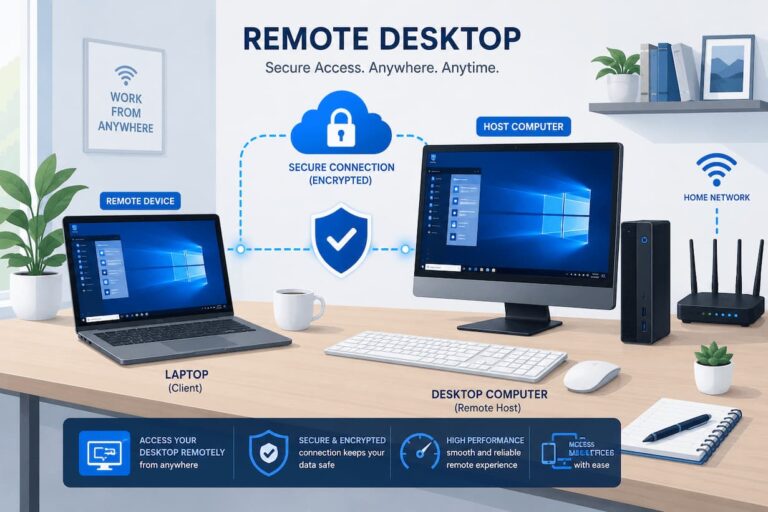
Remote access adds another major variable: the internet connection.
A home server may perform extremely well for devices inside the house while feeling slow when accessed from another location.
One common reason is upload capacity. A home internet package may advertise a very fast download speed while offering considerably less upload bandwidth. Remote users retrieving files or services from your home depend heavily on that outbound capacity.
Latency matters as well. Remote desktop sessions, web applications, databases, and interactive services can feel sluggish even when there is plenty of raw bandwidth available.
VPN encryption can introduce additional CPU work, while routing and the remote network can add further delays.
If local access is consistently fast but remote access is slow, investigate the remote path before assuming the server needs faster hardware.
A Simple Comparison Can Expose The Bottleneck
You can often narrow down the problem by testing the same workload through several paths.
| Test | What It Helps Isolate |
|---|---|
| Operation directly on the server | Storage and server-side processing |
| Wired client on the local network | Server + wired network path |
| Wi-Fi client on the local network | Wireless network performance |
| Different wired client | Client-specific problems |
| Remote client | Internet and remote-access path |
| CPU/RAM monitoring during the task | Hardware resource pressure |
| Independent network throughput test | Network capacity |
The important part is to compare results rather than treating any single number as definitive.
For example, suppose the server can read a large file locally at 300 MB/s. A wired client receives around 110 MB/s, while a Wi-Fi client receives only 25 MB/s. That pattern strongly suggests that the server’s storage is capable of producing more data than the wireless connection can deliver.
Now consider a server that can only read the same file at 35 MB/s while the disk is heavily utilized. In that situation, upgrading the Wi-Fi system won’t solve the primary problem because the server itself cannot produce the data any faster.
Watch For The Bottleneck That Moves
One of the most important things to understand about home-server performance is that there may not be a single permanent bottleneck.
A server might have plenty of CPU capacity for file sharing but struggle when transcoding video. Its storage may handle one user comfortably but become overloaded when several applications perform simultaneous database operations.
The network may be perfectly adequate for ordinary file access but become limiting when multiple clients transfer large files at the same time.
Think about the complete path involved in the task:
Application → CPU/RAM → Storage → Network Interface → Switch/Router → Client
A limitation anywhere along that path can affect the final experience.
This also explains why an upgrade that makes one workload faster may have almost no effect on another.
A Real-World Example
Imagine a home server running several Docker applications and storing a large collection of media files. The owner notices that copying a movie to a laptop takes much longer than expected and assumes the server needs a faster processor.
Instead of buying hardware, they first test the server’s storage locally. The drive can read the file significantly faster than the observed network transfer rate. CPU usage is also modest.
Next, they connect a desktop to the server using Ethernet. The same file transfers substantially faster.
Finally, they test the laptop over Wi-Fi and see much lower throughput.
The evidence points away from the server’s CPU. The limitation is somewhere in the wireless connection between the laptop and the network.
This kind of testing is valuable because it turns an assumption into an evidence-based diagnosis.
Don’t Upgrade Hardware Until You Have A Reason
A common home-server mistake is upgrading whatever component sounds most powerful.
A faster CPU will not fix a 100 Mbps network connection. More RAM will not solve a damaged Ethernet cable. A faster router will not make a failing hard drive healthy. Moving from gigabit to 10 GbE will not automatically speed up an application that spends most of its time waiting for a database on a slow disk.
The best upgrade is the one that addresses the measured limitation.
Before spending money, ask:
- Is the CPU actually saturated?
- Is memory consistently under pressure?
- Is storage waiting or saturated?
- Is the network interface reaching its practical limit?
- Is the connection negotiating at the expected speed?
- Does the problem occur on wired and wireless connections?
- Does another client experience the same problem?
- Does the slowdown happen locally or only remotely?
- Does the problem occur with one application or everything?
Those questions can prevent an unnecessary hardware purchase.
A Practical Troubleshooting Workflow
When the cause isn’t obvious, work through the problem in a consistent order.
Start by reproducing the slowdown with a specific task. Avoid testing several unrelated workloads at the same time because it becomes difficult to determine what changed.
Next, perform the same operation locally on the server if possible. Monitor CPU, RAM, storage activity, and temperatures while it happens.
After that, test the network independently. Use a wired connection where possible and check the negotiated link speed. If the network looks healthy, compare wired and Wi-Fi performance and then test another client.
Finally, compare local and remote access. If the problem exists only remotely, investigate internet upload capacity, latency, VPN overhead, routing, and the remote network.
After making a change, repeat the original test. Don’t assume an improvement simply because a benchmark number increased.
Frequently Asked Questions
How Do I Know If My Home Server CPU Is The Bottleneck?
Look at CPU utilization while the problematic workload is running. If the CPU or a particular core remains heavily loaded and performance improves when the workload is reduced, the processor may be limiting the task. Also check temperatures because thermal throttling can reduce performance without requiring a CPU replacement.
Can A Slow Wi-Fi Connection Make A Powerful Home Server Seem Slow?
Yes. If the server is fast but the client has a weak or congested Wi-Fi connection, applications and file transfers can feel slow even though the server has plenty of unused CPU and storage capacity. Comparing the same task over Ethernet and Wi-Fi is a useful way to identify this situation.
Is 1 Gbps Fast Enough For A Home Server?
For many home-server workloads, yes. A gigabit connection can provide roughly 125 MB/s of theoretical bandwidth before overhead, which is sufficient for many ordinary file-sharing and self-hosting tasks. Faster networking becomes more useful when multiple clients, fast SSD storage, large transfers, or high-bandwidth workloads justify it.
Why Is My Server Fast Locally But Slow Remotely?
Remote performance depends on more than the server’s hardware. Your home’s upload speed, latency, VPN configuration, routing, remote client’s connection, and the application itself can all affect performance. A fast local connection does not guarantee equally fast remote access.
Does More RAM Always Make A Home Server Faster?
No. Additional RAM helps when memory is actually limiting performance. If the server has plenty of available memory and the workload is primarily limited by storage or networking, adding RAM may produce little noticeable improvement.
Should I Upgrade My Router Or My Server First?
Neither should be upgraded automatically. First determine which component is limiting the workload. If wired network testing shows the server can easily handle the workload but network throughput is consistently limiting transfers, investigate the network. If the network is healthy while CPU, memory, or storage is consistently saturated, the server may need attention instead.
The Right Upgrade Starts With The Right Diagnosis
A slow home server is not necessarily a weak home server. Performance depends on how the CPU, memory, storage, network, applications, and clients interact with one another.
The most useful approach is therefore to isolate those components rather than immediately replacing hardware. Test the server locally, monitor its resources during the problem, measure the network independently, compare wired and wireless connections, and test more than one client when possible.
Once the evidence shows where the limitation lies, the solution becomes much easier to choose. Sometimes the answer is additional RAM or faster storage. In other cases, it may be a network cable, Wi-Fi configuration, switch port, application setting, or remote-access limitation.
The important thing is that you are fixing the actual bottleneck, rather than paying for an upgrade that only looks impressive on paper.