Beginners may find Docker and VPN software frightening. Both technologies use different nomenclature, and many online tutorials presume networking knowledge. Therefore, people commonly follow step-by-step directions without recognizing why each setting exists. This can cause configuration errors, security threats, and troubleshooting issues. This guide explains the steps before configuring. You’ll discover how Docker fits into a VPN implementation, what hardware and networking requirements to consider, why self-hosting is desirable, and how to protect remote access.
Why Use Self-Hosted VPN?
A VPN encrypts your remote device’s connection to your home or office network. After connecting, your traffic passes through this secure tunnel instead of the internet. You can access shared files, management interfaces, media servers, and other internal services as if your device were linked to the local network. Many commercial VPN companies prioritize anonymity when browsing the web or viewing regional content. VPNs hosted by themselves serve diverse purposes. Instead of routing your data through someone else’s servers, it lets you securely access to your network from anywhere with an internet connection.
Self-hosting lets you manage updates, user accounts, authentication, and network policies. You control which devices can connect, what resources they can access, and authentication. Flexibility is a major benefit for home labs, small firms, and techies. Naturally, more control means more responsibility. Since you manage the VPN server, updating and configuring it securely is part of network maintenance.
Why Docker Is Good for VPN Servers
Docker bundles apps into lightweight containers with everything needed to run them consistently across platforms. Instead of manually installing VPN software and its dependencies on the host OS, you deploy a container with the necessary environment. This method streamlines installation and predicts updates. Updates to VPN software usually entail changing the container with a newer image rather than reinstalling it.
Containers isolate. Each container controls its storage, networking, and other resources despite sharing the host system’s kernel. This separation keeps services ordered and reduces application interference. Docker is handy for multi-self-hosted service users. Each container on a server can operate a VPN, media server, backup application, password manager, and monitoring tools, making them easier to administer than traditional software installs.
Hardware and Network Needs
Containerized VPN servers have the benefit of low hardware requirements. A Docker-enabled home server, micro PC, single-board computer, or NAS is usually enough for personal or family use. Number of simultaneous users, VPN protocol, and internet speed determine requirements. The processor encrypts and decrypts every VPN connection. Newer CPUs with hardware encryption can handle encrypted traffic faster. While simple remote access does not require enterprise-grade equipment, a faster CPU is more important for simultaneous users.
Average memory needs are low. Most VPN containers use less RAM than databases or virtualization platforms. The host system should have enough memory for Docker and any VPN-related services. Server hardware and network connection are equally critical. Since your home network distributes data to external devices, download and upload speeds affect remote access. File transfers and remote desktop sessions may be slower if your internet plan has limited upload bandwidth.
| Component | Why It Matters |
|---|---|
| Modern CPU | Handles VPN encryption efficiently. |
| Sufficient RAM | Supports Docker and other running services. |
| Reliable Storage | Stores Docker images, configuration files, and logs. |
| Stable Internet Connection | Determines remote access speed and reliability. |
| Router with Port Forwarding Support | Allows incoming VPN connections to reach the server. |
Choosing the Right VPN Protocol
OpenVPN is another great option for broad compatibility. It supports numerous operating systems and network environments, has many configuration options, and has been available for years. This flexibility makes it suited for complex deployments, although beginners may find its configuration files more detailed than WireGuard’s.
IPsec-based solutions operate well with enterprise networking equipment and operating systems, thus several companies utilize them. Although powerful, these implementations demand more networking understanding than most residential users. You can choose the protocol that best fits your environment instead of being bound by the host operating system because Docker offers containers for numerous well-maintained VPN implementations.
Docker Networking in VPN Deployment
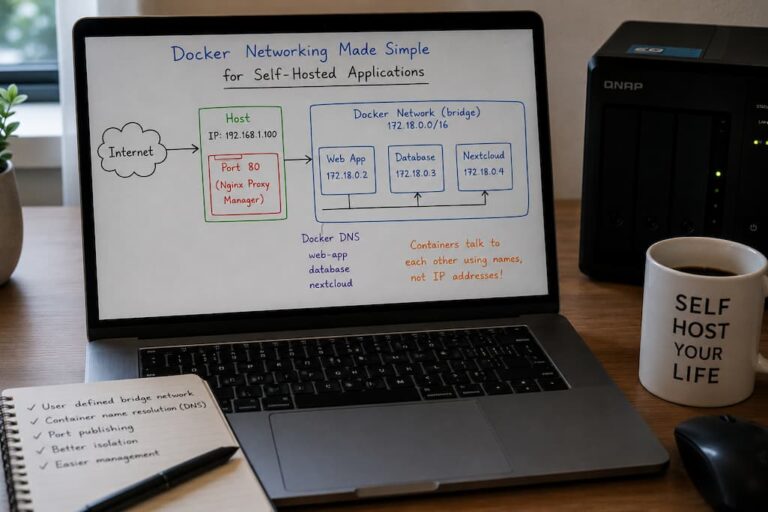
Before launching a VPN container, learn Docker networking. Every container uses Docker-managed virtual networking. The container may receive its own internal IP address, share the host’s network stack, or connect to specialized Docker networks for your apps, depending on its configuration.
VPN-connected devices send encrypted traffic to your router first. The VPN container authenticates the user and creates the encrypted tunnel on the Docker host after the router sends approved VPN traffic. From there, the container routes traffic to your local network or other Docker services as configured. This separation is flexible but takes planning. Misconfigured Docker networks or firewall rules can block remote clients from accessing resources. Troubleshooting issues is easier when you know how containers connect with the host system and local network.
Preparing the Host System for VPN Container Deployment
Prepare the server to host a VPN container before generating it. A stable operating system, updated software, and a reliable network connection are better than post-deployment troubleshooting. Update Docker and the OS to their newest stable builds. Internet-facing services need security patches because attackers quickly target newly discovered vulnerabilities. Keeping the host system updated reduces its vulnerability.
Arrange your Docker environment. Administrators often build directories for container configurations, certificates, and persistent data. This facilitates backups and server upgrades and rebuilds. You should also give the Docker host a local static IP address. Port forwarding rules and client setups may fail after a router restart if the server’s address changes. Finally, make sure your firewall accepts only VPN traffic. VPN servers rarely need multiple internet-facing ports. Reducing unneeded inbound connections minimizes attack surface.
Docker VPN Container Deployment
Most Docker-based VPN solutions give official container images and documentation on environment variables, storage locations, and networking choices. The deployment method is similar across projects, although the commands vary. Download the VPN container image from a reliable source. Use official pictures from software developers, as they receive regular upgrades and security fixes. Before downloading container pictures from unknown authors, verify their legitimacy.
Create cryptographic key and configuration file persistent storage volumes. Even though containers are disposable, critical configuration data should stay outside the container to survive updates and restarts. Generation of server keys, client profiles, and VPN user network ranges usually occurs after the container starts. Some projects automate most of these activities, while others require manual setting. After you configure the server, export the client configuration files and import them into your laptop, smartphone, or tablet using the VPN software. Since it has everything, the client may connect to your home network securely.
Secure Remote Connectivity and Router Configuration
Remote users must connect to the VPN via the internet even if it runs in a Docker container. Configuring your home router to redirect the VPN service’s listening port to Docker is typical. While port forwarding may seem frightening, it’s simple. Your router forwards only approved VPN traffic from the internet to the Docker server. Only the VPN endpoint is available from outside your network, unlike several services.
Remembering your public IP address can be difficult if your internet provider changes it frequently. Dynamic DNS services automatically assign a memorable hostname to your changing public IP address. Connect using the hostname instead of checking your IP address when traveling. Because Carrier-Grade NAT (CGNAT) does not give a unique public IPv4 address, some internet providers ban port forwarding. If this applies to your connection, you may need to obtain a public IP from your provider or utilize a remote access solution without inbound port forwarding.
Enhancing Security Beyond Encryption
Data is encrypted when traveling over the internet, but safe remote access requires more. Secure deployments require authentication, software maintenance, and access control. Guard private keys and configuration files. Your VPN is accessible to anyone with valid client credentials until they are revoked. Protect backups and prevent transferring configuration files via unencrypted messaging systems.
Update Docker images and the host OS regularly. Only when updates are installed do containerized apps simplify updates. Routine VPN maintenance protects against new vulnerabilities. Limit VPN access to trusted users. Instead of distributing a configuration file, build client credentials for remote access. Individual credentials make it easy to revoke access for one user without affecting others.
Enable multi-factor or certificate-based authentication in your VPN program for added security. A compromised password or leaked configuration file is less likely to allow unwanted access with several authentication layers.
Troubleshooting Common VPN Docker Issues
Even well-planned deployments occasionally encounter connection problems. Fortunately, many of the most common issues have straightforward causes.
| Problem | Possible Cause | Suggested Check |
|---|---|---|
| Cannot connect from the internet | Incorrect port forwarding | Verify router forwarding rules and firewall settings. |
| VPN connects but local devices are unreachable | Routing configuration | Review Docker networking and VPN route settings. |
| Slow connection speeds | Limited upload bandwidth or CPU usage | Monitor internet connection and server resource utilization. |
| Client authentication fails | Expired or incorrect credentials | Regenerate client configuration and verify keys. |
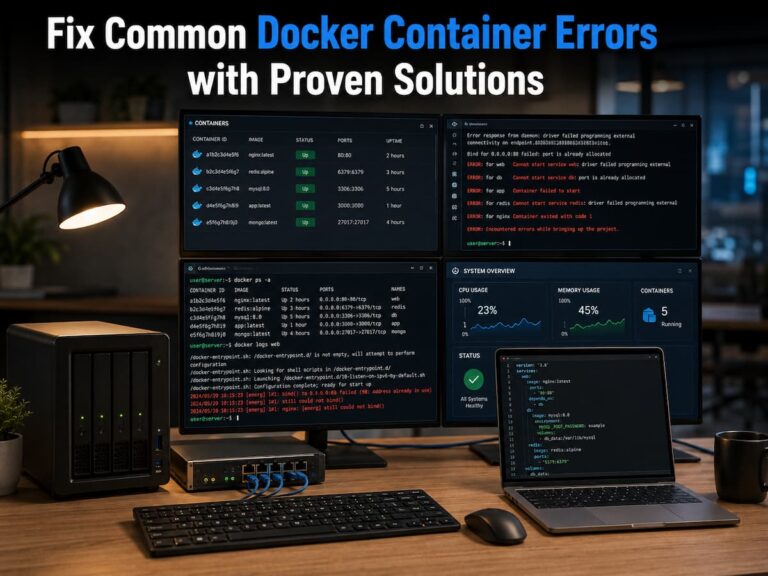
| Container stops unexpectedly | Configuration or system issue | Review Docker container logs for error messages. |
Docker’s logging tools are especially useful during troubleshooting. Instead of guessing what went wrong, review the container logs to identify startup failures, authentication errors, or networking problems. Many issues become much easier to diagnose once the actual error messages are visible. Testing from both inside and outside your home network also helps isolate problems. A VPN that works locally but not remotely often points to router configuration or internet connectivity rather than Docker itself.
Maintaining Your Self-Hosted VPN Over Time
Regularly check user accounts and client configurations. Revoke access rights for devices that are no longer in use and users who no longer require a connection. Immediately replace lost VPN credentials on laptops or mobile phones to prevent unauthorized access. It is recommended to back up Docker configuration files, encryption keys, and persistent volumes. Backups make it easier to recover from hardware failures or migrate the VPN to a new server. Finally, check the VPN logs occasionally. Repeated login errors, abnormal connection times, and unknown client devices may indicate security issues that require further investigation.
When a Self-Hosted VPN Is the Right Choice
A self-managed VPN is ideal when you need secure network access rather than browsing the internet anonymously. It allows you to access file servers, network storage, development environments, home automation systems, and other internal resources without exposing them to the internet. Docker simplifies deployment, upgrades, and long-term maintenance, making this strategy even more attractive. Containers isolate VPN software from other applications, making rebuilding or migration easier.
However, self-hosting is not always the best option. For occasional remote access and fully managed services, commercial remote access platforms may require less management effort. When you manage your own VPN, you are responsible for upgrades, backups, monitoring, and security yourself. Users valuing networking capabilities or wanting full control over their infrastructure may find this trade-off worthwhile. A well-maintained self-hosted VPN offers flexible and reliable remote access.
Conclusion
Docker and self-hosted VPNs enable users to easily and securely access their home or office network from any location. You can provide an encrypted access point for authenticated users to access internal resources without exposing many services to the internet.
Good planning is more important than technical expertise. Choosing a VPN protocol, preparing the Docker host, setting up the network, protecting authentication credentials, and updating the software all contribute to a secure implementation. Each phase adds additional security measures and simplifies maintenance.
With experience, you can use a VPN to access self-hosted file storage, media servers, monitoring systems, and development environments. By implementing good security measures and maintaining your implementation long-term, you can access it remotely without exposing your network to the internet.
FAQs
1. Can I run a Docker-based VPN on my NAS?
Yes, many modern NAS devices support Docker or similar container platforms. As long as the hardware is compatible and the operating system supports containers, a NAS can host a VPN container while other services are running.
2. Which VPN protocol is better for beginners: WireGuard or OpenVPN?
WireGuard is generally considered easier to configure and often offers excellent performance with a relatively simple installation. If compatibility with various operating systems and network environments is a priority, OpenVPN remains a good choice.
3. Do I need to open multiple ports on my router?
In most cases, no. A correctly configured VPN typically only needs to forward the ports used by the VPN service itself. Internal applications can still access the VPN via an encrypted tunnel without being exposed separately.
4. Is Docker safer than installing VPN software directly?
Docker offers application isolation and simplifies deployment, but it cannot replace a secure configuration. Regardless of how the VPN is installed, keeping containers up to date, protecting login credentials, and following network best practices remain crucial.
5. What happens if my public IP address changes?
If your internet provider assigns dynamic IP addresses, you can use a Dynamic DNS (DDNS) service to connect your VPN clients via a fixed hostname. This eliminates the need to manually keep track of your current public IP address.
6. Should I back up my VPN configuration?
Yes. Configuration files, certificates, encryption keys, and Docker volumes should all be included in your regular backup process. These backups simplify disaster recovery and make migrating your VPN to new hardware much easier.
References
- Docker Documentation. Docker Engine Documentation. https://docs.docker.com/
- WireGuard Documentation. https://www.wireguard.com/
- OpenVPN Documentation. https://openvpn.net/community-resources/
- National Institute of Standards and Technology (NIST). Zero Trust Architecture (SP 800-207). https://csrc.nist.gov/publications/detail/sp/800-207/final
- Cybersecurity and Infrastructure Security Agency (CISA). Secure by Design. https://www.cisa.gov/securebydesign