What Hardware Does a NAS Need?
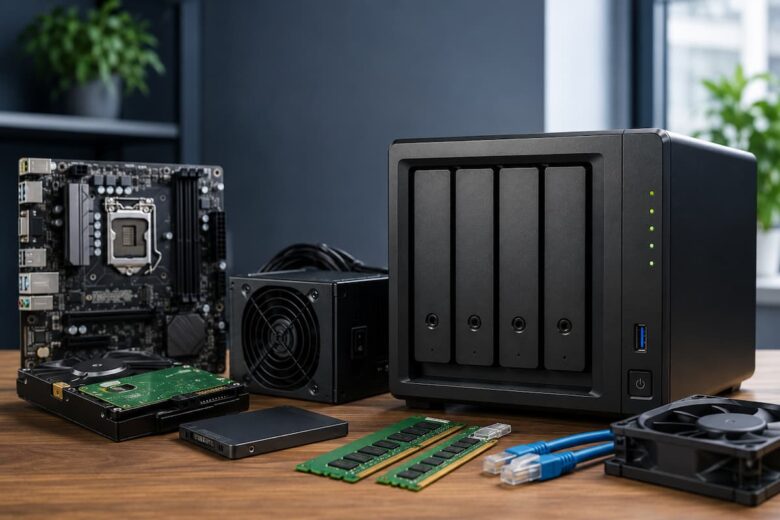
A NAS consists of several key hardware components that work together. Each part has a specific role in keeping your files safe and accessible.
| Hardware Component | Purpose |
|---|---|
| Processor (CPU) | Handles system operations and file management. |
| Memory (RAM) | Improves multitasking and system responsiveness. |
| Storage Drives | Store files, backups, and media. |
| Drive Bays | Hold one or more storage drives. |
| Network Port | Connects the NAS to your router or switch. |
| Power Supply | Provides stable power to the system. |
| Cooling System | Prevents overheating during continuous operation. |
Understanding these components makes it much easier to choose hardware that matches your storage needs.
Choose a Processor That Matches Your Usage
The processor, also called the CPU, is the brain of the NAS. Every task—from copying files to managing users and running background services—depends on the processor. If you only plan to store documents and family photos, a basic processor is usually sufficient. However, if several users access the NAS simultaneously or frequently transfer large files, a more capable processor will provide smoother performance.
For example, a family using the NAS for photo backups may never notice CPU limitations. In contrast, a small office with multiple employees opening files at the same time will benefit from a faster processor.
Why RAM Matters
Random Access Memory (RAM) temporarily stores information while the NAS is working. More RAM allows the system to handle multiple tasks more efficiently. A NAS with enough memory can manage file transfers, backups, and user requests without slowing down. Insufficient RAM may cause delays when several operations occur at once.
If your storage needs are expected to grow over time, choosing a NAS that supports future RAM upgrades can be a practical decision.
- Supports smoother multitasking
- Improves system responsiveness
- Helps manage multiple users
- Benefits larger file transfers
Select the Right Storage Drives
The storage drives hold all of your files. They are one of the most important hardware components because they directly determine how much data your NAS can hold. When selecting storage capacity, think about both your current and future needs. Photos, videos, documents, and backups can quickly consume available storage, especially over several years.
For example, someone storing mostly office documents may require far less storage than a household with thousands of high-resolution photos and videos. Planning helps reduce the need for early upgrades and keeps your NAS useful for a longer period.
Understand the Importance of Drive Bays
Drive bays are the slots inside the NAS where storage drives are installed. Different NAS models support different numbers of drive bays. A system with more drive bays offers greater flexibility because additional drives can often be added later as storage needs increase.
| Number of Drive Bays | Suitable For |
|---|---|
| 1 Bay | Basic personal storage |
| 2 Bays | Home users and small families |
| 4 Bays | Large households or small offices |
| 6+ Bays | Growing storage requirements and advanced users |
Choosing the appropriate number of drive bays today can make future storage expansion much easier without replacing the entire NAS.
Consider Network Connectivity
A NAS communicates with your computers, smartphones, tablets, and other devices through your local network. For this reason, network connectivity plays an important role in overall performance. Most NAS systems use an Ethernet port to connect directly to a router or network switch. A wired connection is generally more stable than a wireless connection, especially when transferring large files or backing up multiple devices.
If several family members or employees regularly access the NAS, a reliable network connection helps reduce delays and provides a smoother experience. Before you install your NAS, check that your router has an available Ethernet port and that you use a quality network cable for the connection.
Why an Efficient Cooling System Is Essential
A NAS is designed to operate continuously, often twenty-four hours a day. It naturally produces heat because it stays powered on for long periods. An efficient cooling system helps maintain safe operating temperatures for the processor, memory, and storage drives. Most NAS devices include built-in cooling fans that automatically remove excess heat during normal operation.
Good airflow also depends on where the NAS is placed. Position the device in a clean, dry, and well-ventilated area instead of inside a tightly enclosed cabinet. Leaving enough space around the unit allows air to circulate properly and helps extend the lifespan of the hardware.
Reliable Power Supply Matters
A stable power supply is another important hardware requirement that people sometimes overlook. Every hardware component inside the NAS depends on consistent electrical power to operate correctly.
Unexpected power interruptions may interrupt file transfers or scheduled backups. While occasional outages are unavoidable, ensuring that the NAS receives stable power during normal use contributes to reliable day-to-day operation. It is also a wise habit to shut down the NAS properly whenever maintenance is required instead of disconnecting the power cable suddenly.
Storage Capacity Planning
One of the biggest mistakes new NAS users make is planning only for today’s storage needs. Digital files continue to grow over time, so it is wise to think ahead before selecting storage capacity.
Consider the types of files you expect to store over the coming years. High-resolution photos, videos, project files, and regular computer backups can quickly consume available storage.
| Type of User | Typical Storage Needs |
|---|---|
| Personal Documents | Lower storage requirements |
| Family Photos | Moderate storage growth over time |
| Video Collections | High storage usage |
| Small Business Files | Steady long-term storage growth |
Planning for future growth helps reduce the need for major upgrades later.
Think About Future Hardware Expansion
Your storage requirements today may be very different from your needs a few years from now. As you create more files, having room to expand becomes increasingly valuable. Some NAS systems allow memory upgrades, while others provide additional drive bays for expanding storage capacity. Choosing hardware with upgrade options offers greater flexibility without replacing the entire system.
For example, a family may initially use the NAS for photos and documents but later decide to store home videos and larger backup archives. Hardware that supports expansion can adapt more easily to these changing requirements.
Hardware Features Worth Considering
Besides the core components, some additional hardware features can improve everyday usability and long-term reliability.
- Quiet cooling fans for reduced operating noise.
- LED status indicators that show drive and network activity.
- Easy-access drive bays for simple maintenance.
- Multiple USB ports for connecting external storage devices.
- Strong outer construction for better durability.
- Energy-efficient components for continuous operation.
Although these features are not always essential, they can make managing a NAS more convenient over time.
Common Hardware Mistakes to Avoid
Choosing NAS hardware without careful planning can lead to unnecessary upgrades or reduced performance. Fortunately, most common mistakes are relatively simple to avoid.
- Buying less storage than you will need in the near future can lead to unnecessary upgrades.
- Ignoring the amount of installed RAM.
- Choosing too few drive bays for future expansion.
- Placing the NAS in a poorly ventilated location.
- Using unreliable or damaged network cables.
- Neglecting routine hardware maintenance such as cleaning dust from air vents.
Taking time to evaluate these factors before purchasing or installing a NAS can save both time and effort later.
Maintain Your NAS Hardware for Long-Term Performance
After setting up your NAS, regular maintenance helps keep the hardware performing efficiently. Unlike devices that are only used occasionally, a NAS often operates day and night. This continuous operation makes routine maintenance an important part of protecting your investment.
Keep the exterior of the NAS clean by removing dust from the air vents with a soft cloth or compressed air. Dust buildup can restrict airflow and increase operating temperatures. It is also a good idea to check that the cooling fan is running normally and that ventilation openings remain unobstructed. Monitoring available storage space, installing system updates, and occasionally checking the health of installed drives can also help identify potential issues before they become serious problems.
Signs Your NAS Hardware May Need Attention
Even a well-maintained NAS can occasionally show signs that something requires attention. Recognizing these signs early may help prevent data loss or unexpected downtime.
- File transfers become much slower than usual.
- The NAS frequently restarts without explanation.
- Cooling fans become unusually loud.
- The device feels excessively hot during normal use.
- Storage capacity suddenly appears incorrect.
- Error notifications appear repeatedly in the management interface.
If you notice any of these issues, inspect the hardware carefully and review the system status before continuing normal use.
Simple Hardware Checklist Before Installation
Before installing a NAS, reviewing a simple checklist can help ensure that all essential hardware requirements have been considered.
| Item | Status to Confirm |
|---|---|
| Processor | Suitable for your expected workload. |
| RAM | Enough memory for daily tasks. |
| Storage Drives | Sufficient capacity for current and future files. |
| Drive Bays | Enough slots for future expansion. |
| Network Connection | Stable wired Ethernet connection available. |
| Cooling | Proper airflow around the NAS. |
| Power | Reliable electrical connection. |
Reviewing this checklist before installation can help avoid common setup problems and make future upgrades easier.
Conclusion
Understanding NAS hardware requirements before purchasing or installing a system makes the entire experience much smoother. Every major hardware component—including the processor, memory, storage drives, drive bays, network connection, cooling system, and power supply—plays an important role in the overall performance and reliability of the NAS.
Planning for future storage growth, selecting appropriate hardware specifications, and performing regular maintenance can help ensure that the NAS continues to meet your needs for many years. Whether you are storing personal documents, family photos, or important backups, choosing suitable hardware creates a strong foundation for dependable file storage.
FAQs
1. What is the most important hardware component in a NAS?
All components are important, but storage drives and the processor have the greatest impact on overall performance and storage capacity. Choosing hardware that matches your intended use is the best approach.
2. How much RAM does a home NAS usually need?
The required amount depends on your workload. Basic file storage generally requires less memory, while multiple users and heavier workloads benefit from additional RAM.
3. Why are multiple drive bays useful?
Additional drive bays provide flexibility for future storage expansion and make it easier to increase capacity as your collection of files grows.
4. Does cooling really matter for a NAS?
Yes. Since most NAS systems operate continuously, proper cooling helps maintain safe temperatures and supports reliable long-term performance.
5. Can I upgrade NAS hardware later?
Many NAS systems support upgrades such as additional storage drives or memory, although upgrade options vary depending on the model and hardware design.