Introduction
Many people use cloud services to access their files remotely, but there are times when you may want direct access to your own home network instead. Whether you’re traveling, working remotely, or simply want to reach files stored on your home computer, a home VPN server can make that possible while adding an extra layer of security.
Setting up a VPN server may sound complicated at first, especially if you’ve never worked with networking before. Fortunately, modern routers and operating systems have made the process much easier than it was a few years ago. With some basic planning and the right equipment, even beginners can build a secure remote connection. This guide explains everything you need to know about setting up a home VPN server in simple language. You’ll learn how VPN servers work, what equipment you need, the different setup options available, common mistakes to avoid, and practical tips for keeping your connection secure. By the end of this guide, you’ll understand not only how to build your own VPN server but also how to maintain it safely over time.
What Is a Home VPN Server?
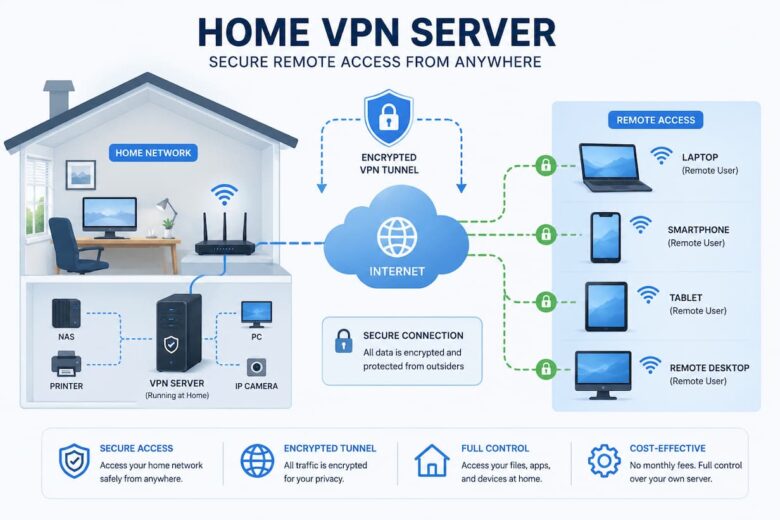
A Virtual Private Network (VPN) server allows you to securely connect to your home network over the internet. Instead of exposing your devices directly to the public internet, the VPN creates an encrypted connection between your remote device and your home network. Imagine you’re traveling and need a file stored on your desktop computer at home. Without a VPN, accessing that computer safely can be difficult. With a properly configured VPN server, your laptop or smartphone connects securely as if it were physically connected to your home WiFi network.
Unlike commercial VPN services that focus on hiding your internet activity by routing traffic through remote servers, a home VPN server primarily gives you secure access to your own network.
Quick Note:
A home VPN server is designed for secure remote access. It is different from subscription VPN services that mainly provide online privacy and location masking.
Common Uses for a Home VPN
- Access files stored on home computers
- Use network-attached storage (NAS) remotely
- Secure public WiFi connections
- Manage smart home devices
- Access local services while traveling
- Remote desktop connections
These features make a home VPN especially useful for remote workers, students, travelers, and anyone who wants secure access to personal devices outside the home.
Benefits of Running Your Own VPN
One of the biggest advantages of hosting your own VPN server is control. Instead of relying entirely on a third-party provider, you decide how your network is managed and who has access to it.
Your internet traffic between your remote device and your home network is encrypted, helping protect sensitive information when using public WiFi networks at airports, hotels, coffee shops, or libraries.
| Benefit | Why It Matters |
|---|---|
| Encrypted connection | Protects your data on public networks |
| Remote file access | Reach home files from anywhere |
| Device management | Control home devices securely |
| Private network access | Connect as though you’re at home |
| Greater control | You manage your own VPN server |
Tip: A home VPN is particularly useful if you frequently travel or work remotely and need secure access to documents, media files, or home automation systems.
Limitations to Consider
Although a home VPN provides many benefits, it also depends on your home’s internet connection. If your upload speed is slow, remote performance may be limited. You’ll also need to maintain the VPN server by installing updates and monitoring security.
What You Need Before You Start
Before configuring a VPN server, gather the necessary equipment and information. Having everything ready makes the installation process much smoother.
Basic Requirements
- A reliable internet connection
- A modern WiFi router
- A computer, NAS device, or router capable of hosting a VPN server
- Administrator access to your router
- A secure password
- A VPN application or built-in VPN software
Some routers include built-in VPN server functionality, while others require installing VPN software on a computer or network storage device. If your router does not support VPN hosting, don’t worry—there are still several beginner-friendly options available.
| Equipment | Purpose |
|---|---|
| Router | Connects your home network |
| Computer or NAS | Hosts the VPN server if the router cannot |
| VPN Software | Creates secure encrypted connections |
| Internet Connection | Provides remote access |
Warning: Before enabling any remote access service, update your router’s firmware and change the default administrator password.
Choosing the Right VPN Setup Method
There isn’t one perfect way to build a home VPN server. The best option depends on your equipment, technical experience, and how you plan to use the VPN.
Option 1: Router-Based VPN
Many modern routers include built-in VPN server support. This is often the easiest solution because every device on your home network can remain accessible through one central point. Management is also simpler since the router stays powered on continuously.
Option 2: Computer-Based VPN
You can install VPN server software directly on a desktop computer or a small home server. This approach offers more flexibility but requires the computer to remain powered on whenever remote access is needed.
Option 3: NAS-Based VPN
Many network-attached storage (NAS) devices include VPN server applications. If you already store files on a NAS, enabling its VPN feature can be an efficient solution without adding another dedicated server.
| Method | Best For | Difficulty |
|---|---|---|
| Router VPN | Most home users | Easy |
| Computer VPN | Advanced flexibility | Moderate |
| NAS VPN | Homes with network storage | Easy to Moderate |
Expert Tip: If you’re completely new to networking, start with a router that offers built-in VPN support. It usually requires fewer configuration steps and is easier to maintain than a computer-based server.
Prepare Your Home Network
Before installing your VPN server, spend a little time preparing your home network. A few simple steps now can prevent connection problems later. Your goal is to make sure your router, internet connection, and network settings are ready for secure remote access.
Update Your Router
Log in to your router’s administration page and check for the latest firmware update. Manufacturers regularly release updates that improve performance, fix software bugs, and patch security vulnerabilities. Installing the latest firmware before enabling remote access is one of the most important security steps you can take.
Assign a Static Local IP address.
Your VPN server should always have the same local IP address. If its address changes automatically, remote devices may no longer be able to find it. Most routers let you reserve a specific IP address for a chosen device using its MAC address.
Tip: Reserve a static IP for the device hosting the VPN server rather than manually entering an IP address on the device itself. This keeps network management simpler.
Check Your Public IP Address
When connecting from outside your home, your VPN client needs to know your home’s public IP address. Some internet providers assign a fixed public IP, while others change it periodically. If your address changes often, using Dynamic DNS (DDNS) is recommended.
Use Dynamic DNS (DDNS)
Dynamic DNS links a memorable hostname to your home’s changing public IP address. Instead of remembering a string of numbers, you connect using a simple domain name. Many routers include built-in support for popular DDNS providers.
| Preparation Task | Why It Matters |
|---|---|
| Update firmware | Improves security and stability |
| Reserve static IP | Ensures consistent VPN access |
| Enable DDNS | Makes remote connections easier |
| Create strong passwords | Reduces unauthorized access |
Warning: Avoid exposing unnecessary services to the internet. Only enable the ports required for your VPN server.
Install Your VPN Server
Once your network is ready, the next step is installing and configuring the VPN server. The exact process depends on whether you’re using a router, computer, or NAS device, but the overall steps are similar.
Step 1: Enable the VPN Service
If your router includes a VPN server feature, enable it through the administration panel. If you’re using a computer or NAS, install the VPN server software recommended by your device manufacturer or operating system.
Step 2: Create User Accounts
Most VPN servers allow multiple user accounts. Create separate usernames and strong passwords instead of sharing one login with everyone. Individual accounts are easier to manage and improve security.
Step 3: Choose a Secure VPN Protocol
Modern VPN servers often support several protocols. Popular options include WireGuard, OpenVPN, and IKEv2. These protocols are widely trusted because they provide strong encryption and good performance on modern devices.
| Protocol | Strength | Typical Use |
|---|---|---|
| WireGuard | Very Fast | Modern home VPNs |
| OpenVPN | Highly Secure | Cross-platform compatibility |
| IKEv2 | Stable | Mobile devices |
Good Practice: Whenever possible, choose modern VPN protocols that continue to receive active security updates.
Step 4: Configure Port Forwarding
Some VPN servers require port forwarding so incoming VPN connections can reach the correct device inside your home network. Your router’s administration page usually includes a section for configuring this feature.
Only forward the specific port recommended by your VPN software. Avoid forwarding additional ports that you do not need.
Configure Client Devices
After your VPN server is running, you’ll need to configure the devices that will connect to it. These devices are called VPN clients. Fortunately, most modern operating systems include built-in VPN support or official VPN applications.
Windows
Windows allows you to create VPN connections through the Network settings. Depending on your VPN protocol, you may also install a dedicated VPN client application provided by your VPN software.
macOS
Mac users can configure supported VPN connections through System Settings or use official applications for protocols such as WireGuard and OpenVPN.
Android and iPhone
Both Android and iOS support secure VPN connections. Many VPN protocols offer free mobile apps that simplify setup by importing a configuration file or scanning a QR code.
| Device | Configuration Method |
|---|---|
| Windows PC | Built-in VPN settings or client app |
| macOS | System Settings or client app |
| Android | VPN app or system settings |
| iPhone/iPad | VPN app or built-in settings |
| Linux | Network Manager or command-line tools |
Expert Tip: Test your VPN connection while you’re still at home using mobile data instead of your home WiFi. This confirms that remote access is working correctly.
Improve VPN Security
Creating a VPN server is only the first step. Keeping it secure is equally important. Since your VPN provides access to your home network, protecting it should be a top priority.
Use Strong Authentication
Choose long, unique passwords for every VPN account. Avoid reusing passwords from email, social media, or other online services. If your VPN software supports multi-factor authentication (MFA), consider enabling it for additional protection.
Limit User Accounts
Create VPN accounts only for people who truly need access. Remove unused accounts promptly to reduce security risks.
Monitor Login Activity
Many VPN servers record connection logs. Reviewing these logs occasionally helps identify failed login attempts or unexpected activity.
Warning: Never share your administrator account with other users. Create separate VPN accounts for each person who needs remote access.
Additional Security Best Practices
- Keep your operating system updated.
- Update VPN software regularly.
- Disable outdated VPN protocols if newer ones are available.
- Review connected users occasionally.
- Back up your VPN configuration after setup.
- Store recovery information in a secure location.
Maintain Your VPN Server
A VPN server requires very little daily attention, but regular maintenance keeps it secure and reliable. Spending just a few minutes each month checking your system can prevent many common issues.
Monthly Maintenance Checklist
- Install firmware and software updates.
- Review active VPN accounts.
- Check available storage space if using a NAS.
- Restart the VPN server if recommended by the manufacturer.
- Verify that remote connections still work.
- Update backup copies of configuration files.
| Maintenance Task | Suggested Frequency |
|---|---|
| Check updates | Monthly |
| Review user accounts | Monthly |
| Test remote connection | Monthly |
| Backup configuration | After major changes |
| Review security logs | Monthly |
Maintenance Tip: Keep a written record of your VPN settings, usernames, and recovery procedures in a secure location. This can save time if you ever need to rebuild the server.
Troubleshooting Common VPN Problems
Even a well-configured VPN server may occasionally experience connection issues. The good news is that most problems are caused by incorrect settings rather than faulty hardware. Working through a simple checklist can often solve the issue within a few minutes.
Problem: Unable to Connect to the VPN
If your VPN client cannot connect, first verify that your internet connection is working. Next, confirm that your public IP address or dynamic DNS hostname is correct. Make sure the VPN service is running and that the required port is properly forwarded on your router.
Problem: Authentication Failed
Double-check your username and password. Passwords are case-sensitive, so even a small typing mistake can prevent a successful login. If you’ve recently changed credentials, update them on every device that connects to the VPN.
Problem: Connected but Cannot Access Home Devices
A successful VPN connection does not always mean you can reach devices on your home network. Check your VPN server’s routing settings and ensure the client has permission to access local network resources.
Problem: Slow VPN Performance
Several factors can reduce VPN speed, including slow upload speeds at home, heavy internet usage, weak Wi-Fi signals, or an overloaded server. If possible, connect your VPN server to the router using an Ethernet cable instead of Wi-Fi for better stability.
| Issue | Possible Cause | Suggested Fix |
|---|---|---|
| Cannot connect | Incorrect IP or port | Verify DDNS, public IP, and port forwarding. |
| Login rejected | Wrong credentials | Reset password and confirm user account. |
| No access to files | Network routing issue | Check VPN permissions and routing settings. |
| Slow connection | Limited upload speed | Reduce network traffic or use Ethernet. |
| Random disconnects | Outdated firmware | Update router and VPN software. |
Tip: Test your VPN from a different internet connection, such as mobile data. This confirms whether the issue is with your home network or your VPN configuration.
FAQs
1. Is a home VPN server safe?
Yes, a home VPN server can be very safe when configured correctly. Use modern VPN protocols, strong passwords, updated software, and secure authentication methods. Regularly checking for firmware and software updates also helps protect your server against newly discovered security vulnerabilities.
2. Can I use my home VPN while traveling?
Absolutely. One of the main benefits of a home VPN server is secure remote access while you’re away. Whether you’re staying in a hotel, working from a coffee shop, or traveling internationally, you can securely connect to your home network over the internet.
3. Do I need a static public IP address?
No. While a static IP address can make remote access simpler, many home internet connections use changing IP addresses. Dynamic DNS (DDNS) services solve this problem by automatically linking your changing IP address to a fixed hostname.
4. Which VPN protocol should beginners choose?
Modern protocols such as WireGuard and OpenVPN are excellent choices for most home users. They provide strong security, broad device support, and active development. Your router or VPN software may recommend the best option based on your hardware.
5. Will a home VPN increase my internet speed?
No. A VPN primarily improves security and remote access rather than internet speed. In some situations, encryption may slightly reduce performance. However, a properly configured VPN should still provide a fast and stable connection for most everyday activities.
Conclusion
Setting up a home VPN server may seem challenging at first, but breaking the process into smaller steps makes it much more manageable. By preparing your network, choosing the right setup method, installing reliable VPN software, and following good security practices, you can create a secure connection to your home network from almost anywhere.
Remember that maintaining your VPN is just as important as setting it up. Keeping your router updated, reviewing user accounts, testing remote connections, and monitoring your server regularly will help ensure reliable performance for years to come. Whether your goal is accessing personal files, managing smart home devices, or working remotely with greater security, a home VPN server gives you more control over your own network while helping protect your data during remote connections.
References
- National Institute of Standards and Technology (NIST) – https://www.nist.gov/
- Cybersecurity and Infrastructure Security Agency (CISA) – https://www.cisa.gov/
- WireGuard Official Documentation – https://www.wireguard.com/
- OpenVPN Community Documentation – https://openvpn.net/community-resources/
- Microsoft Windows VPN Documentation – https://learn.microsoft.com/windows/
- Apple Support – VPN Settings – https://support.apple.com/
- Wi-Fi Alliance – https://www.wi-fi.org/
- Internet Society – https://www.internetsociety.org/